Batch payments let you pay multiple payees at once with PayPal from the Review & Pay page.
How PayPal payments work
| Note PayPal isn't the only option. Revelator also supports payments with Tipalti and Bamboo. See Making Payments with Tipalti to Payees and How to set up Bamboo in Revelator. |
Step 1: Connect PayPal
- Go to Account → Integrations and open the Payments tab.
- Click Connect on PayPal. For the full setup, see Connect your PayPal Payouts API Credentials.
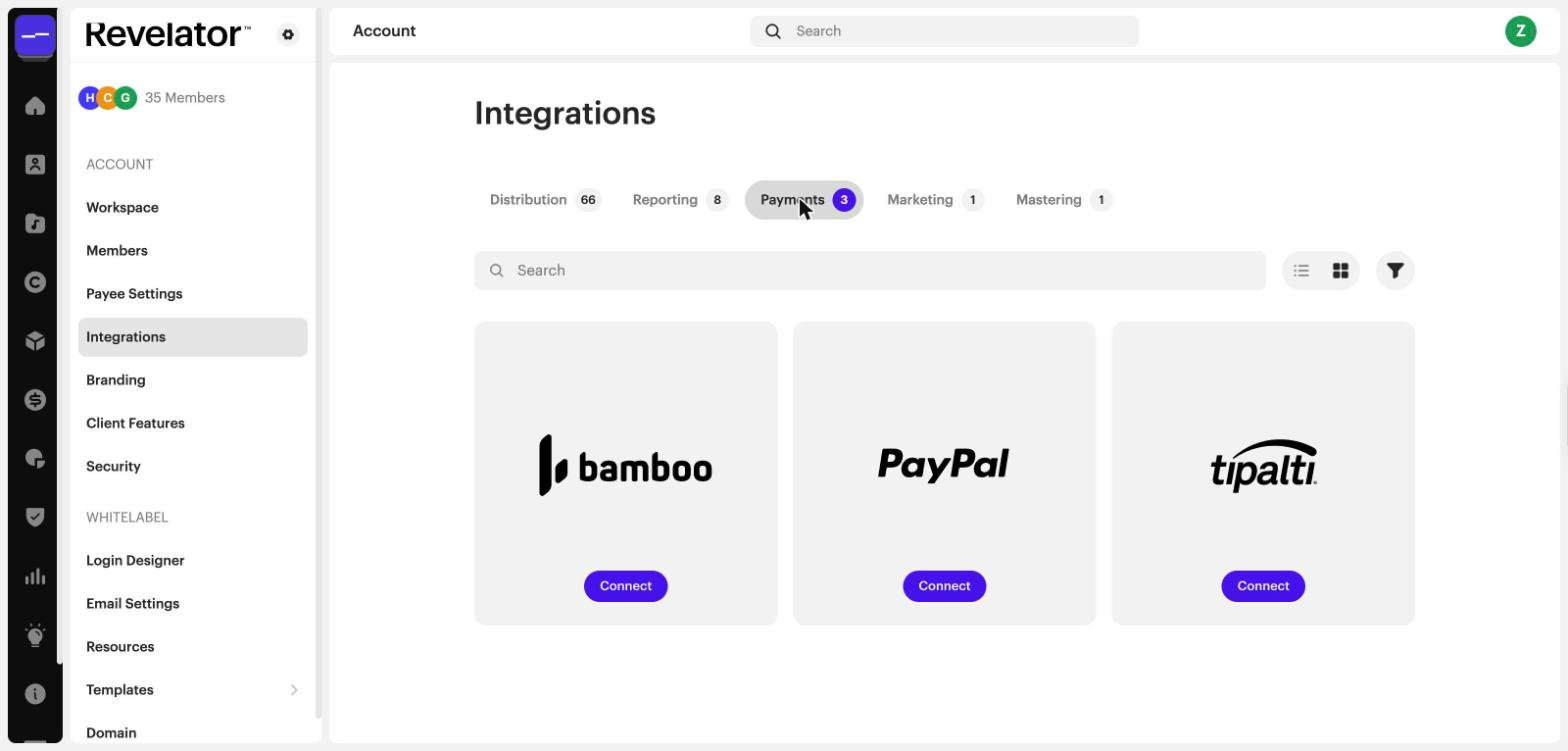
| Note Payees can only choose PayPal as their payment method once your PayPal integration is connected. |
Step 2: Review the payees to pay
- Go to Royalties → Review & Pay.
- Review the list of payees and their balance due.
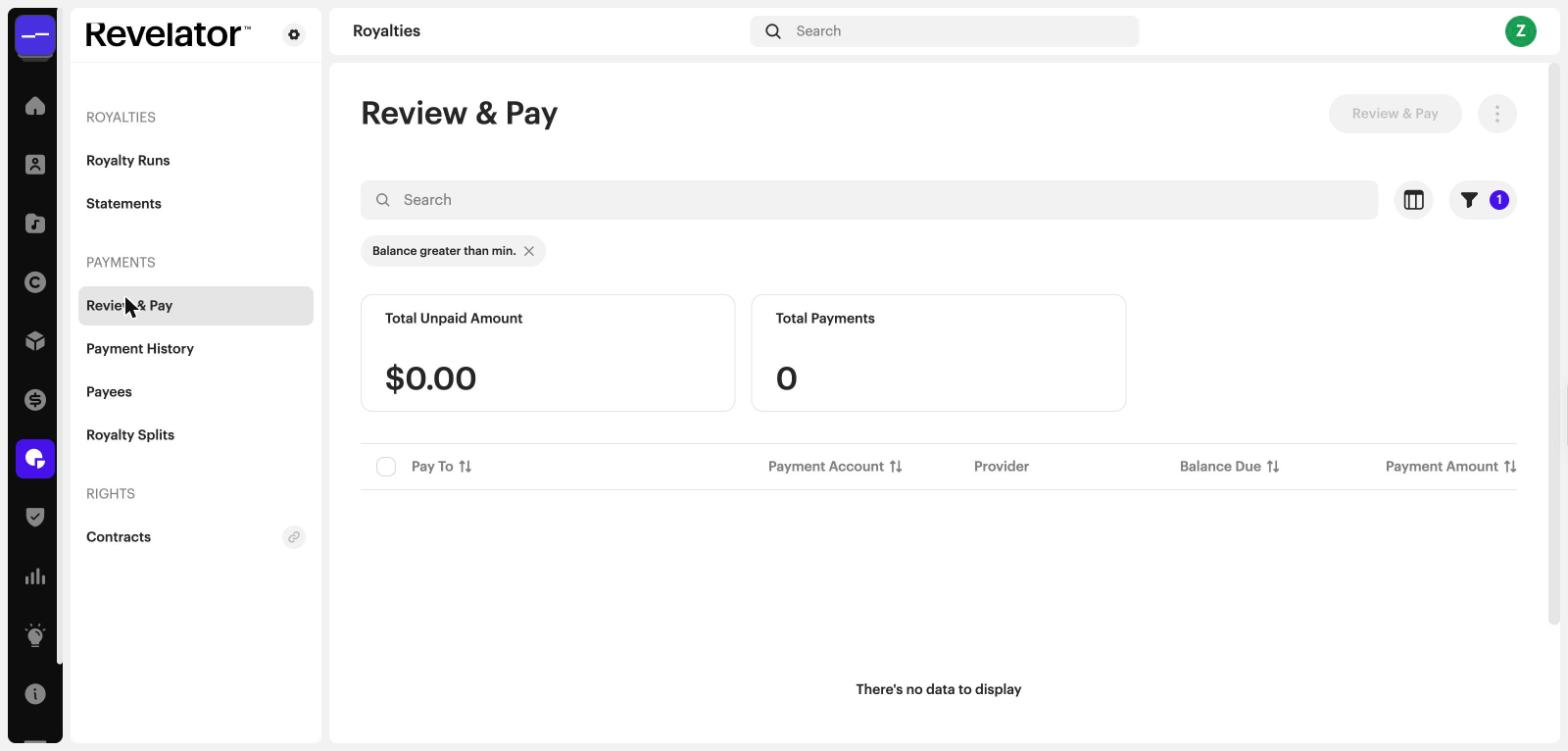
Which payees appear:
- Only payees who have a payment method set up appear on this page. Payees who weren't invited to the payee portal, or who don't have a payment method, don't appear.
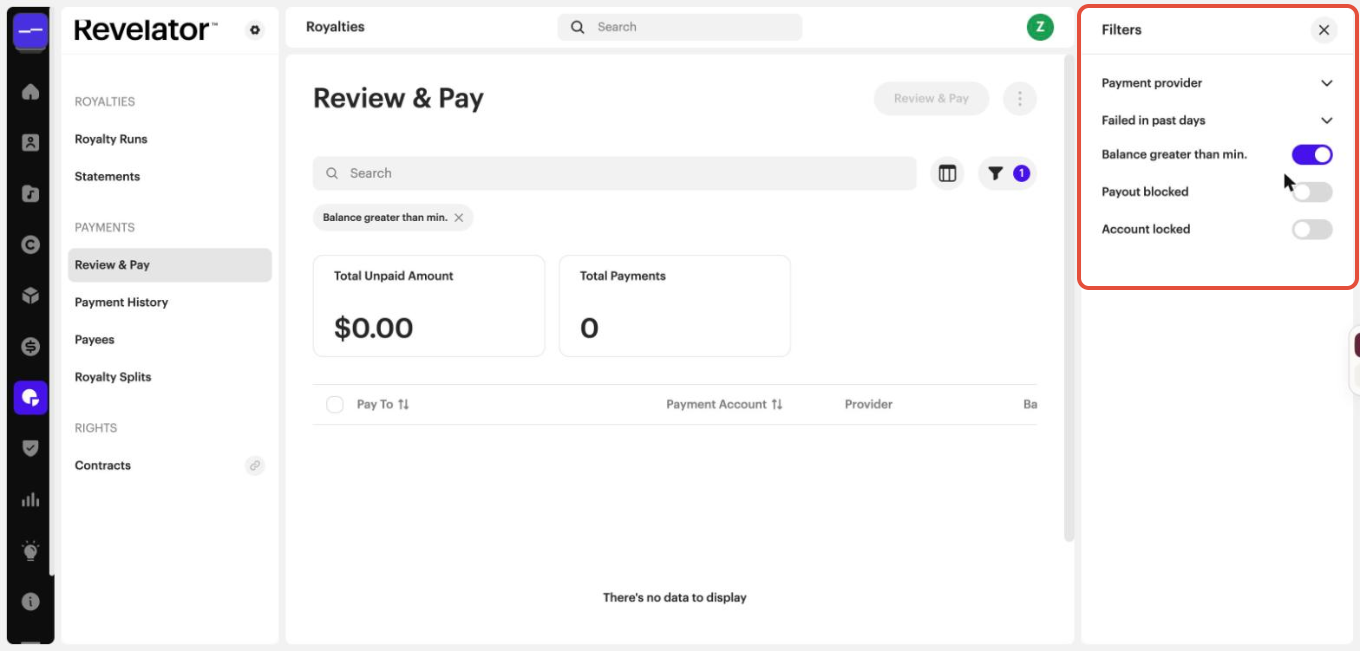
- By default, the Balance greater than min. filter is on, and the Payout blocked and Account locked filters are off. So the page shows payees whose balance is above their minimum payment threshold, whose payouts aren't blocked, and whose account isn't locked.
- To change this, click the filter icon. You can also filter by Payment provider and Failed in past days.
Step 3: Pay the payees
- Select the payees you want to pay, then click Review & Pay.
- In the Review & Pay window, check the payee details and Balance Due.
- Check the Payment Amount and Process Date. You can add a Subject and Notes.
- Click Send Payment.

| Note You pay a payee's balance. Paying in Revelator creates the payment transaction automatically, so the payee's balance goes down by the amount you paid. After a full payment, the payee's balance is zero. |
Step 4: Find your payments
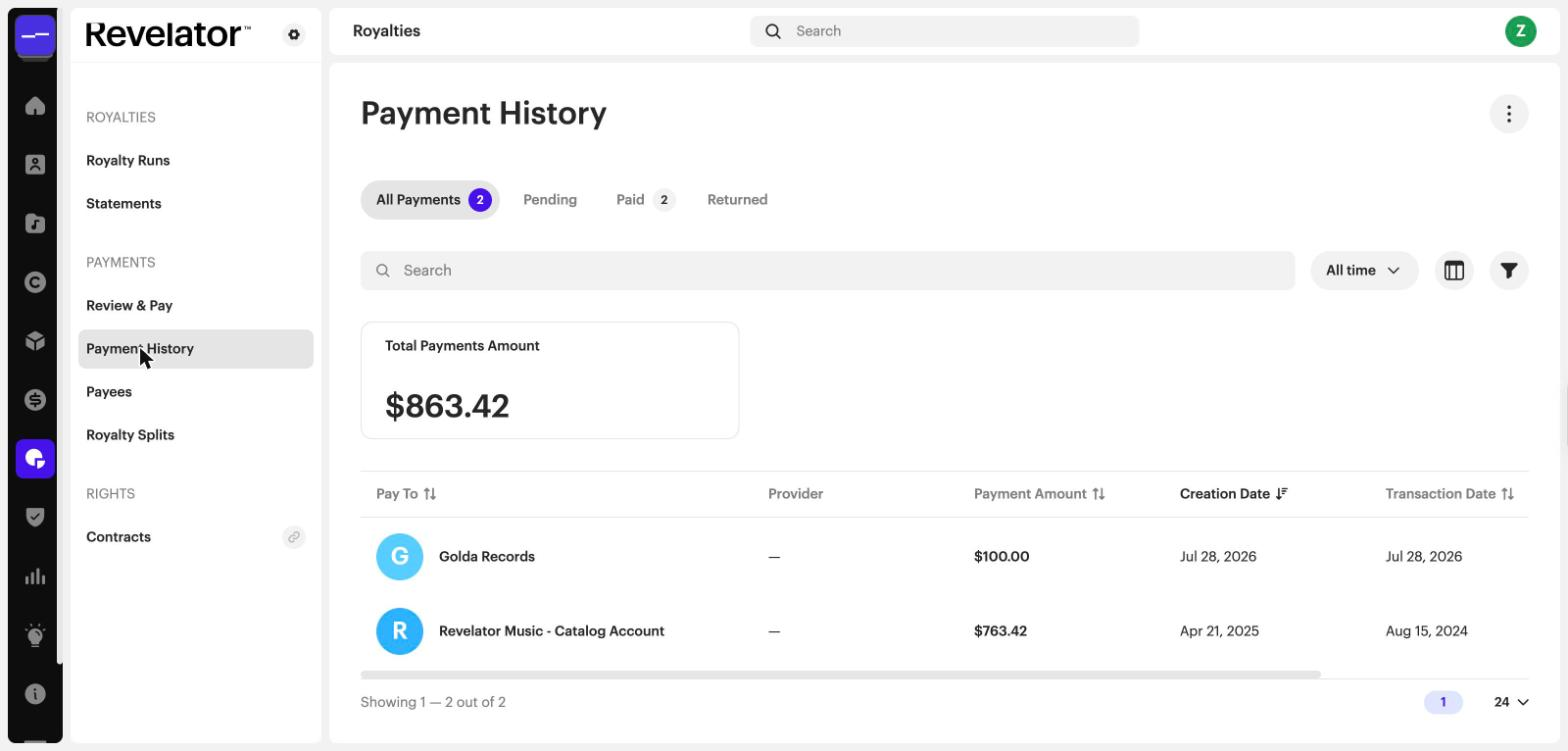
Your payments appear in Royalties → Payment History and on the payee's Transactions page.
- Use the tabs to filter: All Payments, Pending, Paid, or Returned.
- Click the filter icon to filter by Payment provider.
Frequently asked questions
Which payees does the Review & Pay page show by default?
Payees with a payment method whose balance is above their minimum payment threshold, whose payouts aren't blocked, and whose account isn't locked. Change the filters to see other payees.
Do I pay individual statement amounts?
No. You pay a payee's balance.
Where do my payments appear after I click Send Payment?
In Royalties → Payment History and on the payee's Transactions page.
Related articles
Was this article helpful?
That’s Great!
Thank you for your feedback
Sorry! We couldn't be helpful
Thank you for your feedback
Feedback sent
We appreciate your effort and will try to fix the article