Bamboo lets you send payouts through local bank transfers across supported countries in LATAM, with additional territories available. For labels and distributors paying artists in local currencies, Bamboo helps reduce reliance on international wires, supports local payout methods like Pix in Brazil, and brings more flexibility to cross-border payouts.
Explore Bamboo's Supported Countries
Once enabled, Bamboo becomes an additional payment option inside Revelator's existing Review & Pay workflow, helping simplify payments and expand regional coverage.
Before you start
|
Bamboo onboarding
Before using Bamboo in Revelator, your business will need to complete Bamboo's onboarding and compliance review.
To begin onboarding, contact Bamboo at revelator-onboarding@bamboopayment.com
This typically includes:
- A short discovery call with Bamboo to review payout corridors, business structure, and payout flows
- A compliance onboarding process where Bamboo may request standard business verification documents
- Account approval and activation by Bamboo before payouts can be processed
Need more detail? Review the Bamboo Partner Onboarding Guide.
| Note Compliance review timelines and documentation requirements are managed directly by Bamboo. |
Important
|
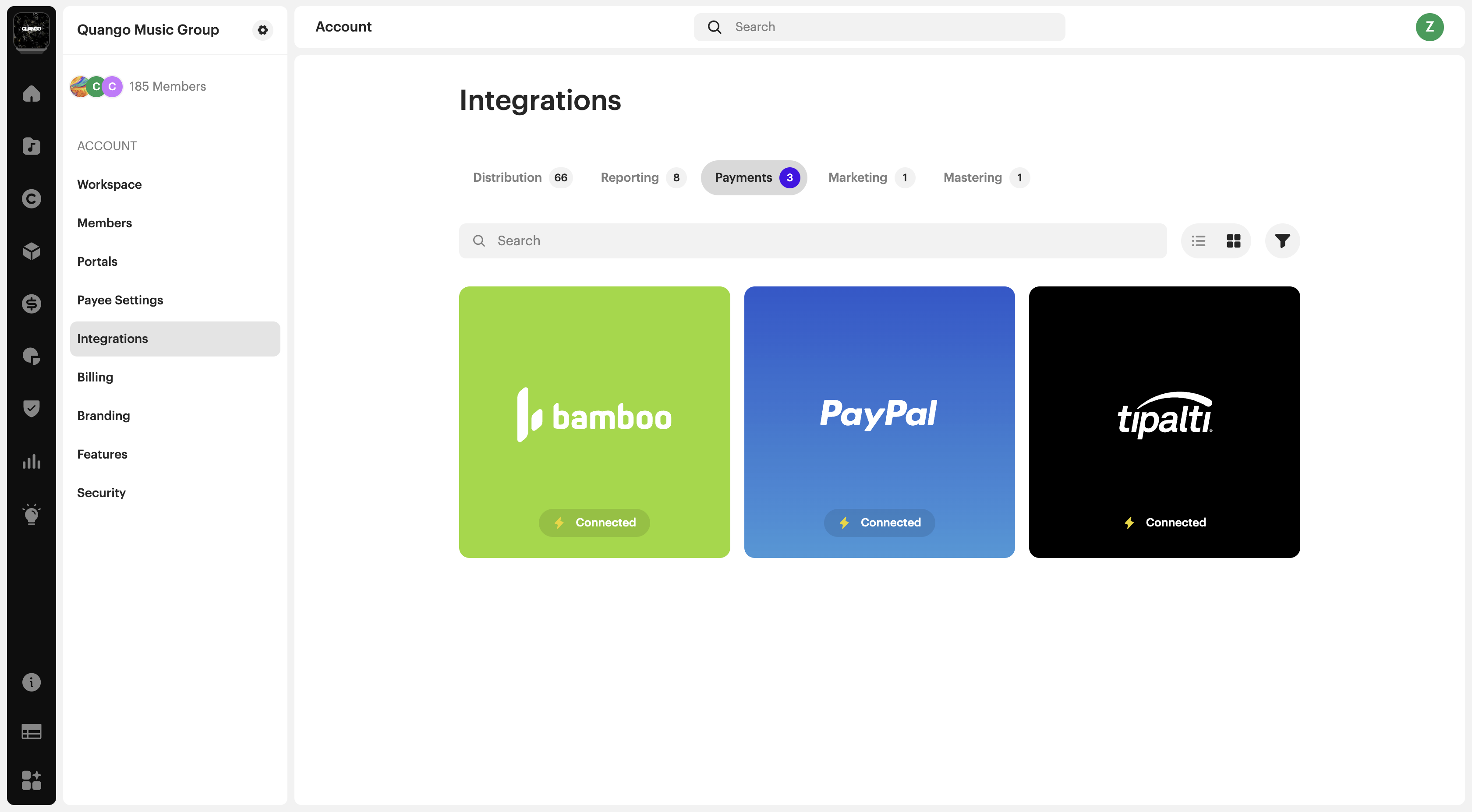
Enable Bamboo in integrations
- Go to Settings → Integrations
- Open the Payments tab
- Select Bamboo, and click Connect
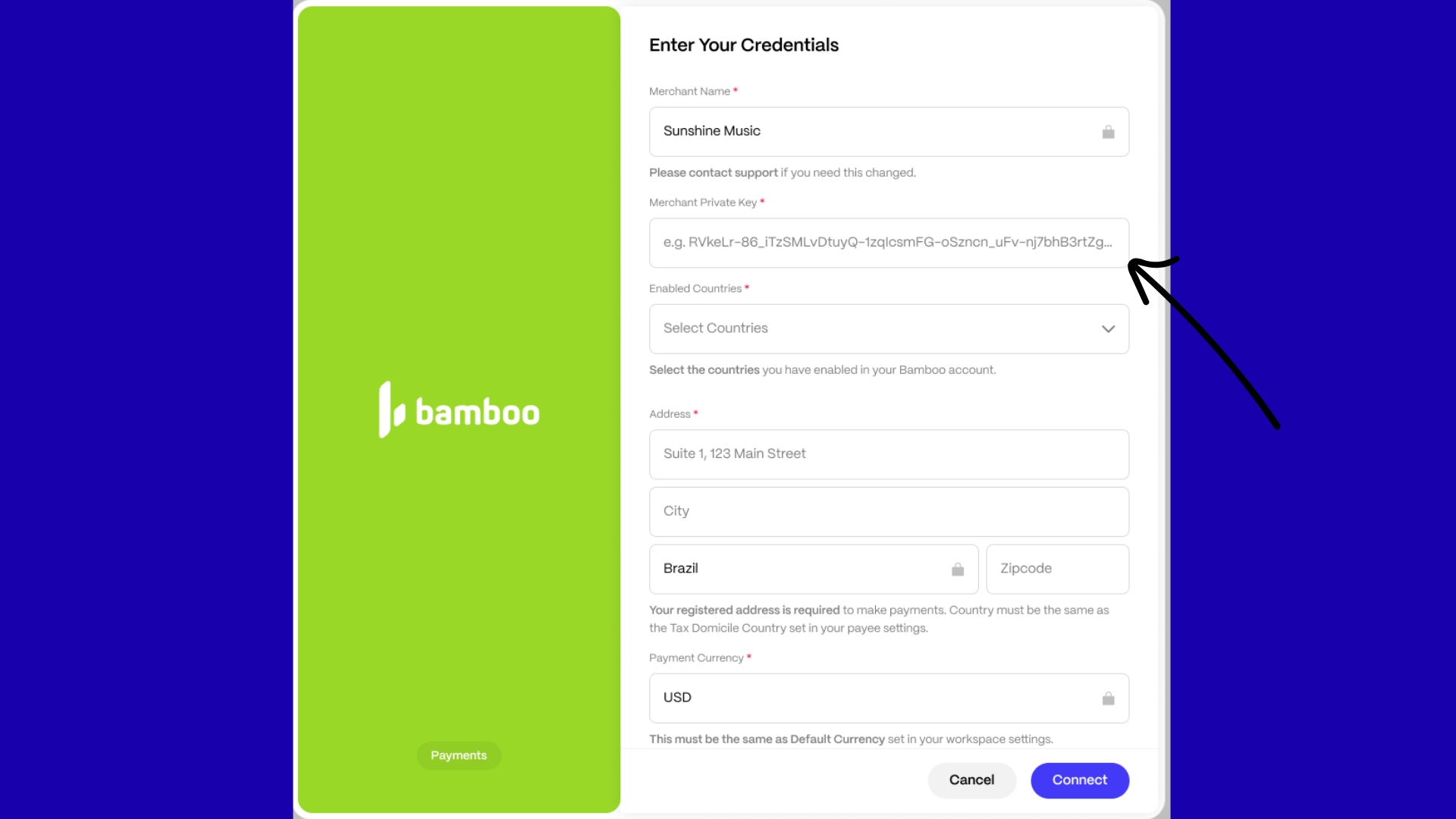
Complete Bamboo setup
Please input your:
- Merchant Private Key (provided by Bamboo when setting up your account)
- Business address details
- Enabled countries
- Payment currency (locked to your workspace default currency)
Some fields are pre-filled and cannot be edited:
- Merchant Name (must match your workspace name)
- Country (must match your tax domicile country)
- Payment Currency (matches the default currency for statements)
Enable supported payout countries
Select the countries where you want to pay payees.
Only enable countries supported in your Bamboo account. These countries will be available for your payees to add their local bank account details.
If a country is enabled in Revelator but not in Bamboo, payments may fail.
Set Bamboo as the default payment method for payees
Once Bamboo is enabled for your payees, they can see and add Bamboo as their default payment method.
From either a payee portal or a client dashboard
- Go to Payee Settings
- Open the Default Payment Method, and select Bamboo
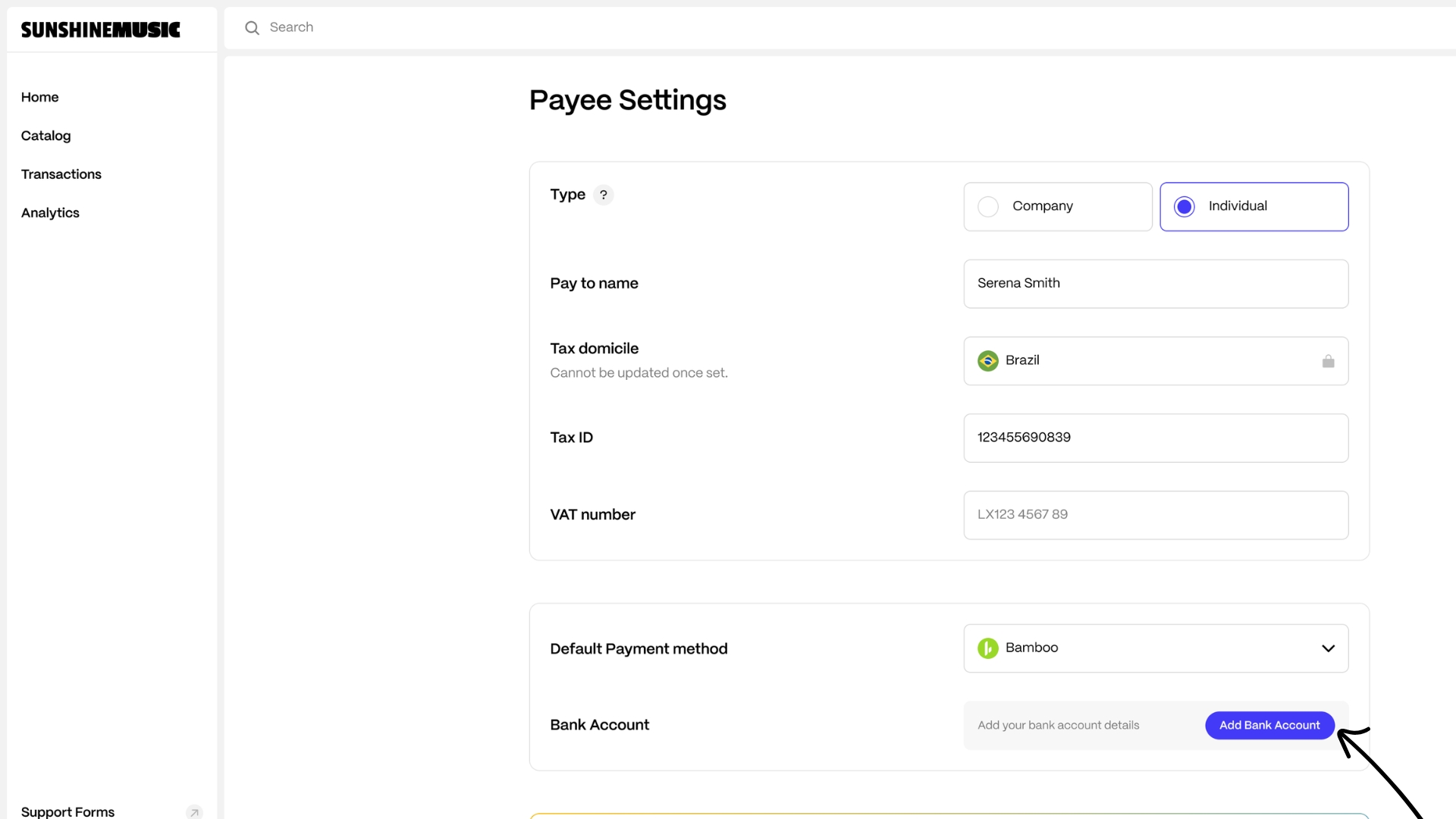
Add bank account details
Payees can add their bank account details directly in Revelator.
Required fields will vary by:
- Country
- Individual or Company payee type
- Payment method supported in that country
Depending on territory, payees may see:
- Country-specific identity document requirements
- Bank account number and SWIFT/BIC fields
- Pix Key (Brazil)
- Bre-B (Colombia)
| Tip All input fields include built-in validation to help reduce errors. Payees can update their bank account details at any time for future payouts. |
Submit payments through Review & Pay
Once statements are approved:
- Open Review & Pay
- Select payments assigned to Bamboo
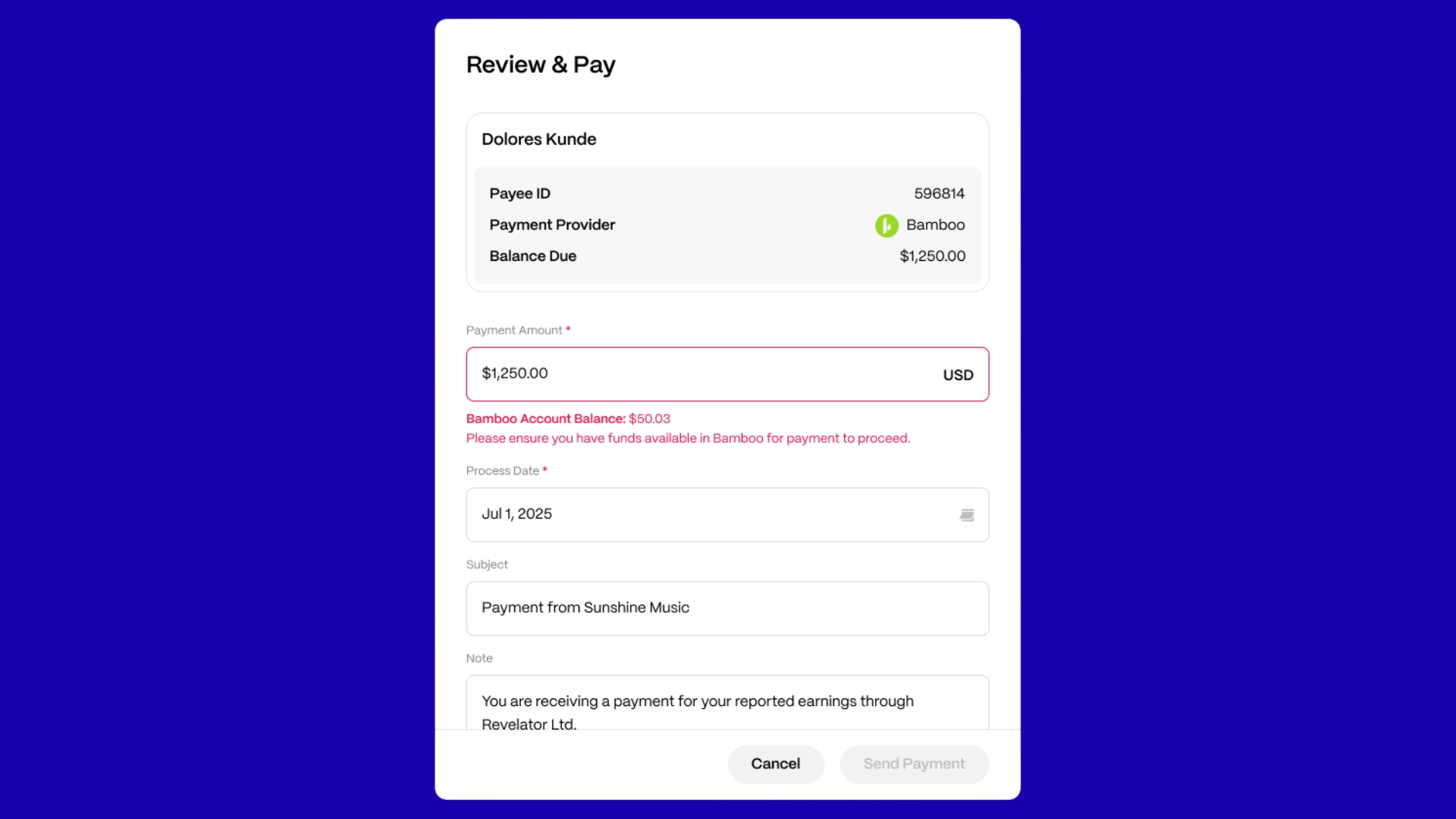
- Review payment details, and ensure your Bamboo account balance has enough funds.
- Click Send Payment
Live balance validation
Before payment submission, Revelator checks your available Bamboo balance.
If funds are insufficient:
- Payment will be blocked
- You'll need to top up your Bamboo balance first
This helps prevent failed payments before submission.
FAQ
Can I use Bamboo alongside other payout providers?
Yes. Bamboo can be used alongside other supported payout providers in Review & Pay.
Can payees edit bank information later?
Yes. Payees can update payment details for future payouts.
What happens if my Bamboo balance is too low?
Revelator will prevent submission until sufficient funds are available.
Does Revelator convert currencies?
No. Currency conversion, where supported, is handled by Bamboo.
Do I need to complete onboarding with Bamboo first?
Yes. You must complete Bamboo's onboarding and compliance approval before payouts can be submitted through Revelator.
Is Bamboo a free service?
No. Bamboo fees apply based on your agreement with Bamboo. Commercial terms are discussed directly with Bamboo during onboarding.
Why use Bamboo?
Bamboo supports local payout methods, including bank transfers and Pix in Brazil, helping reduce wire fees, minimize conversion costs, and simplify payouts for artists and collaborators in supported markets.
Was this article helpful?
That’s Great!
Thank you for your feedback
Sorry! We couldn't be helpful
Thank you for your feedback
Feedback sent
We appreciate your effort and will try to fix the article