You can pay your payees in bulk from Revelator by connecting PayPal Payouts. Here's how to set it up.
Step 1: Get approved for PayPal Payouts
- Contact PayPal to request authorization for bulk payments through the PayPal Payouts API on your account.
- Confirm with PayPal that Payouts is available in your country.

- Select the Business option, not the Platform option.
- Get your Client ID and Client Secret from your PayPal business account's Live API credentials. You'll need both to activate Payouts.

If PayPal doesn't approve your account for the Payouts API, you can still pay your payees through PayPal. See If PayPal hasn't approved your account below.
| Important PayPal doesn't pull funds from your bank account. Before you send payments, transfer enough from your bank account to your PayPal balance to cover them. If your account is approved and you've sent a payment from Revelator, but the payee didn't receive it, first check that your PayPal balance covers the payment. |
| Note Receiving PayPal credentials doesn't mean your account is approved to send payments through the Payouts API. Payouts isn't available in every country or for every account. If you've sent payments from Revelator and they don't appear in your PayPal account, contact PayPal customer support. Ask them to confirm that your account is both enabled and authorized for the Payouts API. |
Step 2: Add your PayPal credentials to Revelator
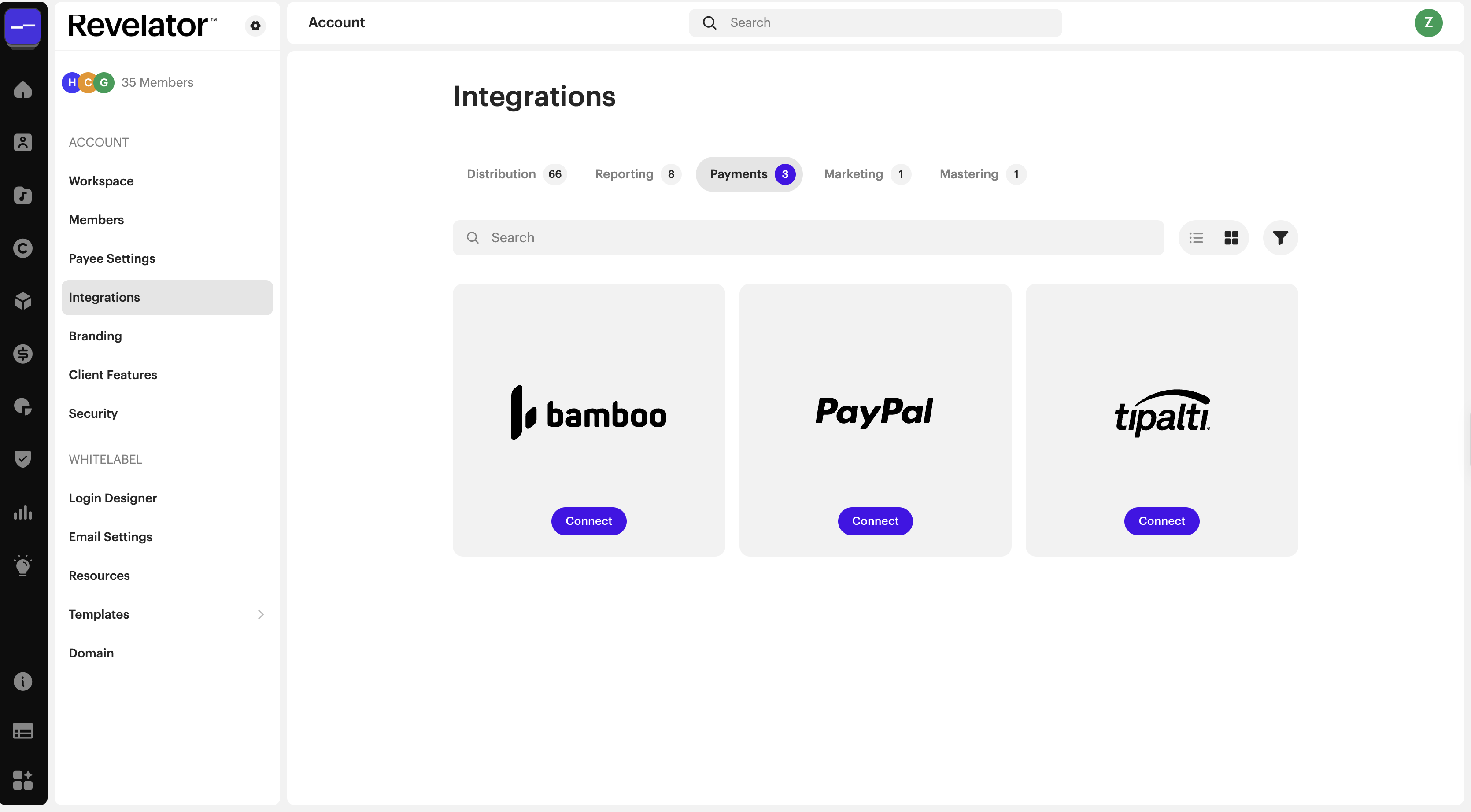
Once PayPal has enabled Payouts on your account, add your Live API credentials to your Revelator account:
- Go to Account Settings → Integrations.
- Select the Payments tab.
- Click Connect.
- Enter your Client ID and Client Secret.
- Click Connect to save.
| Tip You're all set to pay your payees directly from Revelator. |
If PayPal hasn't approved your account
You can still pay your rights holders through PayPal using a batch upload:
- Download your payee report to get each payee's balance: Royalties → Payees → top-right menu.

- Fill in PayPal's batch payment template with the payee balances, on PayPal's website.
- Send the payments from your PayPal dashboard.
- Wait a few days for the payments to finish processing. Some payments may be returned or fail.
- Record the results in Revelator once every payment has cleared or failed. Revelator provides a template for batch importing PayPal payments. Download it from Payments → Transactions → top-right menu.

| Warning If you don't record these payments in Revelator, your payees' balances won't reflect them, and you'll overpay them in your next payment run. |
Related articles
Was this article helpful?
That’s Great!
Thank you for your feedback
Sorry! We couldn't be helpful
Thank you for your feedback
Feedback sent
We appreciate your effort and will try to fix the article