The generated royalty statements aren't visible to your payees in their portals until you approve them. This article covers how to find, approve, and send statements, and what's on them.
| Note Approving a statement doesn't send money. To pay at the same time, use Approve & Pay. |
What's on a statement
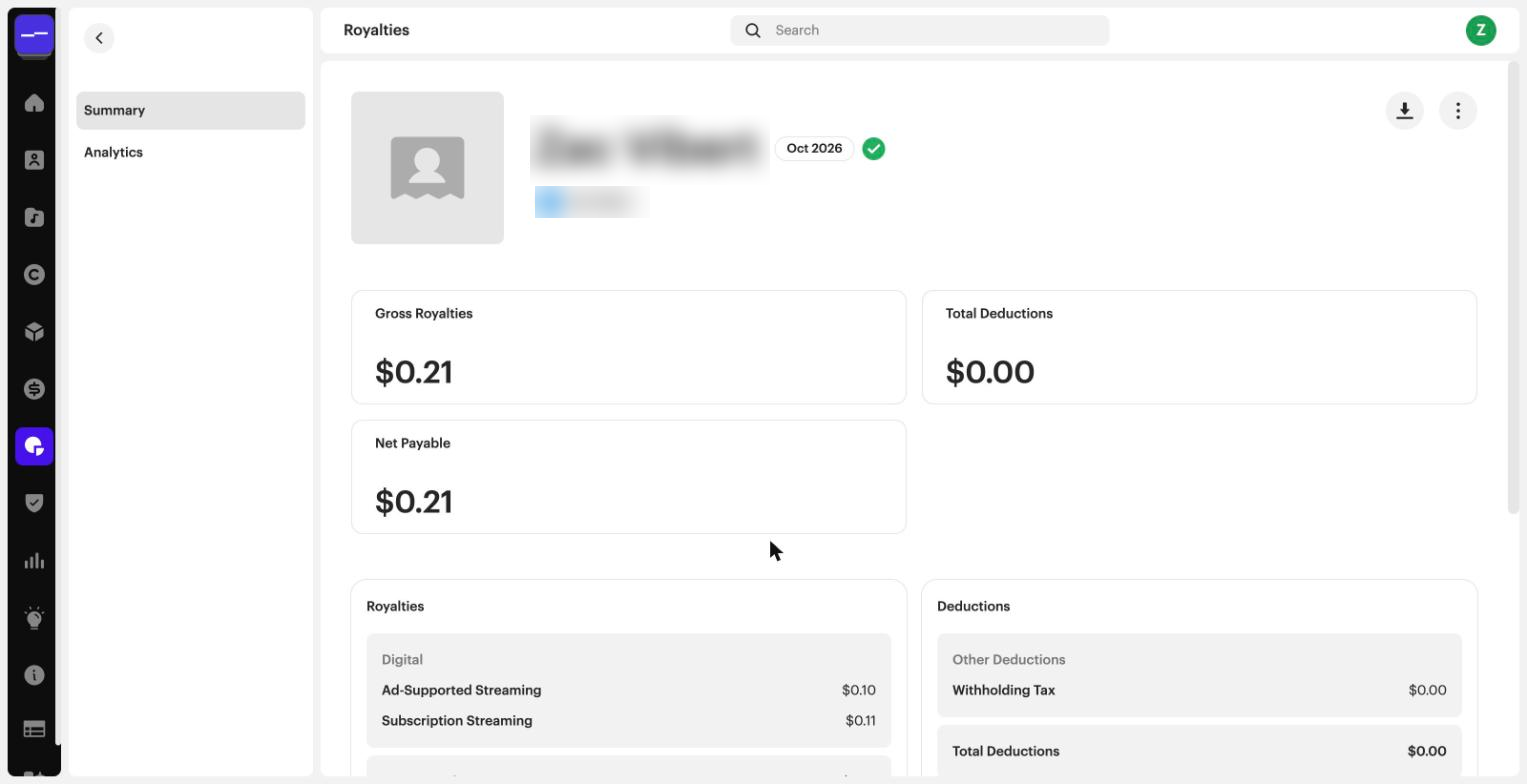
The statement summary shows:
- The header: payee name, statement month, and a green check once the statement is approved.
- Gross Royalties, Total Deductions, and Net Payable.
- A Royalties breakdown by category (for example, ad-supported streaming and subscription streaming).
- A Deductions breakdown, including Withholding Tax.
- Statement Details: statement month, payor, when and by whom the statement was created, and the payee ID.
Statement CSV fields
Each statement comes in two formats: a summary (HTML) and a detailed report (CSV). The statement CSV includes these fields:
- Statement month: the royalty run month.
- Transaction date: the sales month.
- Label, artist, release, track, UPC, ISRC, release ID, track ID
- Format, service, channel, territory
- Payable quantity, gross amount, contract rate, net revenue, your share, amount due
- Opening and closing balance
Step 1: Find your statements
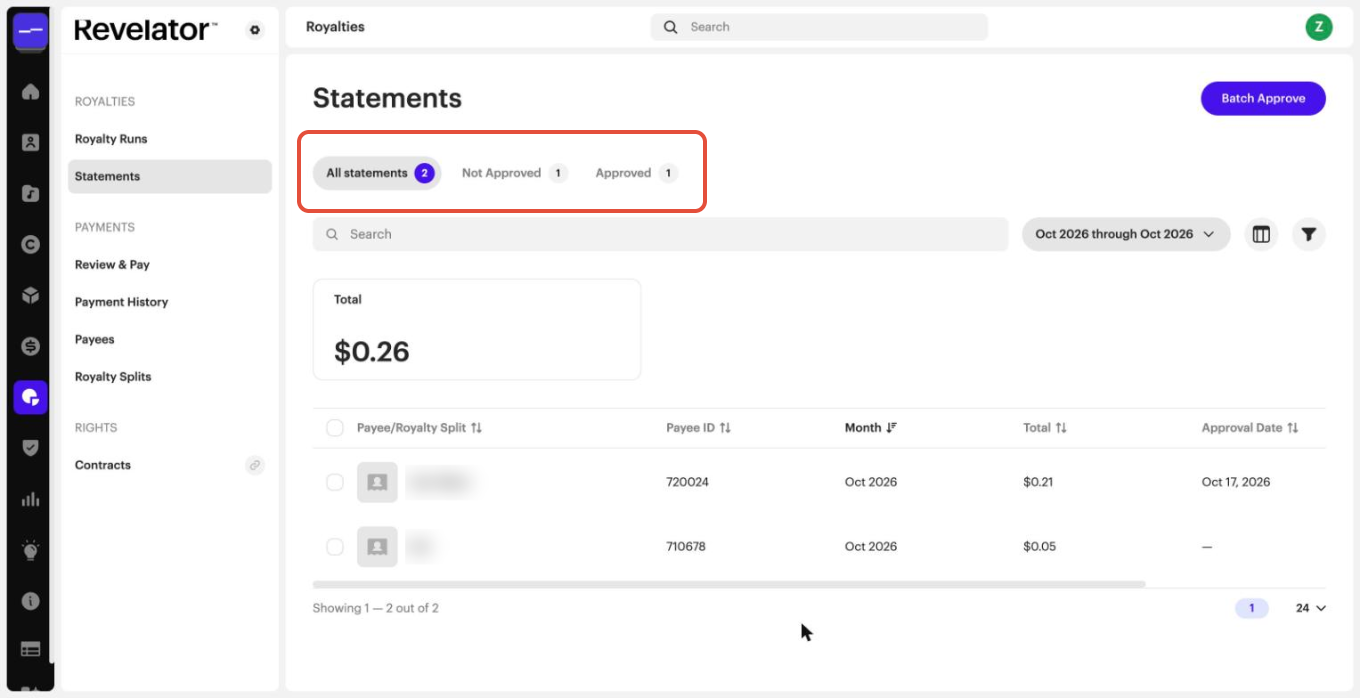
- Go to Royalties → Statements.
- Set the date filter to the month of your royalty run. It shows the current month by default.
- Use the tabs to filter: All statements, Not Approved, or Approved.
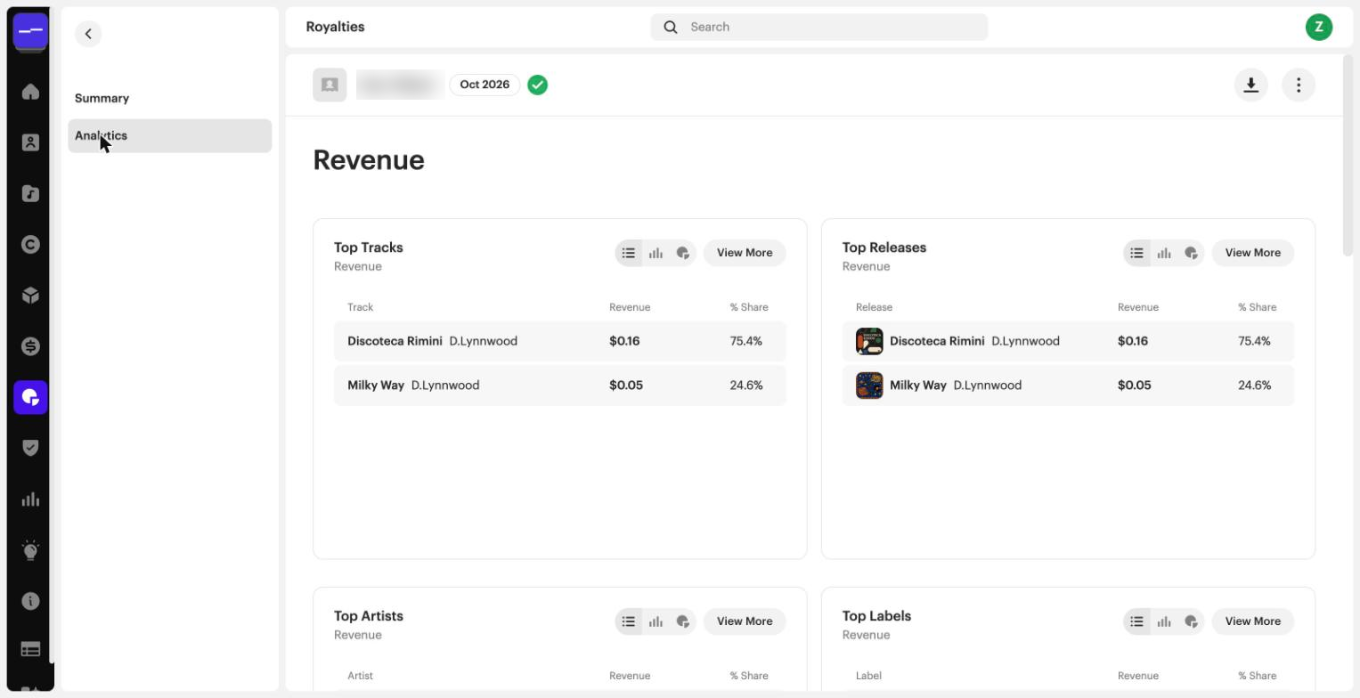
- Click a statement to open it. Each statement has a Summary tab and an Analytics tab. The Analytics tab shows revenue by track, release, artist, and label.
Step 2: Approve statements
Approve in a batch
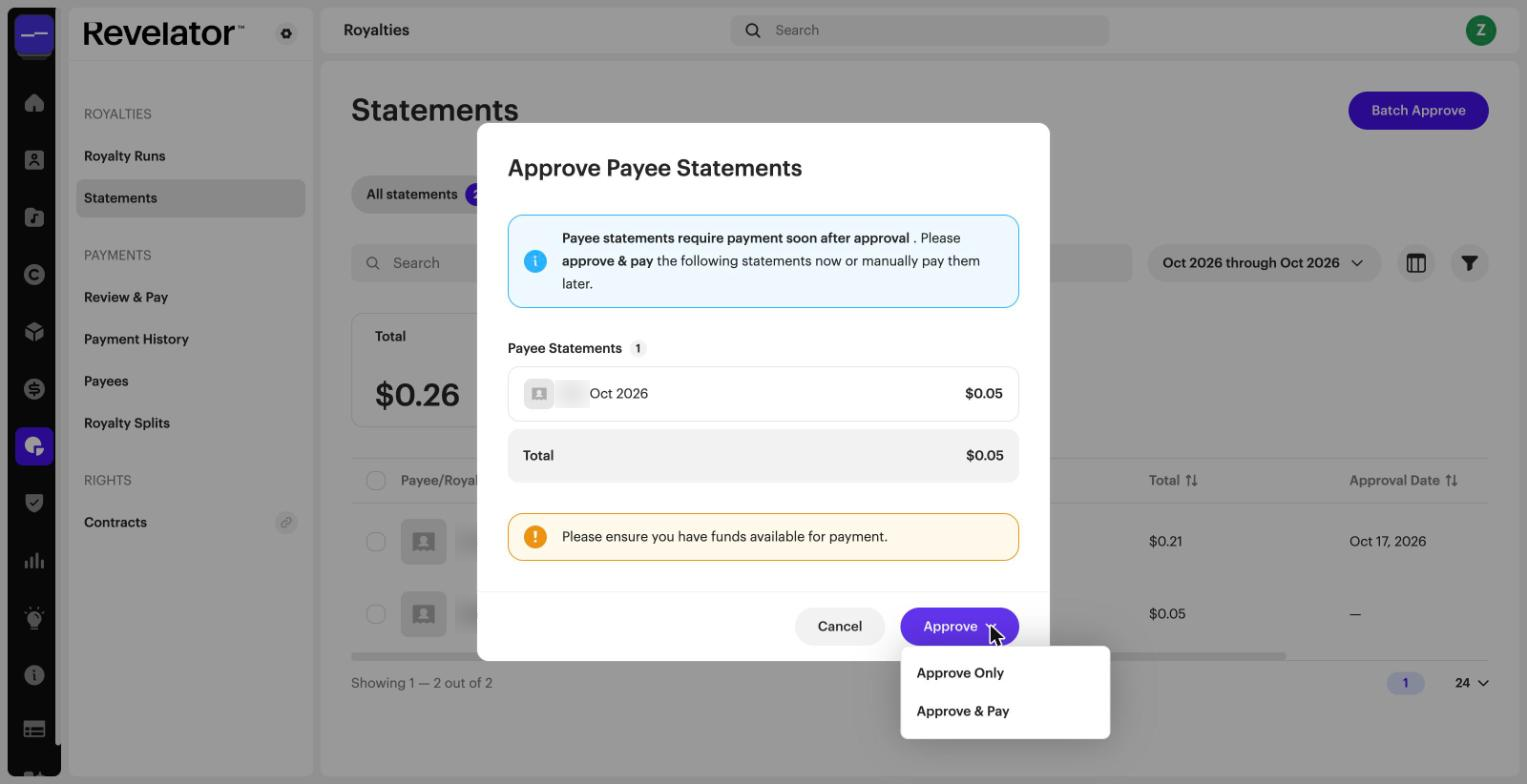
- In Royalties → Statements, click Batch Approve.
- In Approve Payee Statements, check the list of statements and the total.
- Click Approve and choose Approve Only or Approve & Pay.
Approve one at a time
In Royalties → Statements, open the statement's ⋮ menu and select Approve.
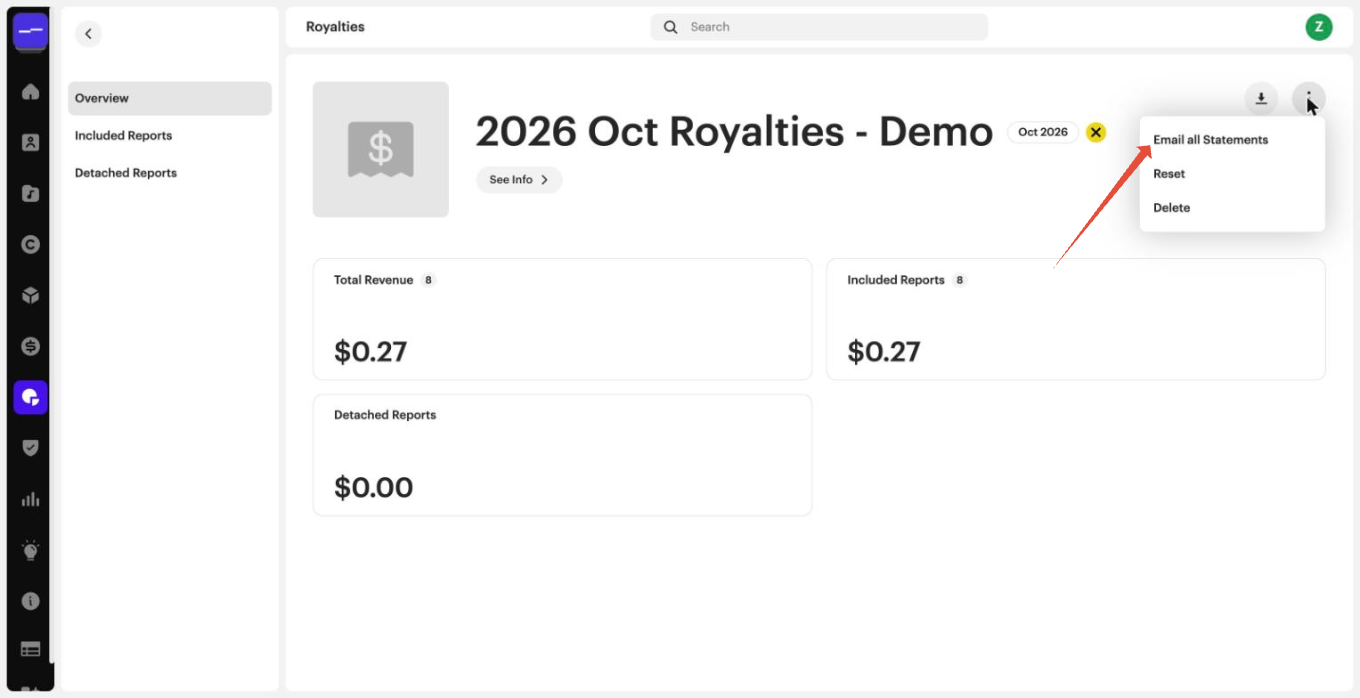
Email all statements from a run
- Go to Royalties → Royalty Runs and click the run.
- Open the ⋮ menu and select Email all Statements.
Step 3: Use statement actions
Open a statement's ⋮ menu in the list to:
| Action | What it does |
|---|---|
| Open In New Tab | Opens the statement in a new browser tab. |
| Approve | Approves the statement (statements that aren't approved yet). |
| Download HTML Summary | Downloads the statement summary (HTML). |
| Download CSV | Downloads the full statement detail (CSV). |
| Resends the statement to the payee (approved statements). | |
| Unapprove | Returns the statement to draft. To change the amounts, fix the cause and reset the royalty run. |
| Delete | Deletes the statement (statements that aren't approved yet). |
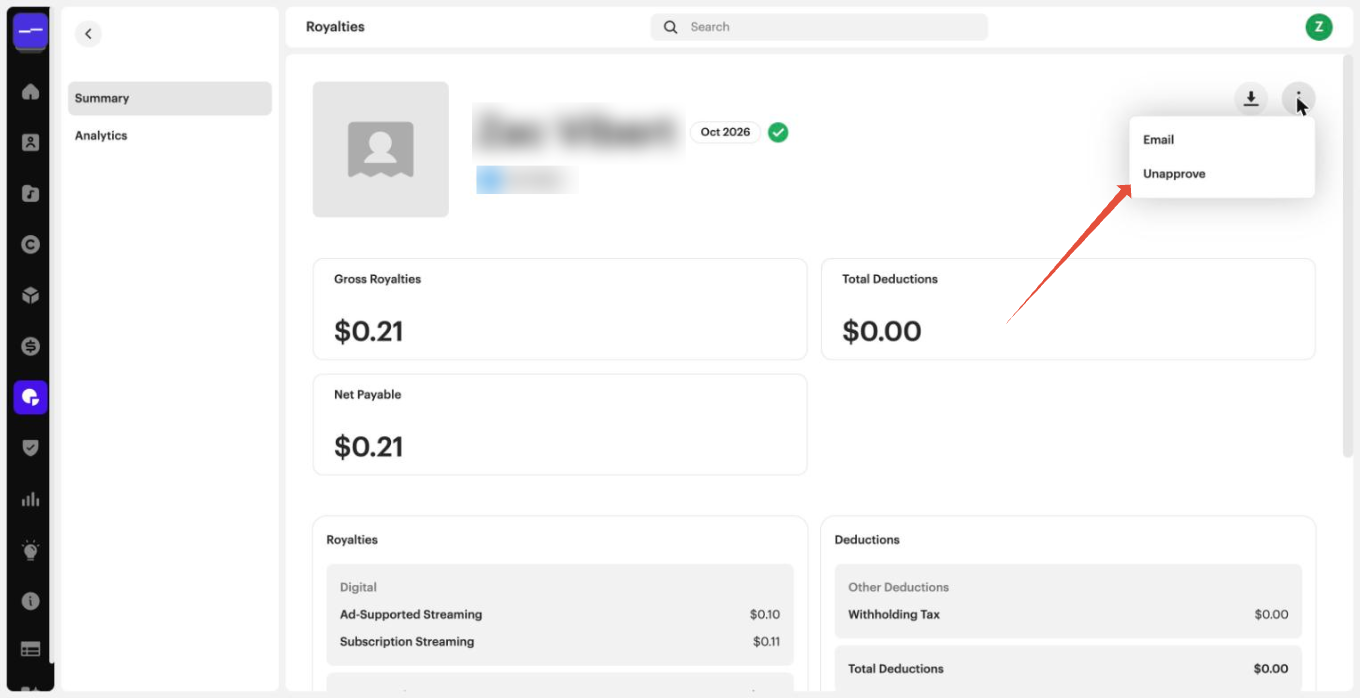
Inside a statement, the download icon has Download CSV and Download HTML Summary, and the ⋮ menu has Email and Unapprove.
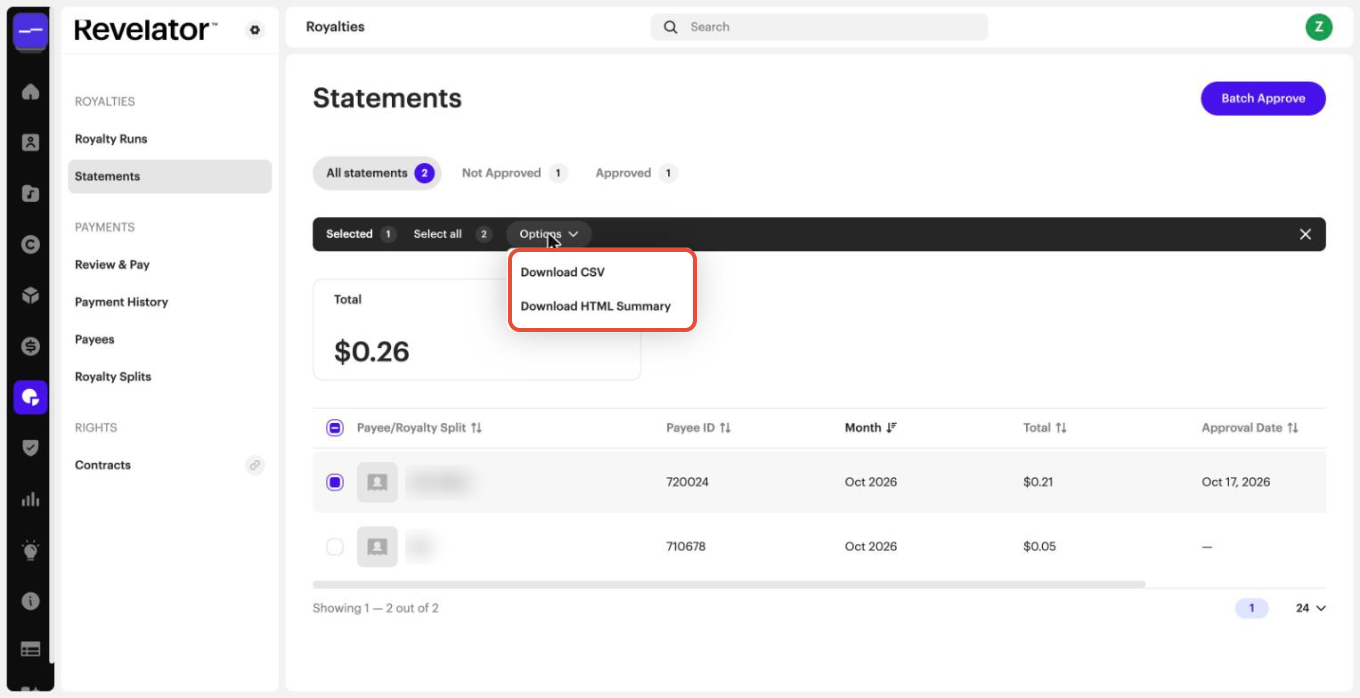
To download several statements at once, select them, then click Options and choose Download CSV or Download HTML Summary. You get a zip file of the selected statements.
Rules and limits
Withholding
The statement summary (on screen and in the HTML download) shows the total Withholding Tax under Deductions.
Troubleshooting
A payee can't see their statement
The statement hasn't been approved yet. Approve it as described in Step 2.
A payee asks why some streams earned nothing
See Unmonetized Streams.
Frequently asked questions
Does approving a statement send money to the payee?
No. Approving adds the total to the payee's balance and makes the statement visible in their portal. Only Approve & Pay also sends the payment.
Can I unapprove a statement approved with Approve & Pay?
No. It can't be unapproved, and the payment can't be undone.
What format are royalty statements in?
Each statement comes as a summary (HTML) and a detailed report (CSV). Statements cover the royalty run month, transaction date, service, channel, territory, payable quantity, gross amount, contract rate, net revenue, and opening and closing balances.
Related articles
Was this article helpful?
That’s Great!
Thank you for your feedback
Sorry! We couldn't be helpful
Thank you for your feedback
Feedback sent
We appreciate your effort and will try to fix the article