Your royalty run may show Unallocated Revenue (a yellow X icon) instead of Completed (a green icon). This means some asset royalty transactions in your revenue reports couldn't be allocated to a payee statement by a contract. This article shows you how to find and fix them.
How unallocated revenue works
The most common cause is that your revenue reports contain transactions for assets that are:
- Not covered by any existing or active contract
- Covered by an existing contract with Missing Terms
- Covered by an existing contract with Duplicate Terms
- Covered by more than one contract with the same Terms
- Expected to be covered by a contract that is Inactive
- Expected to be covered by a label or artist contract that uses All Current & Future Catalog. This option skips catalog that's already on a release- or track-level contract.
- Earning revenue in a territory that the contract's Terms don't cover
Step 1: Download the unallocated revenue report
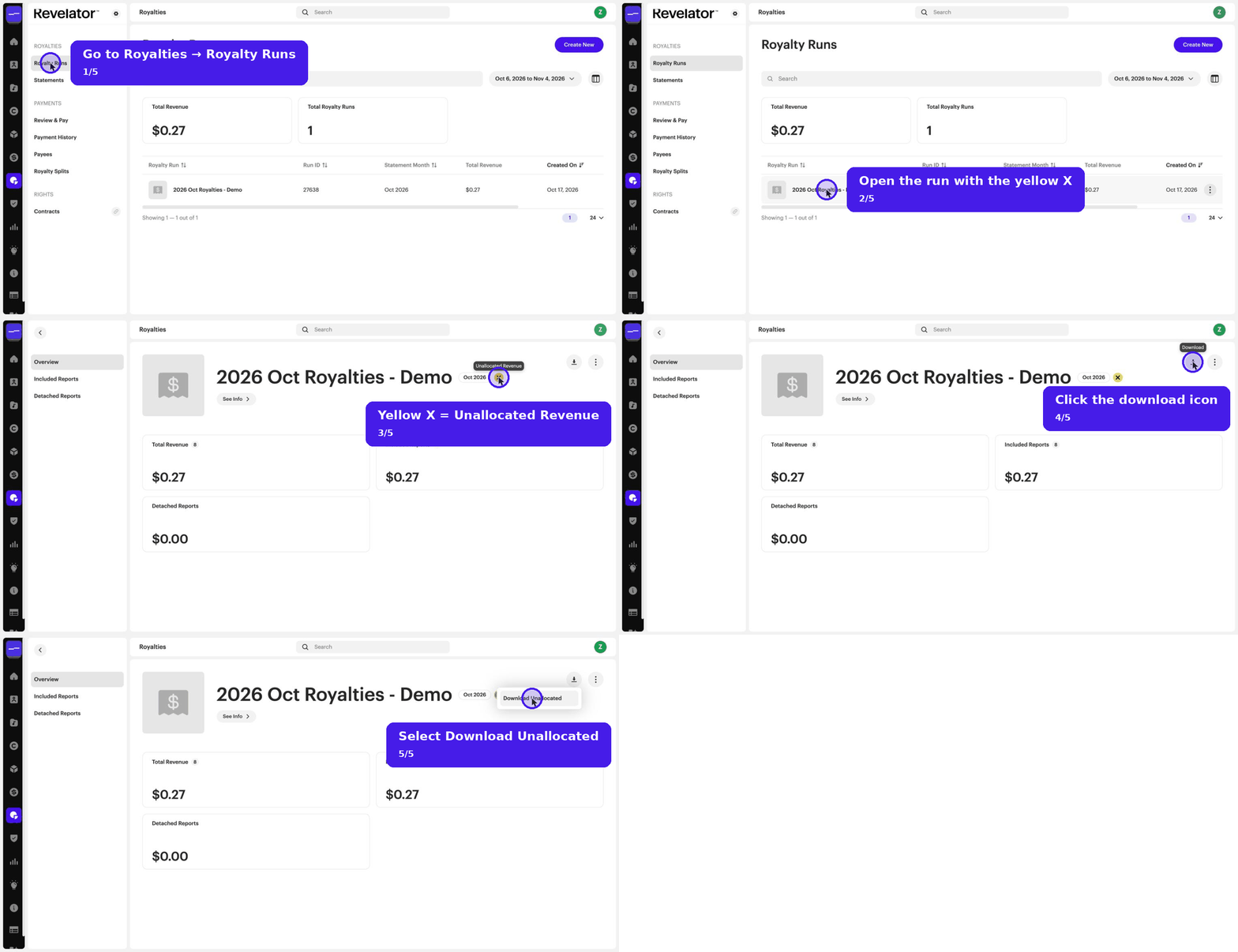
- Go to Royalties → Royalty Runs and open the run that shows the yellow X icon.
- Click the download icon next to the ⋮ menu and select Download Unallocated.
Step 2: Identify the errors
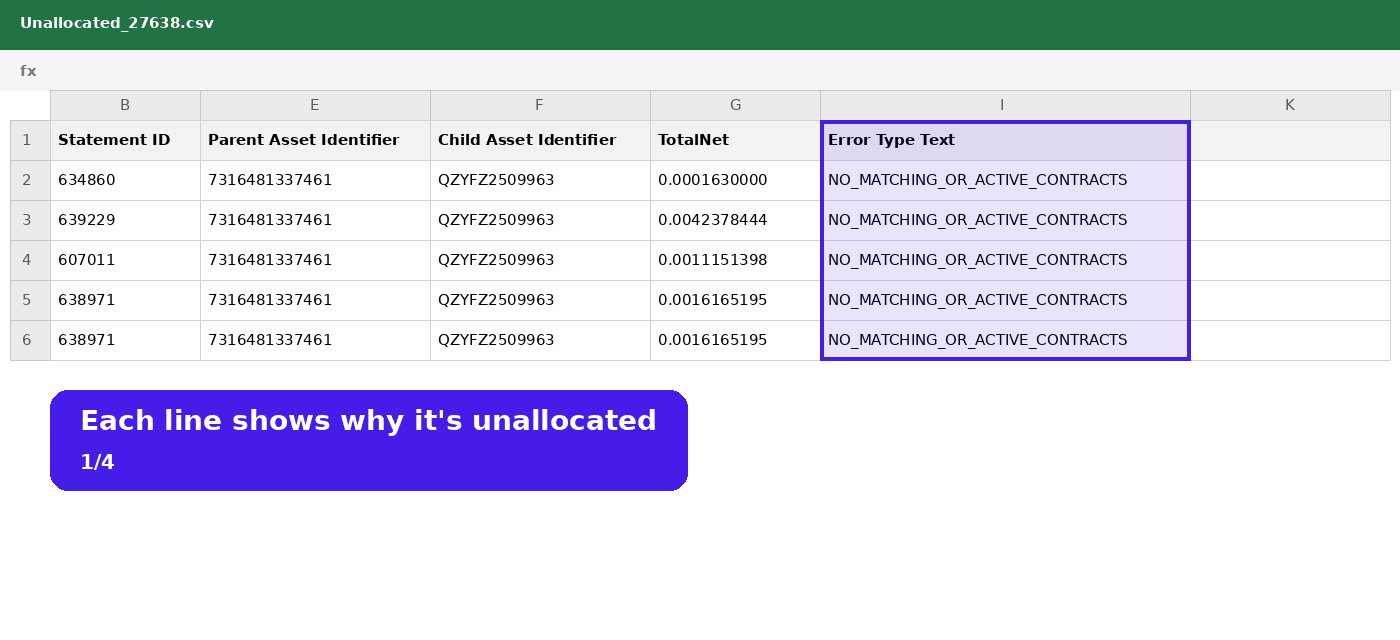
- Open the .csv file in your spreadsheet editor. For each line, the file shows the reason it's unallocated (Error Type Text), the UPC and ISRC (Parent Asset Identifier and Child Asset Identifier), and the source statement ID (Statement ID).
- Find the unique UPCs and ISRCs that need to be addressed.
- Check the unallocated amount. If it's small, it may not be worth resetting the run. If it's large, fix the contracts and reset.
| Tip A single release or track can have a large number of unallocated transactions, but fixing the error fixes all of them. A UNIQUE formula on the identifier column, for example =UNIQUE(F2:F100), is a good way to list the unique UPCs and ISRCs that need to be addressed. |
| Tip Check a payee's contracts. A payee's Contracts tab lists every contract the payee is on. This helps when you're checking which contract should cover an unallocated line. |
| Note Revenue from territories outside your contract terms. Revenue from territories that a contract's Terms don't cover shows as unallocated. To keep this revenue trackable instead, add a Term that routes it to a dedicated payee at 100%, so it gets its own statement. You can also specify the territories directly in the contract's Terms. After a run, check country-level results in Analytics by market and handle any unauthorized revenue with a manual adjustment. |
Step 3: Fix the errors and reset the run
| Important If you've recorded any payments for these statements and need them to show the correct starting and closing balances, either add a reversal transaction for those payments, or send Revelator a list of transactions to delete for you. |
- Correct the errors: add missing contracts, correct Duplicate Terms, Missing Terms, or set the expected contract to Active.
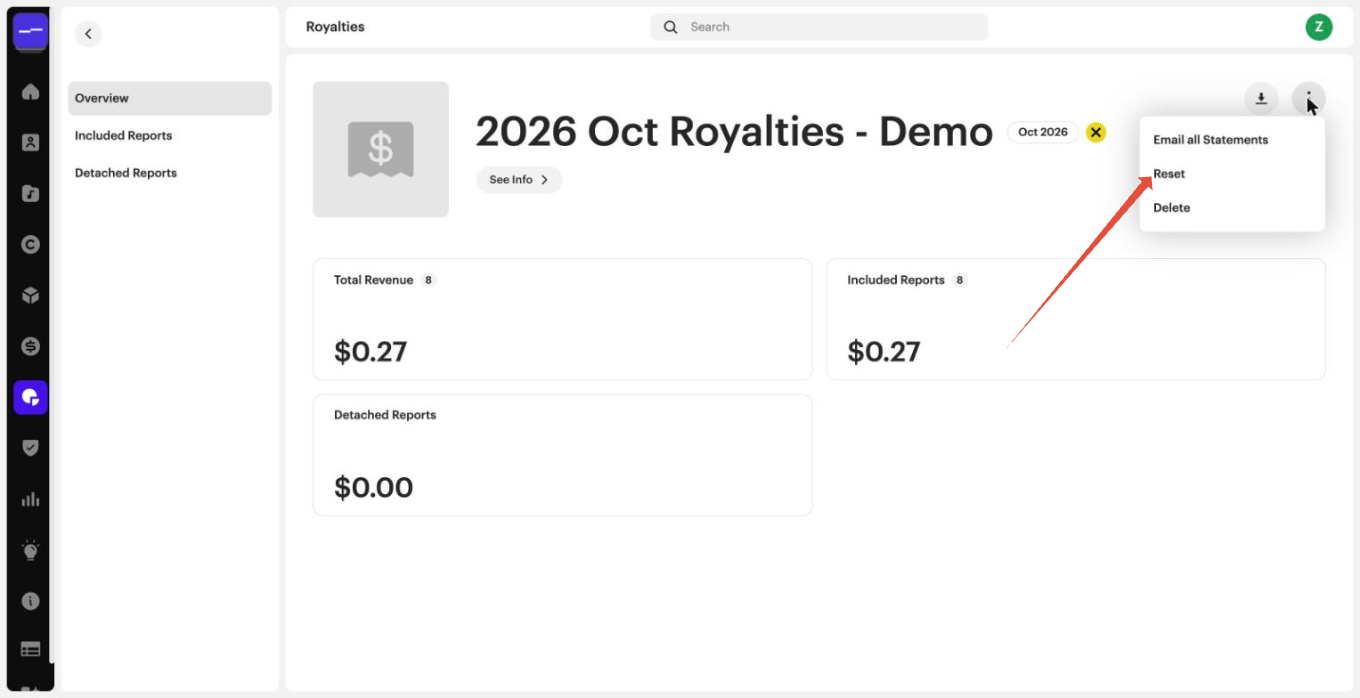
- Open the run's ⋮ menu and select Reset.
- If the run still doesn't show as Completed, check the errors again and repeat these steps.
Frequently asked questions
What does a yellow X icon on a royalty run mean?
Some asset royalty transactions in your revenue reports couldn't be allocated to a payee statement by a contract.
I recorded payments for the statements in this run. How do I keep the balances correct after a reset?
Add a reversal transaction for those payments, or send Revelator a list of transactions to delete.
Related articles
Was this article helpful?
That’s Great!
Thank you for your feedback
Sorry! We couldn't be helpful
Thank you for your feedback
Feedback sent
We appreciate your effort and will try to fix the article