Your Revelator account has two levels. Your Organization is the parent account. It manages the overall relationship. Each artist, sub-label, or client gets its own Workspace, a child account where they create and distribute their catalog. This article explains how the two levels connect and how to control who sees or edits what.
Before you begin
|
Understanding your Organization
Your Organization is the top-level account. From here, you manage account-wide settings, your clients, and all core workflows. Your internal team can reach every section: Catalog, Distribution, Rights, Finance, Royalties, Trust & Safety, Analytics, and Insights Hub.
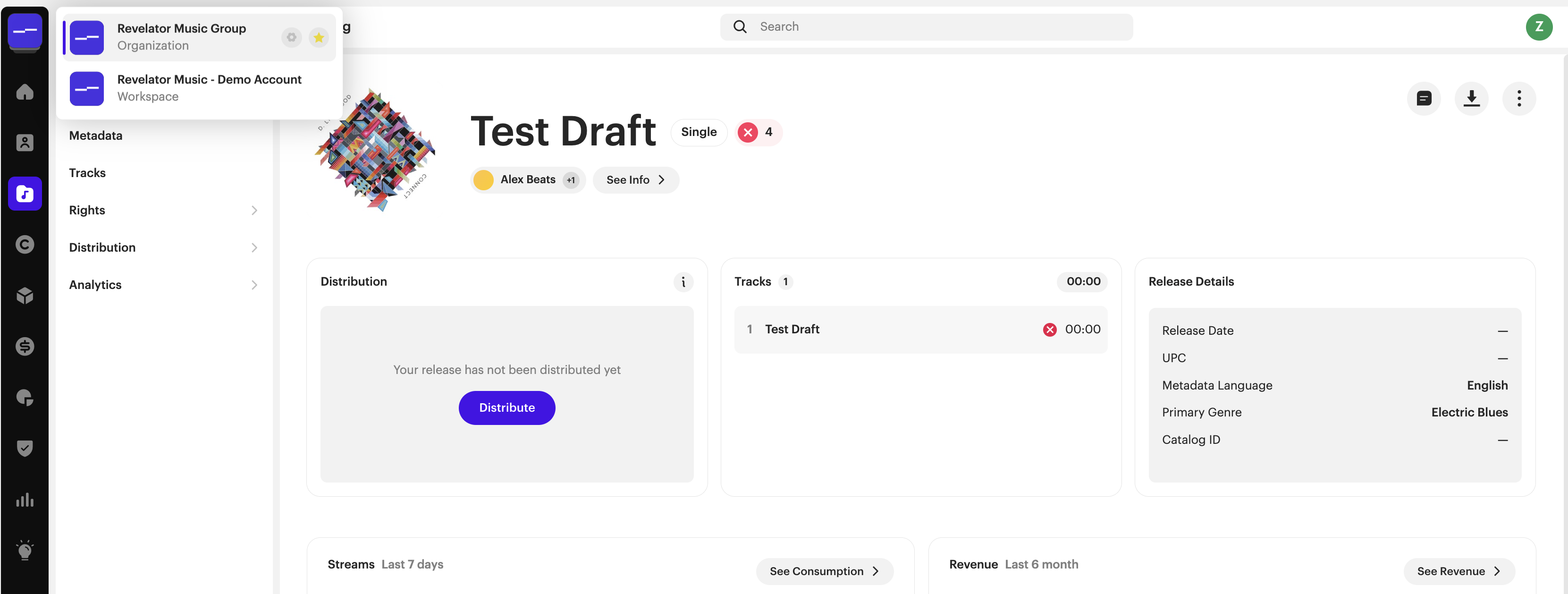
| NoteTo move between your Organization and any Workspace, use the Account Switcher in the top-left corner. |
Team member access levels
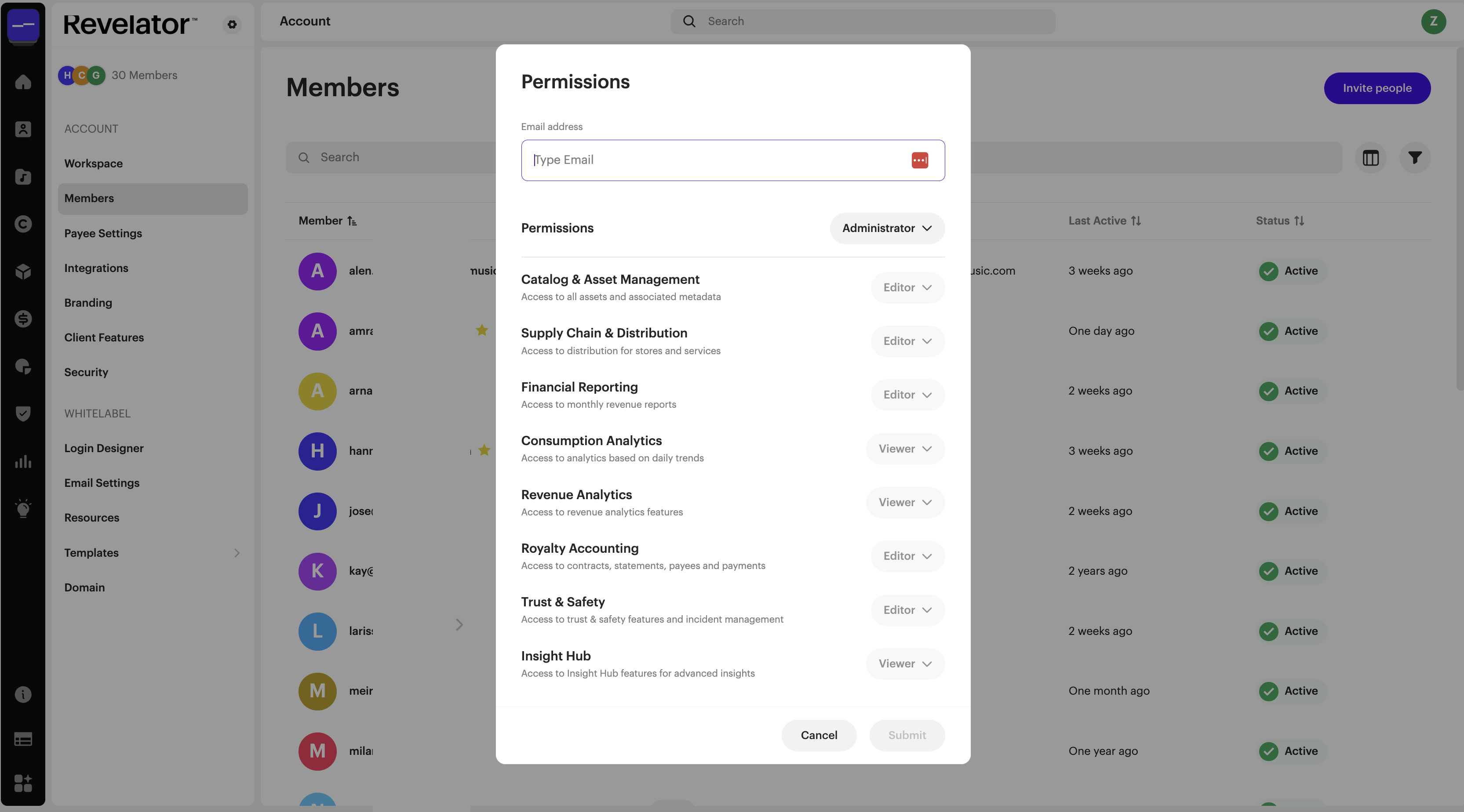
You set permissions one section at a time, so team members get exactly the access they need.
- Go to Account Settings → Team Members.
- Invite your internal staff.
- Assign an access level for each section:
| Access level | What the user can do |
|---|---|
| No Access | The user can't see or open the section. |
| View | The user can see data but can't make changes. |
| Edit | The user can see and modify data in the section. |
| NoteBecause access is set per section, you can give someone Edit access to Distribution and only View access to Royalty Accounting. That gives them supply chain access without financial reporting. |
Client Workspaces
Most of your work in your Organization is managing Clients, the Workspaces that belong to the labels and artists you work with. Clients create a catalog and submit their music to you. You keep full oversight. Their catalog, distribution activity, royalties, and statements are all managed under your Organization.
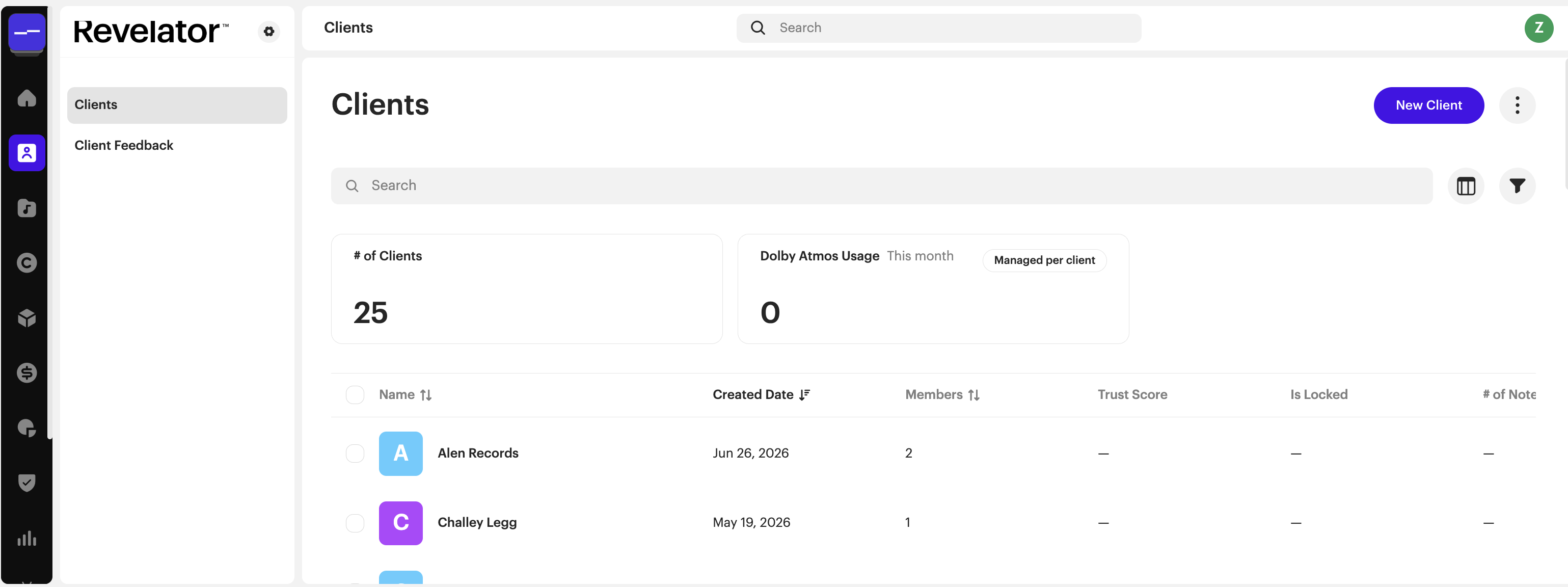
- Go to Clients → New Client to create the Workspace.
- Invite users to that Workspace.
- Assign each user an access level.
Your invited users can now create releases, upload tracks, and submit them for your review.
Each entry in Clients shows the number of members, the Trust Score, the lock status, and any notes you've added. To see all feedback and flags for a Workspace in one place, open Client Feedback.
| NoteClient Workspaces don't have their own branding. Branding and white-label settings are applied at the Organization level. These include your custom domain, login and signup screens, and which features your clients can see. If a client needs a fully branded dashboard of their own (for example, to give to their own artists), they need their own Organization account instead of a Workspace under yours. |
Payee Portals: a different kind of access
Not everyone who needs to see your catalog needs a full Workspace. When you add someone as a payee on a contract, you can invite them to a Payee Portal. It's a dedicated, view-only login where they can see their assets, statements, and analytics. They don't get access to catalog management or supply chain features.
Choose the structure that fits your business
Some customers run a single catalog Workspace for the whole label. Others give each artist or sub-label its own Workspace. Both setups are supported, so choose the one that fits how your business runs.
Related articles
Was this article helpful?
That’s Great!
Thank you for your feedback
Sorry! We couldn't be helpful
Thank you for your feedback
Feedback sent
We appreciate your effort and will try to fix the article