When you create a client, you can set their payout rate and add yourself as an admin in the same flow. Their contract and access are ready from day one, with no follow-up edits needed.
What this means for you
- Faster onboarding: Set financial terms and permissions in one step.
- Less admin work: You don't need to edit contracts manually or follow up afterward.
- Full oversight: Your team has access right away, so you can support new clients from the start.
- Clear terms from day one: Clients start with accurate payout terms and the right admin setup.
How to create a client
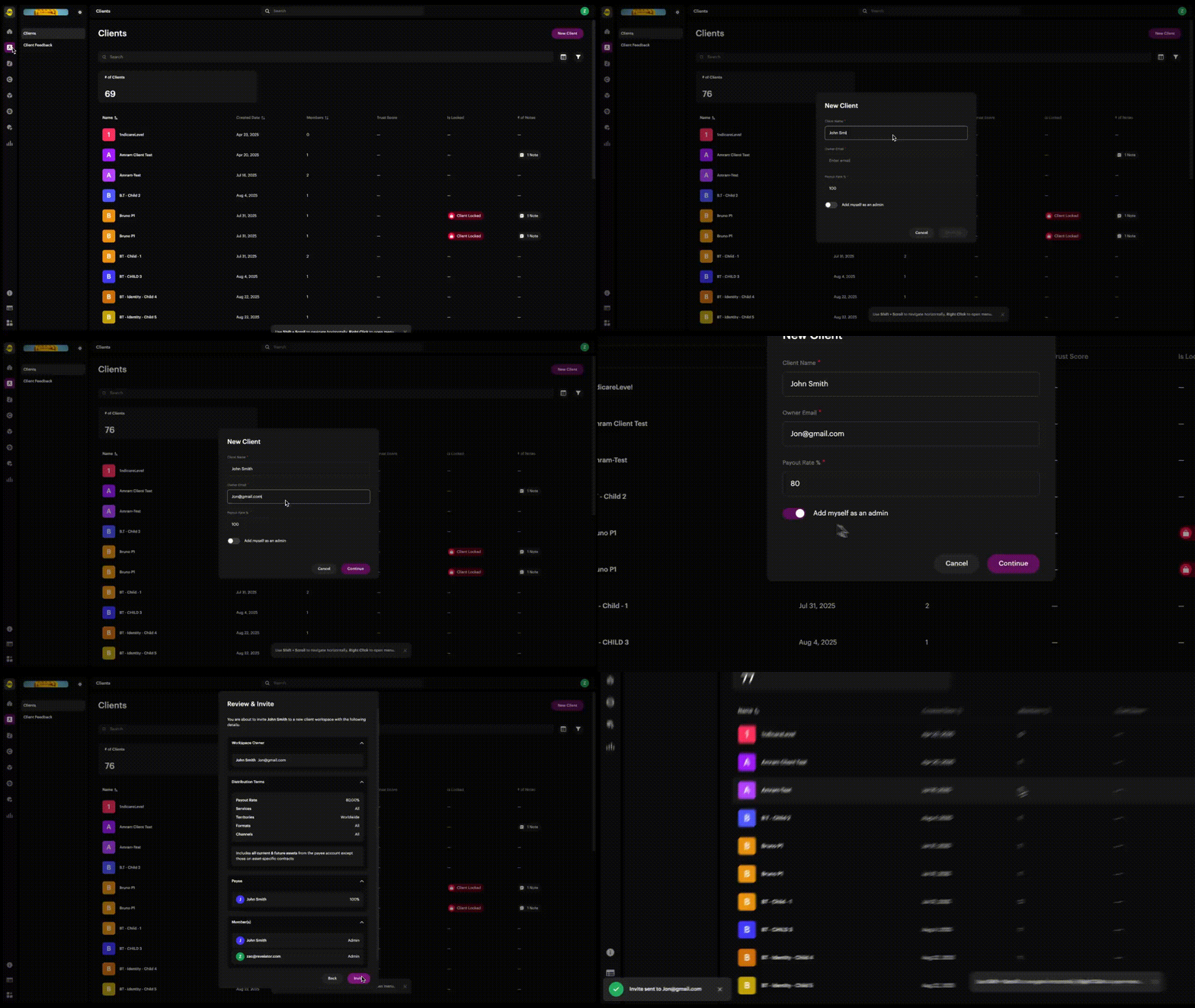
- Go to Clients → New Client.
- Enter the client's details, such as their name and email.
- Set payout rate: Enter a custom percentage to replace your default payout rate. The system generates a contract with these terms automatically.
- Add yourself as an admin: Check the box to add yourself (or your account) as an admin in the client's Workspace.
- Finish setup: Your client receives an invite.
You and your client will appear as admins in the new Workspace.
FAQs
What is the default payout rate?
Each Organization has a default payout rate, for example 100%. You can change it for each client during setup.
Can I change payout rates later?
Yes. You can edit contracts after they're created. Setting the rates during setup saves time and helps you avoid errors.
What does "Add myself as admin" mean?
It adds your Organization's admin as an admin in the new client's Workspace, so you can work together and support your client from the start.
Will clients see these payout terms?
Yes. The generated contract reflects the payout rate you set during setup.
Can I add other admins besides myself?
Not during setup. You can add additional team members later under Members → Invite user.
Was this article helpful?
That’s Great!
Thank you for your feedback
Sorry! We couldn't be helpful
Thank you for your feedback
Feedback sent
We appreciate your effort and will try to fix the article