Royalty Splits (prev. called Track Splits) enables your artists and clients to define how royalties from their tracks are shared with collaborators, directly from within their releases. They can add payees, set split percentages per track, and manage everything themselves without needing your team to do it for them.
Enabling Royalty Splits
Royalty Splits is an opt-in feature. To enable it for your clients:
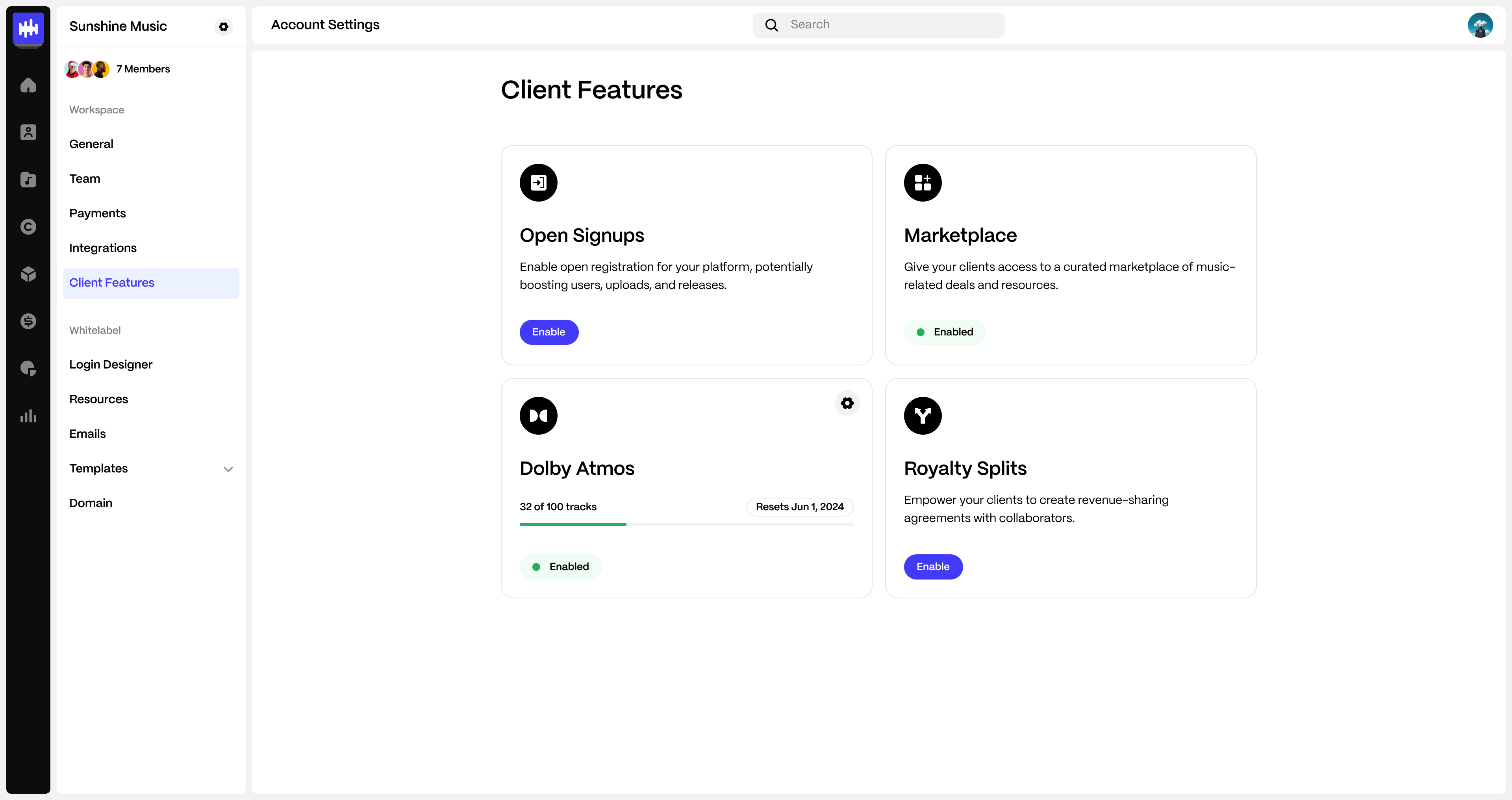
- Navigate to Account Settings → Client Features.
- Under Royalty Splits, click Enable.
Once enabled, your artists and clients will see Royalty Splits under Rights in their navigation menu. Any client user with the Administrator role can create and manage splits.
What your artists and clients see
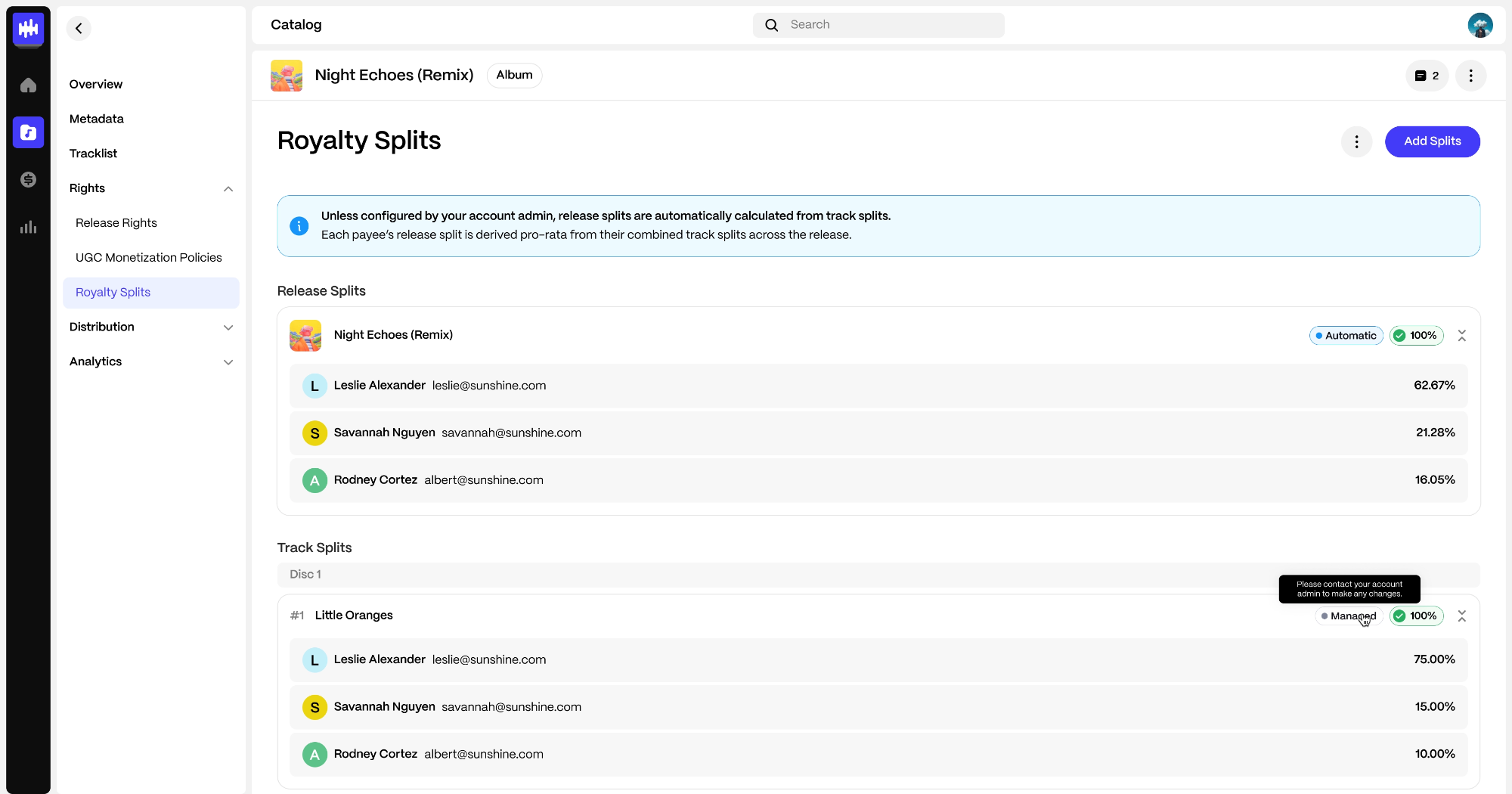
When a client navigates to Rights → Royalty Splits and selects a release, they see an overview page with:
- Release Splits: The overall release-level split, calculated automatically from track-level splits. Shows each payee's name and percentage.
- Track Splits: A list of all tracks on the release with their current split status.
How clients create splits
- From the Royalty Splits overview page, your client clicks Add Splits.
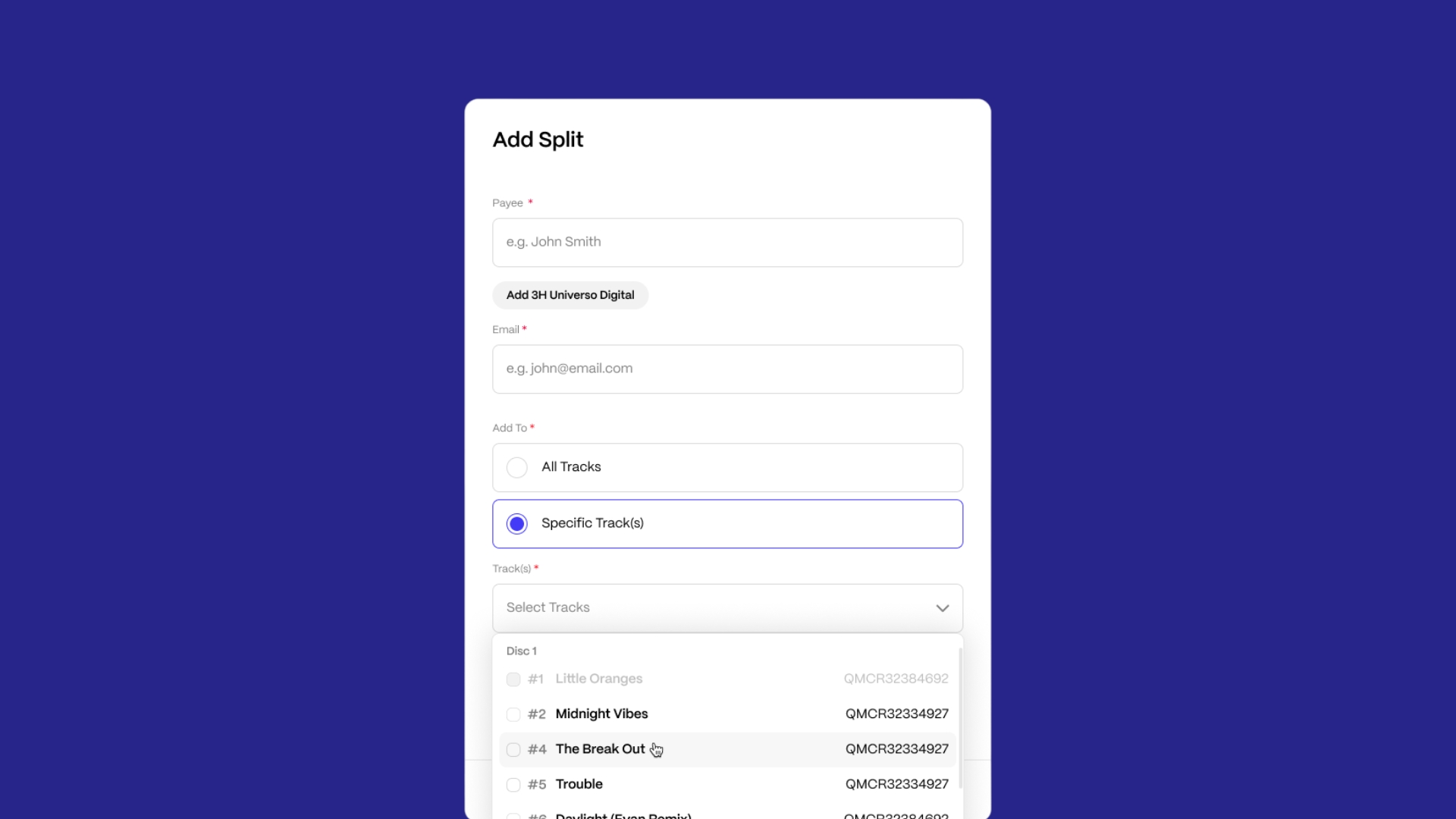
- For each track, they click Add Split and enter:
- A payee name
- A payee email address (used to match to existing payees, or invite new payees when no match is found)
- Whether the split applies to All Tracks or Specific Track(s) they can select
- The payees' split entered as a percentage
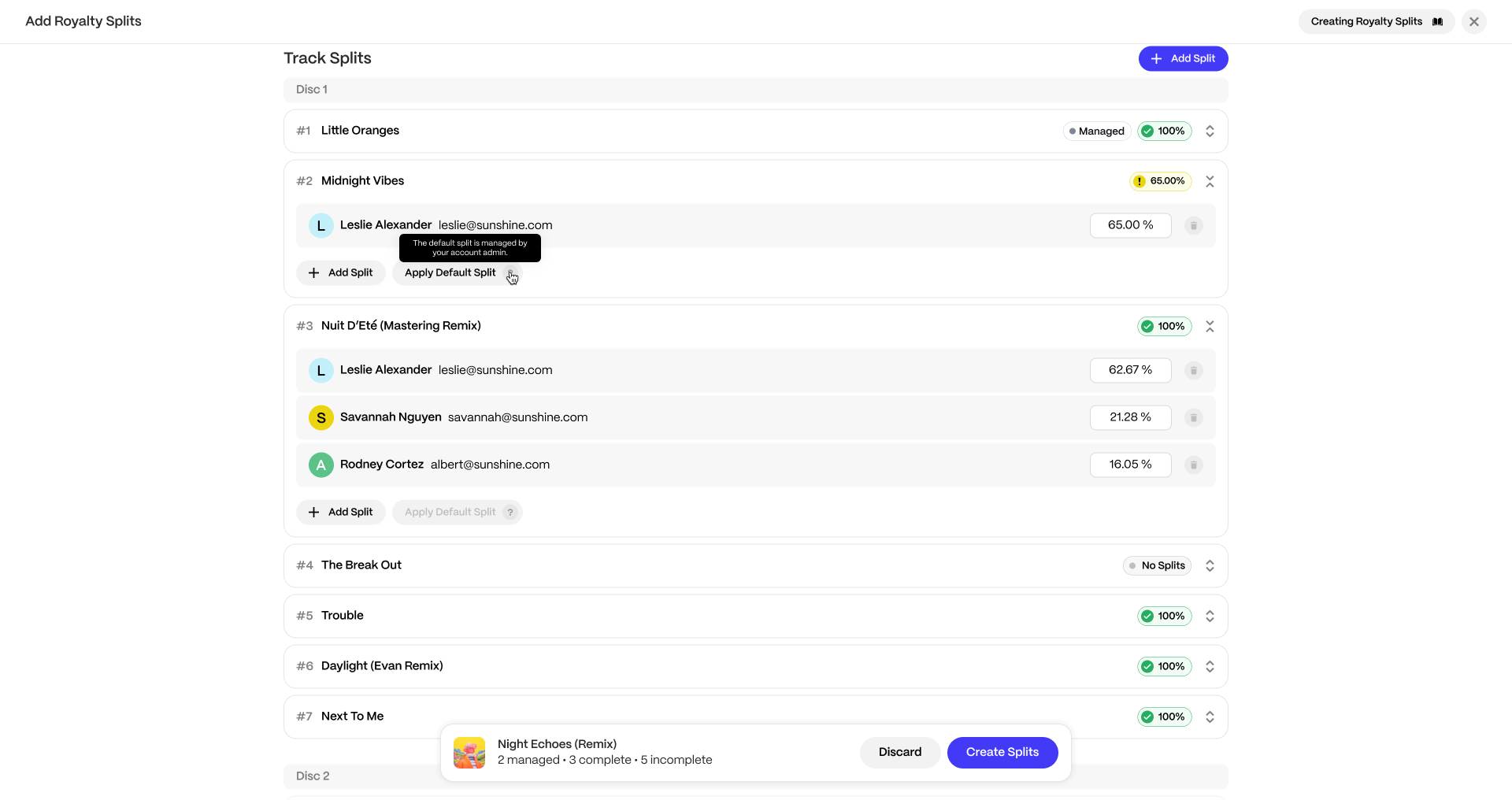
- Once all tracks are configured, they click Create Splits.
- If any tracks are left incomplete, the default split defined between you and your client (or the associated label or artist on the release) will be applied. This ensures the resulting release split is made up of a the pro-rata shares between all payees across all tracks in the release.
- If any tracks are left incomplete, the default split defined between you and your client (or the associated label or artist on the release) will be applied. This ensures the resulting release split is made up of a the pro-rata shares between all payees across all tracks in the release.
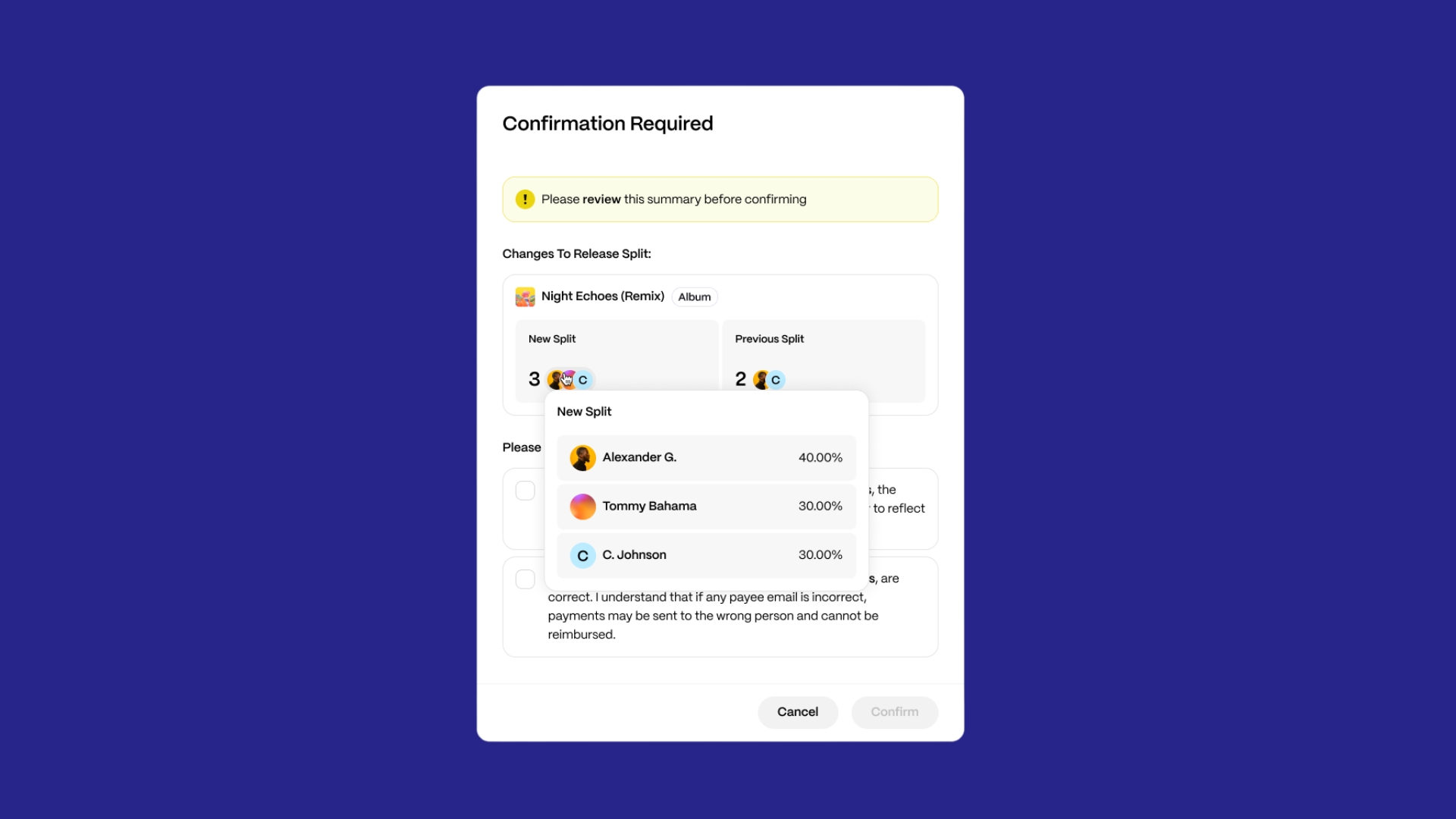
- A Confirmation Required modal asks them to review the summary, acknowledge that the release split will be automatically updated, and confirm that payee details are accurate.
| Note The total split percentage for each track must equal exactly 100%. |
Additional options
- Default Splits: If tracks have no splits assigned, the system can prompt to apply a default split based on the artist-level contract if one exists, otherwise the existing account-level contract split between the client and your account, or an artist-level or label-level split if available. Default Splits: If tracks have no splits assigned, the system can prompt to apply a default split based on the artist-level contract if one exists, otherwise the label-level contract, or the account-level contract if neither is available.
How to edit existing splits
Your clients can update splits they have created at any time, adjusting payees or percentages.
| Note Clients can only edit splits they have created themselves. Splits created by your team remain locked from the client's perspective and show as Managed by you as their account admin. |
| Note When a client edits a split on a track that appears on multiple releases, the change applies everywhere that track is used. Splits stay in sync across all releases automatically. |
What happens behind the scenes
When your client saves their splits, the system automatically:
- Creates track-level contracts including each payee for each track
- Creates a pro-rated release-level contract derived from the track splits
- unless a release-level contract was already created by you — in these cases the release split is left unchanged.
- Auto-creates new payees under your account if a name and email do not match an existing payee, and sends them an invitation to set up their payment details in their payee portal
All royalty splits created by your client will be made available in Rights → Contracts and follow the same structure as contracts your team creates. You maintain full admin controls to review, edit, or override any client-created split at any time.
| Note Default Splits: If tracks have no splits assigned, the system can prompt to apply a default split based on the most relevant contract found for the release — an artist-level contract if one exists, otherwise a label-level contract, or the account-level contract as a fallback… |
When clients cannot create or edit splits
There are situations where your clients will be blocked from creating or editing splits:
- Managed splits: If your team has created a contract for a track or release, that split appears as Managed with a lock icon. Clients cannot make any changes to it.
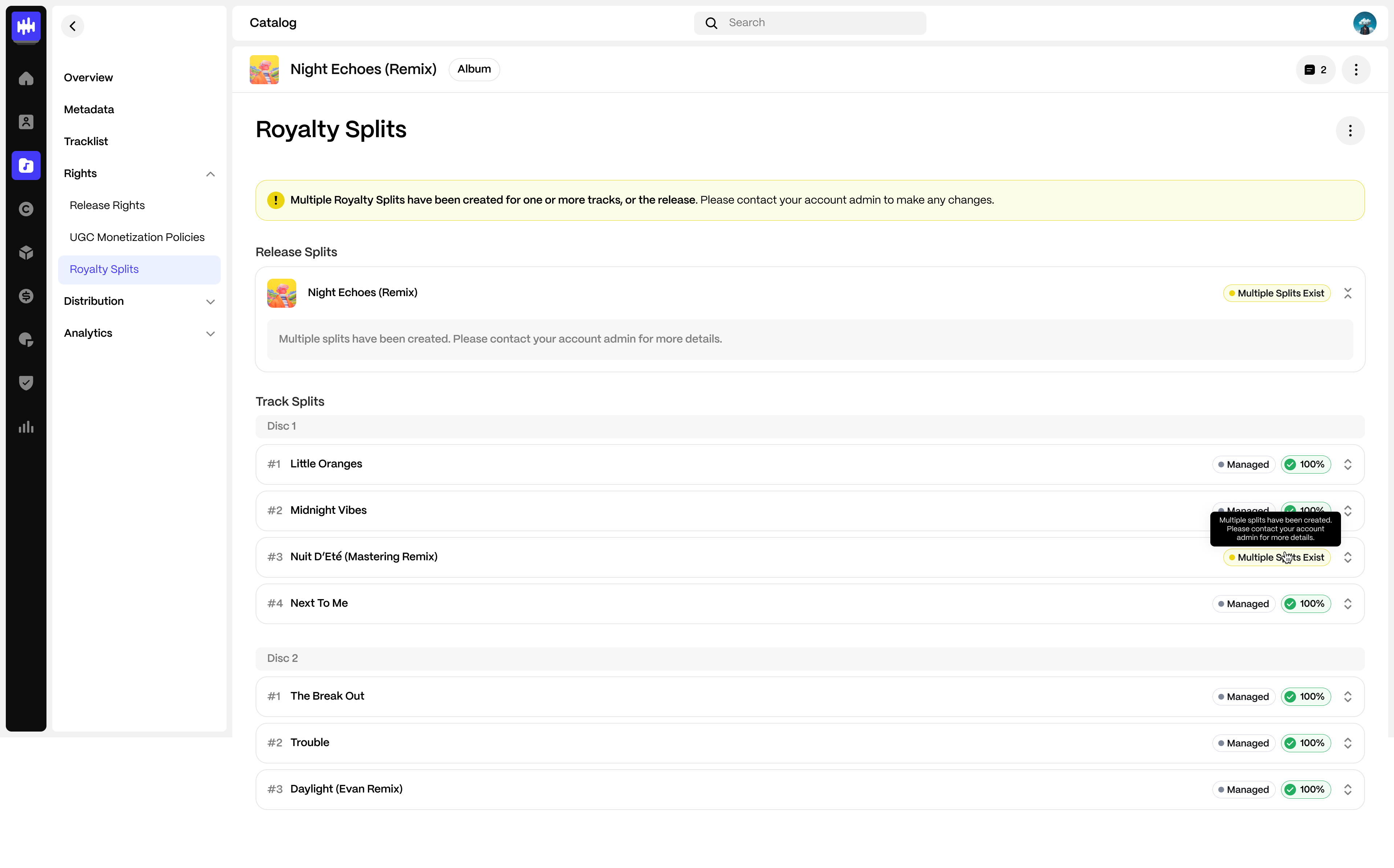
- Multiple Splits Exist: If multiple contract IDs exist for a single track or the release (e.g., your team has created separate contracts), clients see a Multiple Splits Existbadge and cannot add or edit splits until the conflict is resolved by your team.
- Multiple contracts for the same asset should only exist when different payee groups need different terms. If two contracts share the same payees, merge them into a single contract with multiple payout rate terms.
- Multiple contracts for the same asset should only exist when different payee groups need different terms. If two contracts share the same payees, merge them into a single contract with multiple payout rate terms.
- Onchain splits: If any track on a release has an onchain split (paid on blockchain in USDC), clients cannot create or edit splits for any tracks on that release. Onchain splits are displayed for reference, but are managed by you and the payees holding them directly. We also require you to create a release-level contract manually in these cases.
Related articles
Was this article helpful?
That’s Great!
Thank you for your feedback
Sorry! We couldn't be helpful
Thank you for your feedback
Feedback sent
We appreciate your effort and will try to fix the article