Revelator reports and pays the sales of your entire catalog according to the Revelator Distribution Reporting Schedule and the Payout Schedule & Supported Payment Methods by Country.
Once you've received the funds, you can process these reports through Revelator's Royalty Engine, which applies the terms defined in your contracts and generates royalty statements for each payee. You can then use Revelator's payout integrations (PayPal, Bamboo or Tipalti) to distribute the royalties to your payees.
What you'll learn
|
How revenue report and royalty statement processing works
You'll find your revenue reports in Finance → Revenue Reports.
The revenue reports list has these tabs: All Reports, Need FX, Unmatched, To Approve, and Approved.
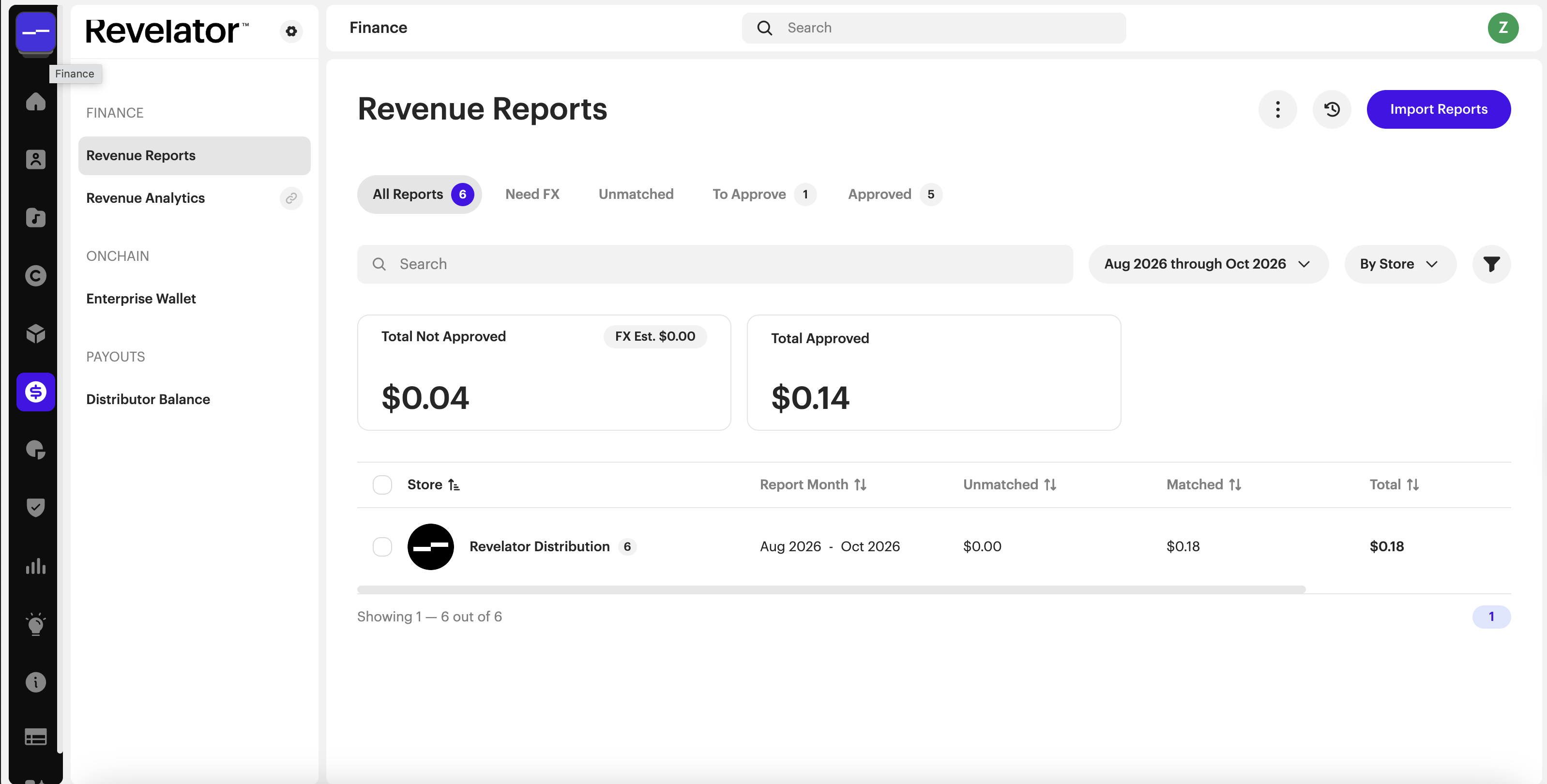
Each report's ⋮ menu has these actions: Approve, Add FX & Tax, Add Adjustment, Download Original, View Unmatched, Reprocess Unmatched, Detach Unmatched, Export Unmatched, and Delete.
Report statuses
Each revenue report shows a status that tells you what to do next.
| Status | What it means |
|---|---|
| To Approve | The report is processed and ready for you to review and approve. |
| Need FX | The report is in a different currency from your account. It needs an FX rate before you can approve it. |
| Unmatched | Some lines couldn't be matched to your catalog. Match or detach them first. |
| Approved | The report can be added to a royalty run. |
Report tabs and downloads
When you open a revenue report, you'll see these tabs:
- Overview
- Analytics: top tracks, releases, artists, labels, DSPs, markets, delivery types, and formats
- Unmatched Lines
- Revenue Withheld: see Royalties Withheld from Your Statement
| Note Revelator's Trust & Safety team withholds royalties for violations such as artificial streaming. The Revenue Withheld tab shows the total withheld and the affected lines, and you're notified by email. You can appeal with proof under Revelator's Appeals Policy. |
Download Original CSV includes these columns:
- Quantity (as reported by the DSP)
- Gross revenue
- Contract rate
- Net revenue
- Your share: your split percentage
- Amount due
Account access
| Account | Access |
|---|---|
| Organization / Tenant | Can view revenue reports, royalty runs, statements, payees, and Review & Pay (Finance and Royalties: Viewer). Editors can import and approve reports, create royalty runs, batch-approve statements, and pay. |
| Client | Doesn't see Revenue Reports or the Royalties section. |
| Label Portal | Doesn't see Revenue Reports or the Royalties section. |
| Artist Portal | Doesn't see Revenue Reports or the Royalties section. |
| Payee Portal | Can view Transactions and Revenue analytics (Finance: Viewer). Doesn't see Revenue Reports, Royalty Runs, or Statements. |
Step 1: Import revenue reports
Click Import Reports to drag and drop new reports, check the Processing Queue, or open See Import History.
| Note Large reports can take up to 24 hours to process, depending on the queue and the report's size. You'll get an email when processing finishes. |
Step 2: Add an FX rate and taxes
A report needs an FX rate when its currency is different from your account currency, for example, a EUR report in a USD account.
To add an FX rate, taxes, or another adjustment to a report:
- Open the report's ⋮ menu and select Add FX & Tax.
- In Net FX & Tax, enter the rate under Enter FX rate or amount received. Or tick Or enter bank deposit amount to have the rate calculated for you.
- Add any taxes or other adjustments.
- Check the Net amount.
- Click Apply.
| Note The suggested rate is only an estimate until you click Apply. An FX rate applies to that report only. |
| Tip To work out the rate, compare the report total with the amount you actually received in your bank: rate = amount received ÷ report total. |
Note
|
Step 3: Add adjustments
An adjustment can be an amount or a percentage. To add the same adjustment to several reports at once, select the reports and click Add Adjustment. Bulk adjustments only support a percentage.
How an adjustment changes the report total:
- A positive amount decreases the report total.
- A negative amount increases the report total.
- A percentage always decreases the report total.
| Note Like Taxes, an Adjustment is applied evenly across all lines of the revenue report. |
| Important You must add an Adjustment to all reports from Merlin, because Merlin always reports on the gross. The Adjustment accounts for Merlin's admin fee (for example, Merlin's 1.5% fee). |
Step 4: Handle unmatched lines
| Important Revelator will not let you approve a revenue report that has any Unmatched Lines in it. |
Revelator matches each sale line to your catalog using the ISRC and UPC pair. Apple sends its own identifier instead of a UPC. The UPC matters because the same ISRC can appear on more than one release, such as a single and its album. Full compilation downloads are allocated at release level, based on the UPC on that contract.
When you match a line manually, the matcher compares the ISRC, release, artist, UPC, and label, and highlights what matches. Fields that aren't highlighted don't match, so check each suggestion before you click Match. Your match is remembered and applied automatically to future reports with the same data.
Reprocess Unmatched applies the matching rules you've already created to the report's unmatched lines.
Lines stay unmatched when:
- There's no UPC
- The recording isn't in your catalog (or its catalog data is wrong)
- There are duplicate ISRCs or UPCs
If there are duplicate ISRCs or UPCs, fix them in your catalog first.
| Note You can detach the unmatched lines from a revenue report to reprocess later. This creates a separate revenue report, so you can move forward with approval and deal with the unmatched lines later. |
| Important If you detach unmatched lines, apply any FX rate, taxes, and adjustment before detaching: the detached lines inherit them. |
Step 5: Approve revenue reports
Revenue Analytics only includes approved revenue reports. A report doesn't appear in your analytics until you approve it.
Only approved reports can be used in a royalty run.
Step 6: Prepare for a royalty run
Check contract terms and status
| Important In Enterprise and API plans, you can set a custom default payout rate. For Launch, Growth, and Scale plans, the default payout rate is 100%. |
Important
|
Note
|
Note
|
Fix errors from previous royalty runs
| Important Any error or unallocated revenue from a previous royalty run persists in future runs unless you correct it and reset those royalty runs. You can spot runs with unallocated revenue by their yellow X icon. |
To learn how to identify and correct unallocated revenue in royalty runs, read Fixing Unallocated Revenue.
Add transactions between runs
| Note To keep your payees' balances up to date, add any transaction incurred between reporting periods. Depending on its type, the transaction either deducts from or adds to the payee's balance. |
| Transaction type | Effect on payee balance |
|---|---|
| Adjustment | Can be either positive (add) or negative (deduct) |
| Advance | Deducts the amount from the payee's balance |
| Expense | Deducts the amount from the payee's balance |
| Fraud | Deducts the amount from the payee's balance |
| Payment | Deducts the amount from the payee's balance |
| Refund | Adds the amount to the payee's balance |
| Subscription Offset | Deducts the amount from the payee's balance |
| Tax | Deducts the amount from the payee's balance |
| Tip You can import transactions in batch: fill out the Batch Transactions Import Template and import the CSV in the UI. |
Set withholding rules for payees
If you want to account for tax withholding across payees, Revelator can apply tax withholding rates to your payees based on these parameters:
- Payee tax country
- Country of transaction
- Delivery type. There's currently a limitation: there's no withholding option for download transaction types, though Revelator plans to add withholding for downloads later.
If you want Revelator to set withholding rates for payees to be applied in your royalty runs, specify the parameter information for each payee, together with the corresponding rate.
| Note With tax withholding rules in the royalty run, the tax currently shows in the statement detail file (CSV), but not yet on the summary HTML page. |
Step 7: Run a royalty run
Step 8: Approve royalty statements
| Important You must approve a payee's royalty statement for its information (balance, statement file, Revenue Analytics) to be accessible in the payee's account. |
Step 9: Pay payee balances
Prepare your payouts
| ImportantYou must set up your payouts integrations (PayPal, Tipalti) to make payments through the platform. See: |
| Note You can trigger an email that invites all payees who haven't been invited yet, and reminds them to add a payment method. Payees can select a payment method only after you've completed the matching payment service integration in your parent account. |
Trigger payments
Note Only payees who have added a payment method and payment account information appear in the Review & Pay section (Royalties → Payments → Review & Pay). This view has 3 pre-defined filters:
|
| Note If some payees aren't paid through PayPal or Tipalti, you can export payee balances, make the payments with your external payment service, then import the payment transactions back into your account: Exporting Payee Balances for External Payout Provider. |
Frequently asked questions
Why can't you approve a revenue report that still has unmatched lines, and what can you do instead?
Revelator doesn't allow approval while there are unmatched lines. Match them, or detach them into a separate report (after applying any FX rate, taxes, and adjustment) and approve the rest.
Which reports must always get an adjustment, and why?
All Merlin reports, because Merlin reports on the gross; the adjustment accounts for Merlin's admin fee.
What decides whether a royalty run uses a contract?
Only the Contract Status (Active or Inactive). Start and end dates don't.
What must happen before a payee can see their balance, statement file, and Revenue Analytics?
You must approve the payee's royalty statement.
Related articles
Was this article helpful?
That’s Great!
Thank you for your feedback
Sorry! We couldn't be helpful
Thank you for your feedback
Feedback sent
We appreciate your effort and will try to fix the article