Give specific DSPs their own release date while every other DSP keeps your default date, all in one delivery. You can also choose the exact time your release goes live. Use it for DSP exclusives, staggered rollouts, timed launches, or an early release on a single platform.
Overview
- Release Start Date is your default date for every DSP in the delivery. You can add a go-live time to it.
- A date rule gives the DSPs you choose a different date, time, and pre-order.
- Each DSP goes live on its rule's date if it has one, or on your default date if not.
Step 1: Set your default date
- Go to Catalog, open your release, and click Distribution → Activity.
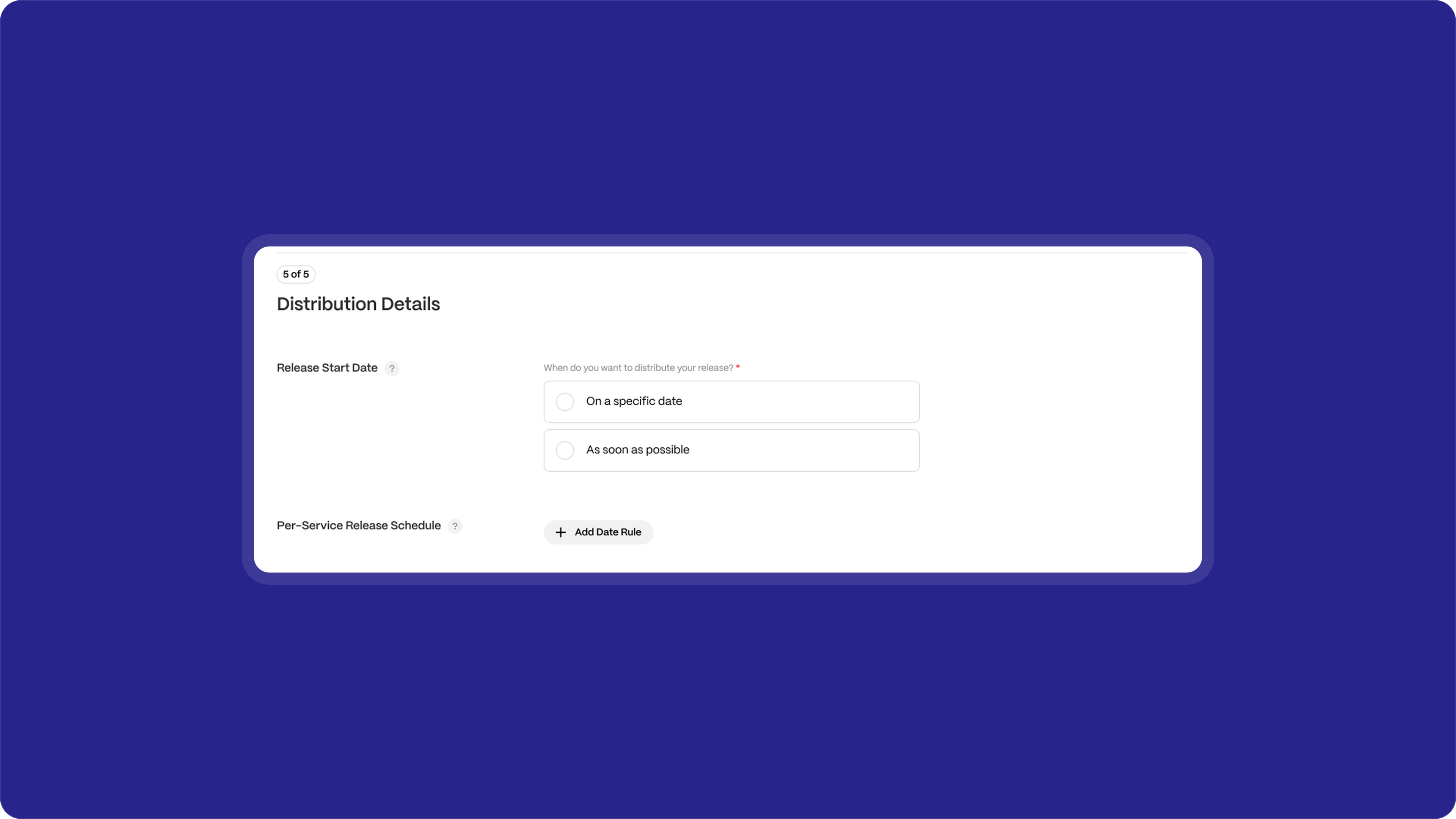
- Click Distribute All and go to Section 5: Distribution Details.
- Under Release Start Date, select On a specific date and set your default date.
Step 2: Set a go-live time (optional)
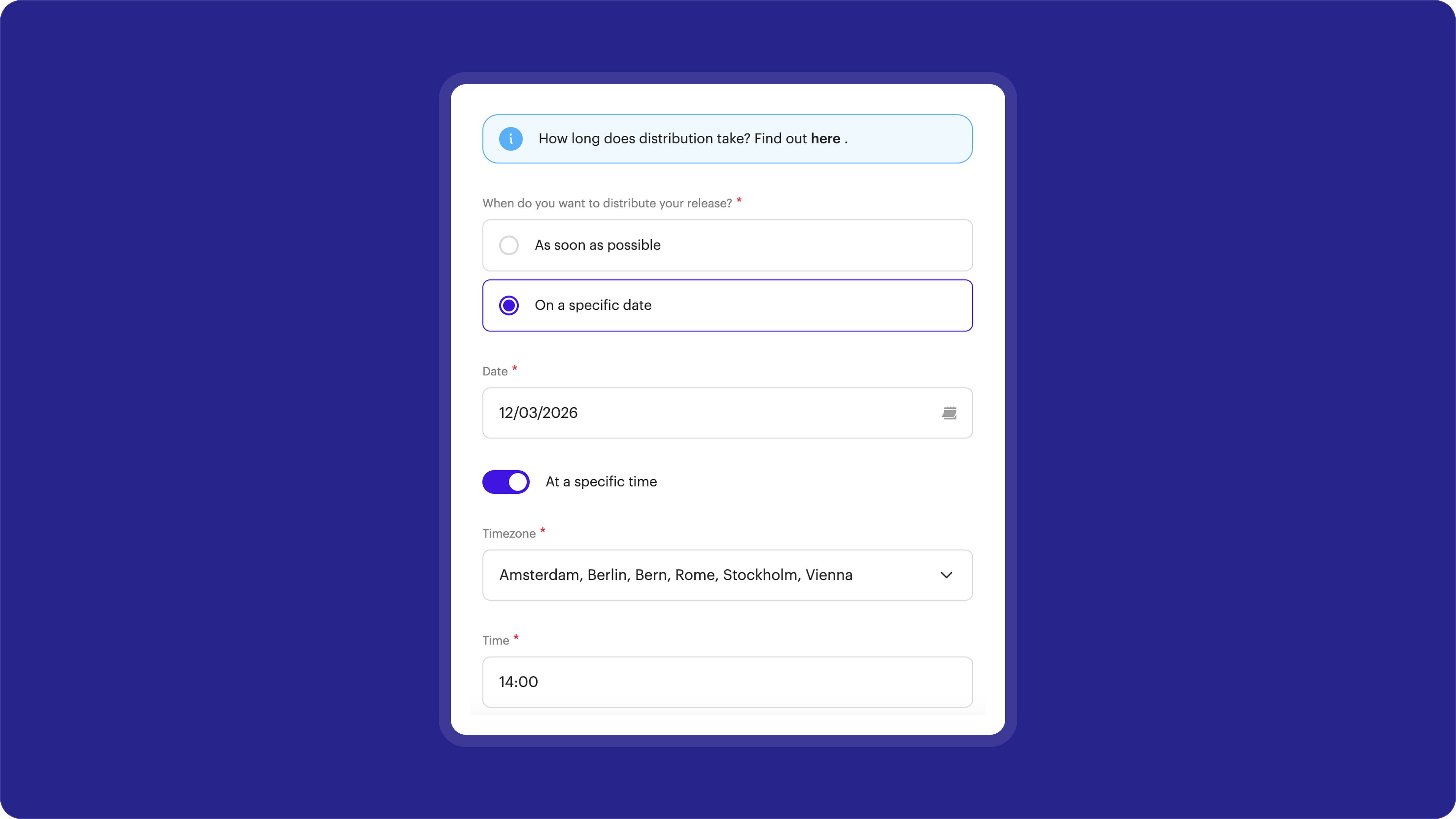
To choose the exact time your release goes live, not just the date:
- Under Release Start Date, turn on At a specific time.
- Choose a Timezone.
- Enter a Time.
| NoteYour go-live time is sent to every DSP in your delivery. Apple Music and Spotify go live at the time you set. Other DSPs may not apply it. |
| ImportantFor Apple Music, deliver your release at least 12 hours before the go-live time. If Apple receives it later, for example with As soon as possible releases or releases held in inspection, the time may not be respected. On Apple Music, pre-order start dates are sent as a date only. |
Step 3: Add a date rule
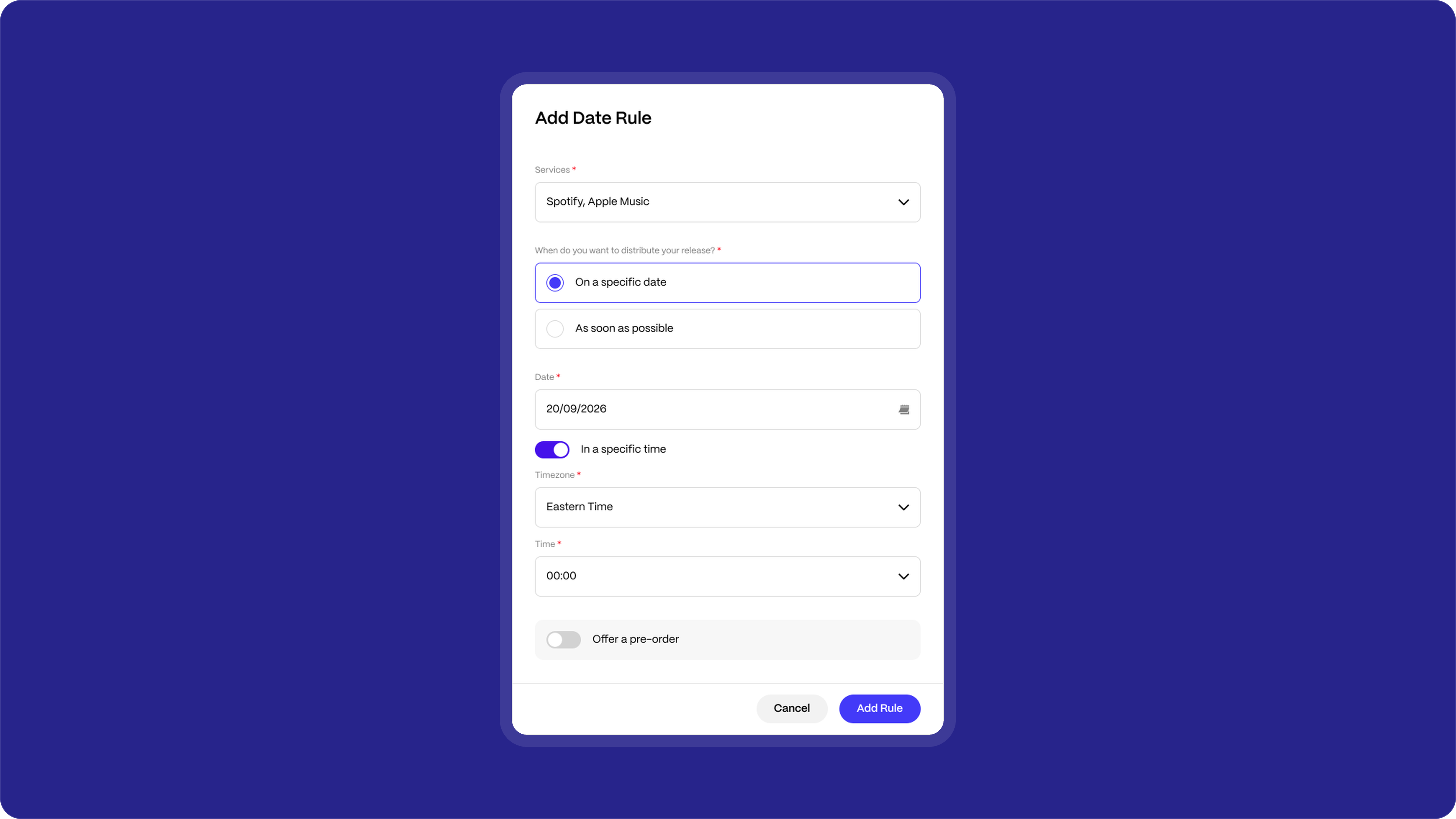
- Under Per-Service Release Schedule, click Add Date Rule.
- Under Services, select the DSPs this rule applies to.
- Select On a specific date and set the Date.
- Optional: turn on In a specific time to set a Timezone and Time for these DSPs, or Offer a pre-order to open pre-orders.
- Click Add Rule.
| NoteYou can't set a pre-order date for a DSP that doesn't support pre-orders. |
Step 4: Review your schedule and distribute
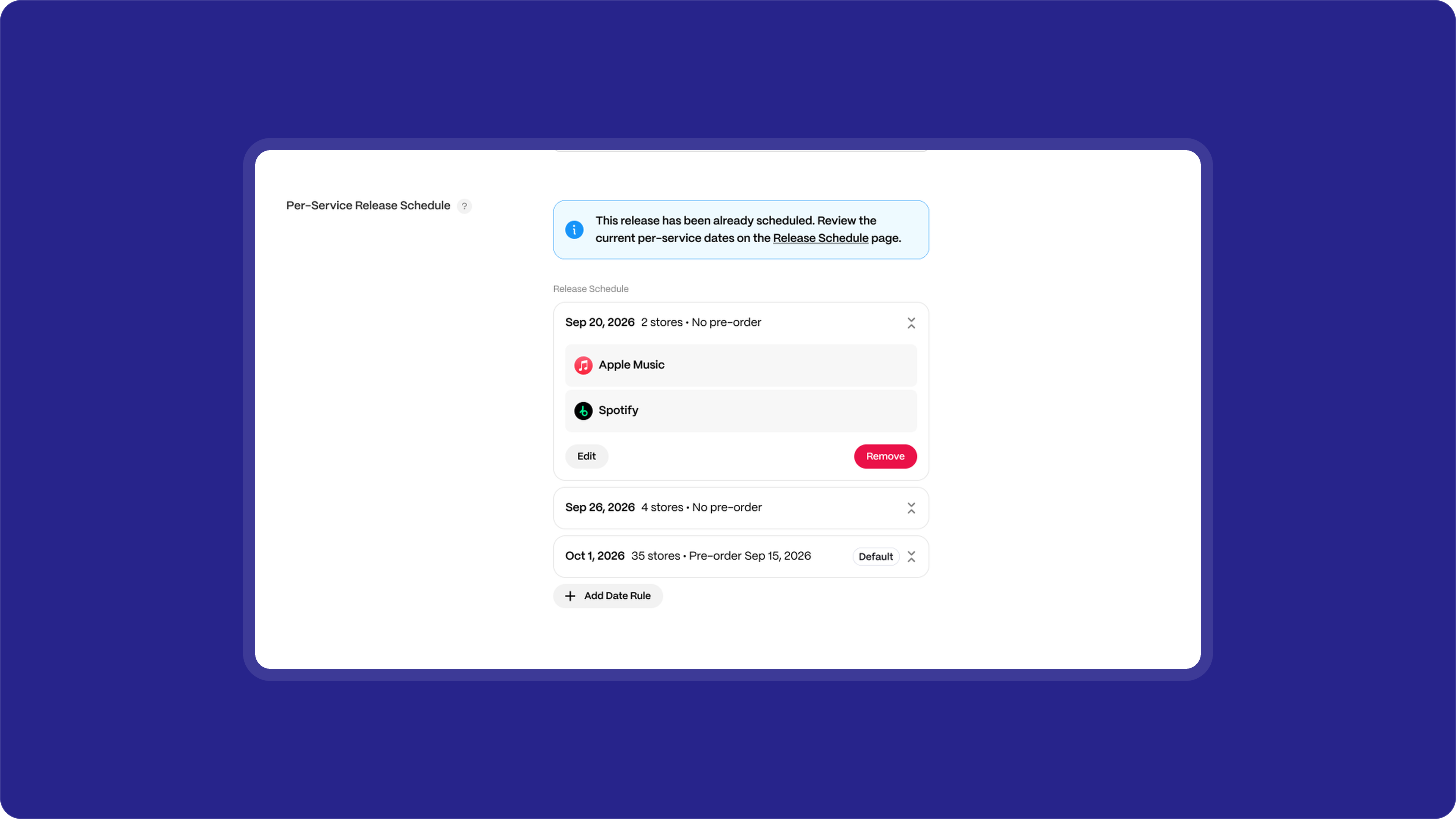
Your rules appear under Release Schedule with their date, store count, and pre-order status. The line marked Default shows your default date.
- Click Edit to change a rule, or Remove to send those DSPs back to your default date.
- Click Add Date Rule again to add more rules.
- When you're ready, click Distribute.
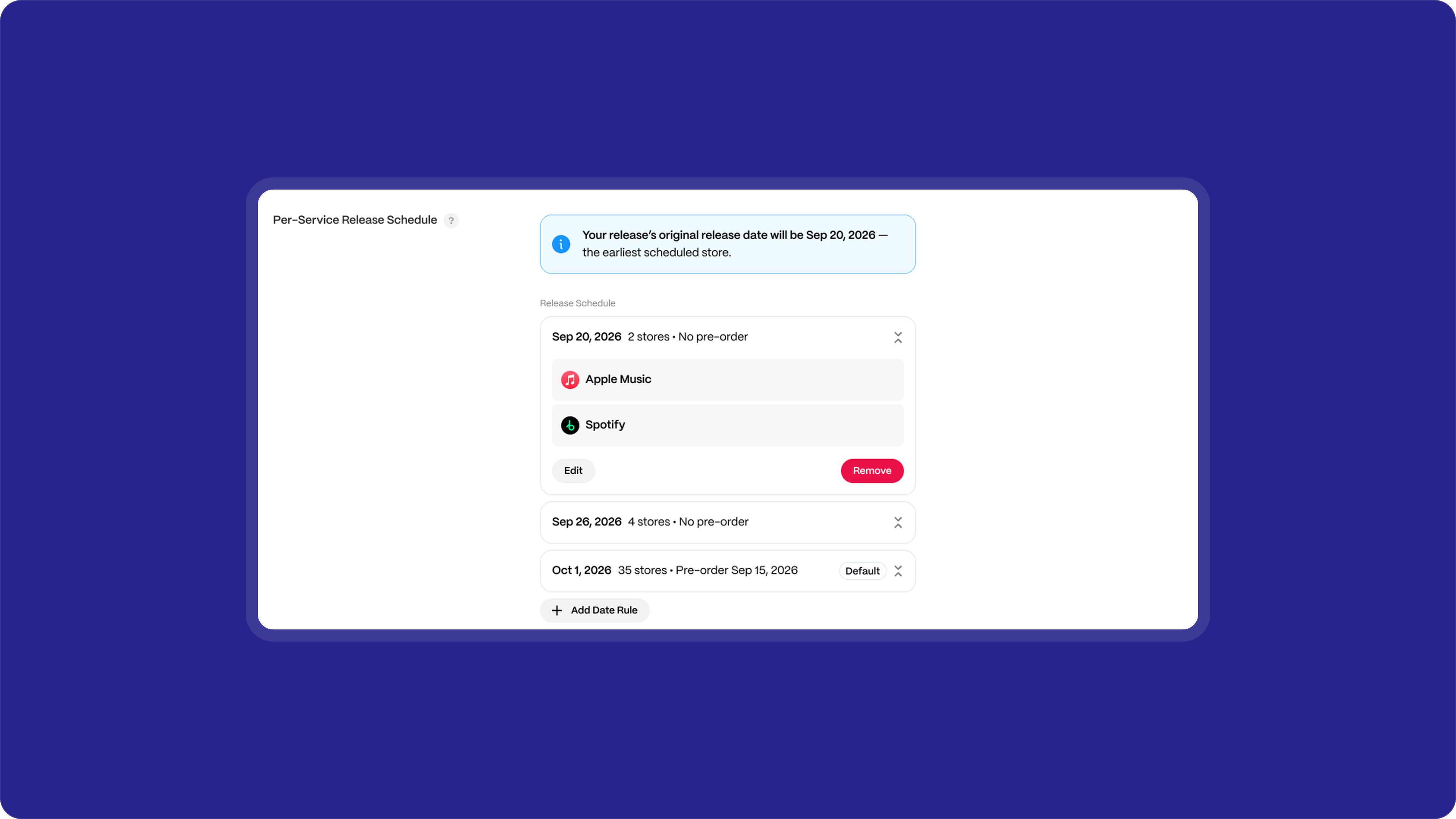
| ImportantOn a first delivery, your original release date becomes your earliest DSP date, shown in the banner above your schedule. |
Redistributing a release
The schedule starts empty each time you distribute, so add the rules you need for that delivery. If the release already has dates per DSP, a banner links you to the Release Schedule page so you can check them first.
View the release schedule
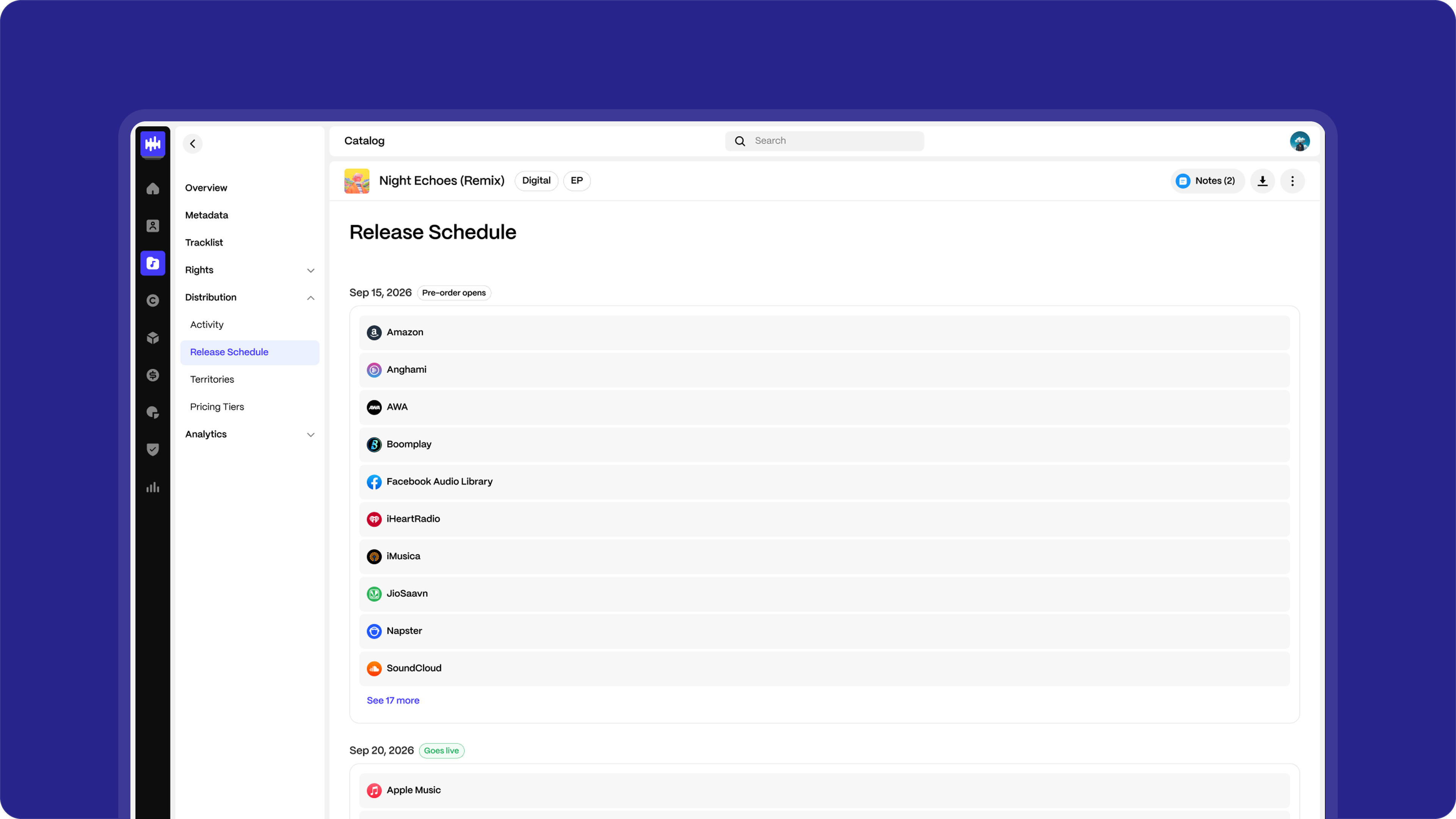
Go to Catalog, open your release, and click Distribution → Release Schedule. Each date is tagged Pre-order opens or Goes live, with the DSPs it applies to.
Related articles
Was this article helpful?
That’s Great!
Thank you for your feedback
Sorry! We couldn't be helpful
Thank you for your feedback
Feedback sent
We appreciate your effort and will try to fix the article