Give specific DSPs their own release date while every other DSP keeps your default date, all in one delivery. Use it for DSP exclusives, staggered rollouts, or an early release on a single platform.
Overview
- Release Start Date is your default date for every DSP in the delivery.
- A date rule gives the DSPs you choose a different date, time, and pre-order.
- Each DSP goes live on its rule's date if it has one, or on your default date if not.
Step 1: Set your default date
- Go to Catalog, open your release, and click Distribution → Activity.
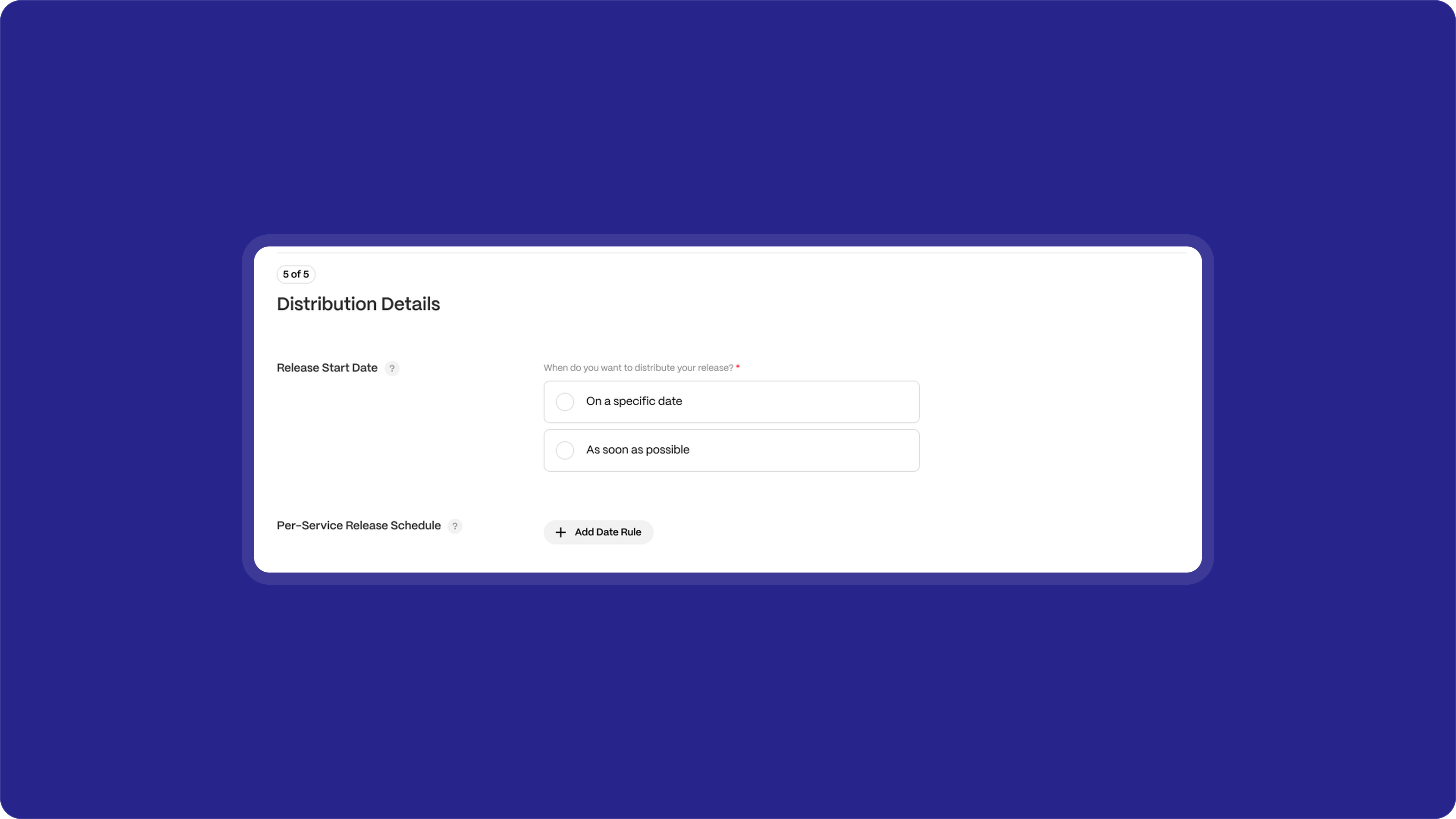
- Click Distribute All and go to Section 5: Distribution Details.
- Under Release Start Date, select On a specific date and set your default date.
Step 2: Add a date rule
- Under Per-Service Release Schedule, click Add Date Rule.
- Under Services, select the DSPs this rule applies to.
- Select On a specific date and set the Date.
- Optional: turn on In a specific time to set a Timezone and Time, or Offer a pre-order to open pre-orders.
- Click Add Rule.
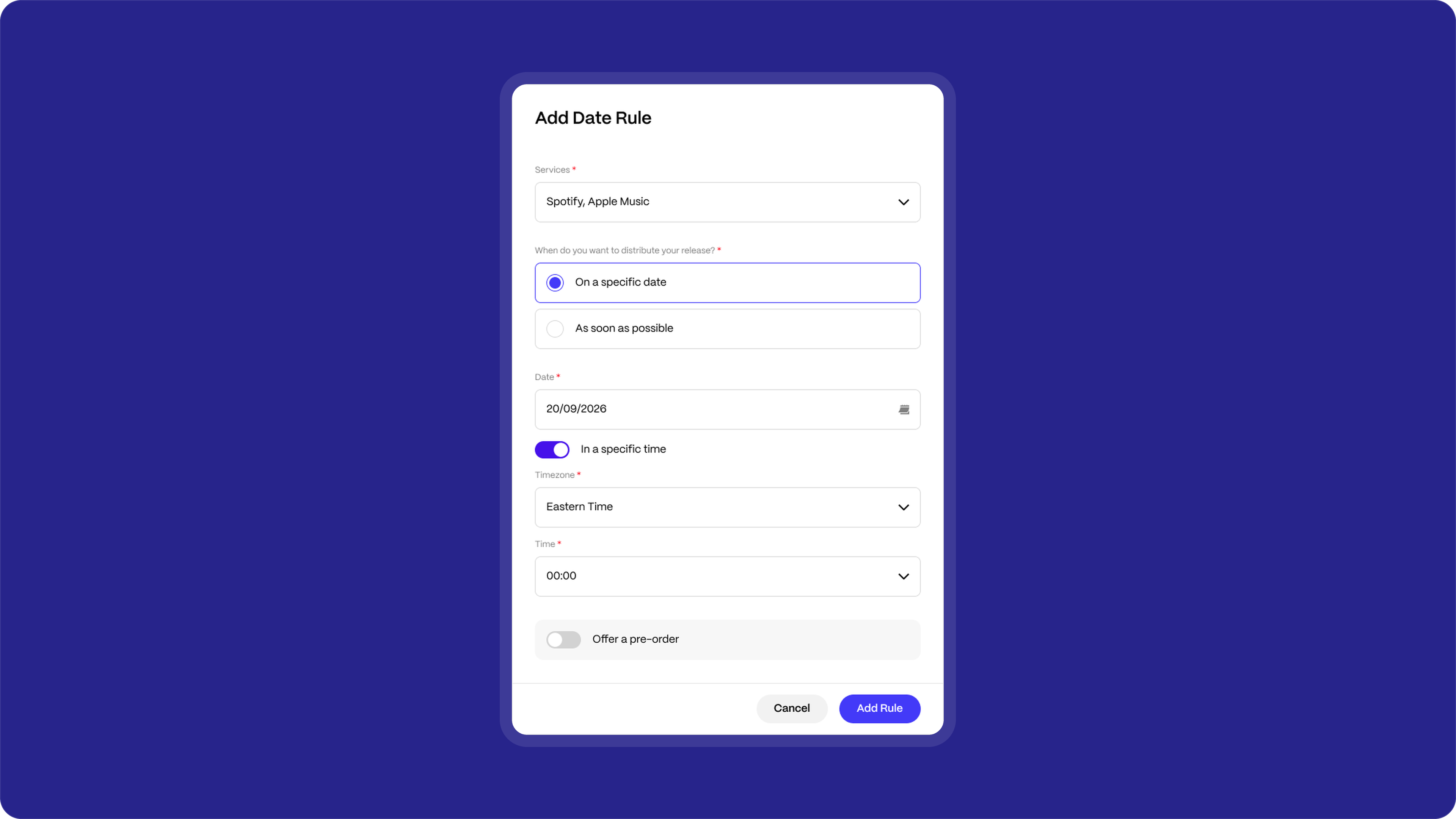
| Note You can't set a pre-order date for a DSP that doesn't support pre-orders. |
Step 3: Review your schedule and distribute
Your rules appear under Release Schedule with their date, store count, and pre-order status. The line marked Default shows your default date.
- Click Edit to change a rule, or Remove to send those DSPs back to your default date.
- Click Add Date Rule again to add more rules.
- When you're ready, click Distribute.
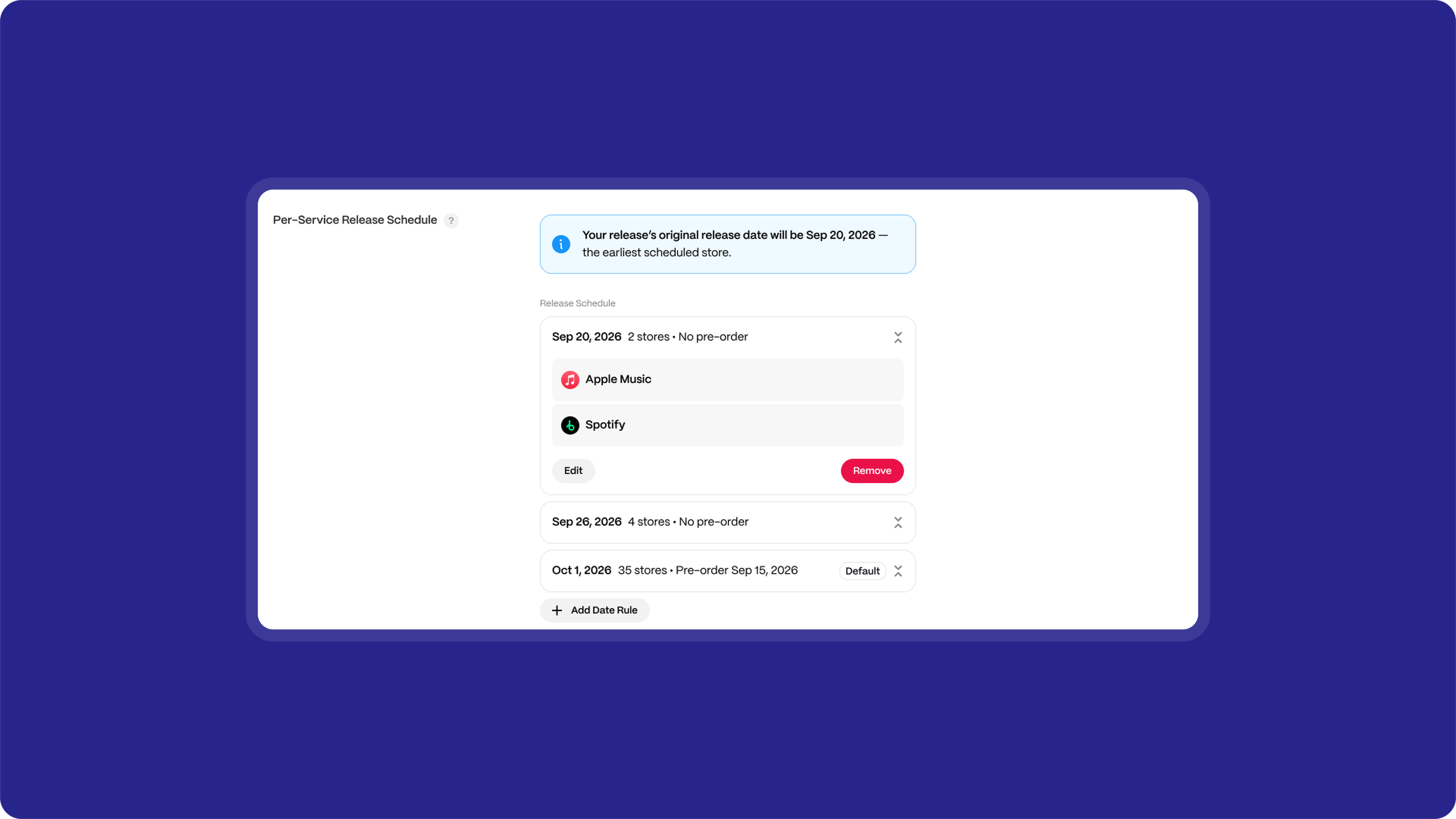
| Important On a first delivery, your original release date becomes your earliest DSP date, shown in the banner above your schedule. |
Redistributing a release
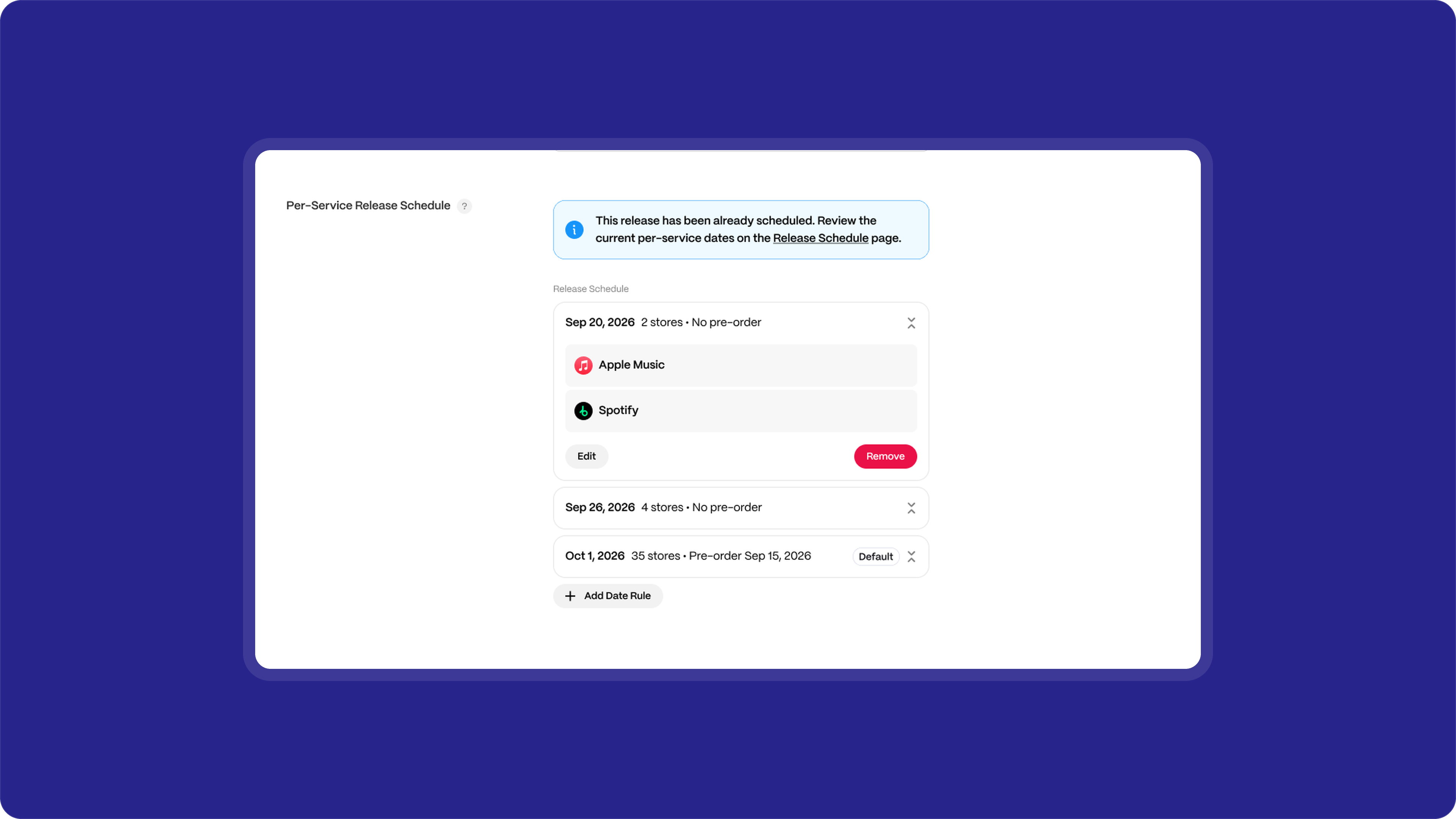
The schedule starts empty each time you distribute, so add the rules you need for that delivery. If the release already has dates per DSP, a banner links you to the Release Schedule page so you can check them first.
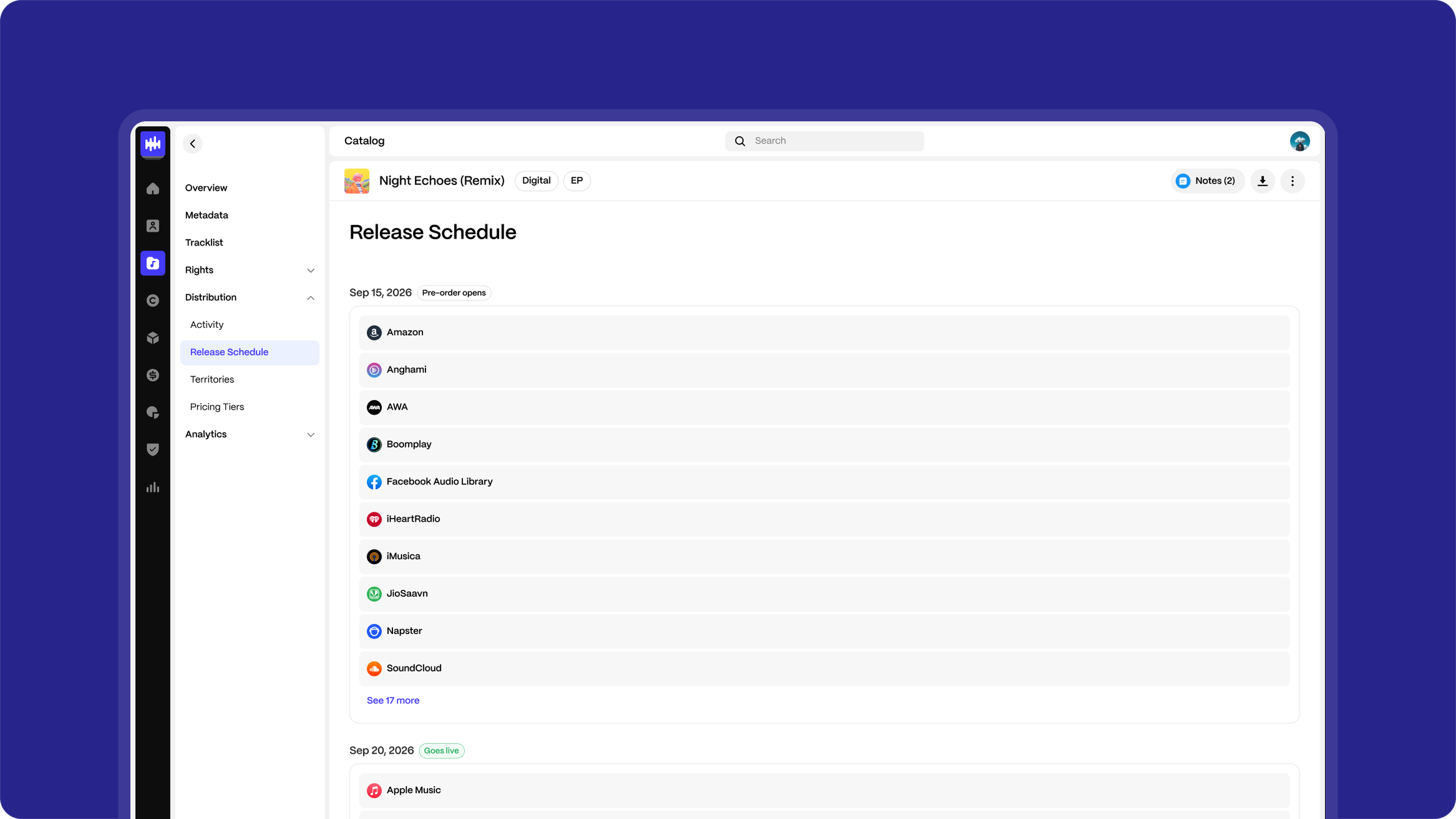
View the release schedule
Go to Catalog, open your release, and click Distribution → Release Schedule. Each date is tagged Pre-order opens or Goes live, with the DSPs it applies to.
Related articles
Was this article helpful?
That’s Great!
Thank you for your feedback
Sorry! We couldn't be helpful
Thank you for your feedback
Feedback sent
We appreciate your effort and will try to fix the article