Batch Update lets you change one metadata field across multiple tracks, videos, or digital releases at once. You review every change before it's applied, and assets that already have the right value are skipped automatically.
| Note Batch Update saves changes to your catalog only. If the updated assets are already live on streaming platforms, redeliver them when you're ready. See How to update a release after it's been distributed. |
Before you begin
|
Supported fields
| Asset type | Replace | Add / Remove |
|---|---|---|
| Tracks | Title, Title Version, Track Origin, Catalog ID, ℗ Copyright, Parental Advisory, Primary Genre, Secondary Genre | Contributors |
| Videos | Title, Title Version, Catalog ID, Video Origin, ℗ Copyright, © Copyright, Metadata Language, Audio Language, Parental Advisory, Age Restriction, Primary Genre, Secondary Genre | Contributors |
| Digital Releases | Title, Title Version, Compilation, Metadata Language, Catalog ID, ℗ Copyright, © Copyright, Primary Genre, Secondary Genre | Contributors |
| Note Title and Catalog ID can only be updated with a different value per asset. |
Step 1: Run a Batch Update
Go to Catalog → Assets → Audio or Video.
For digital releases, go to Catalog → Products → Digital Releases.
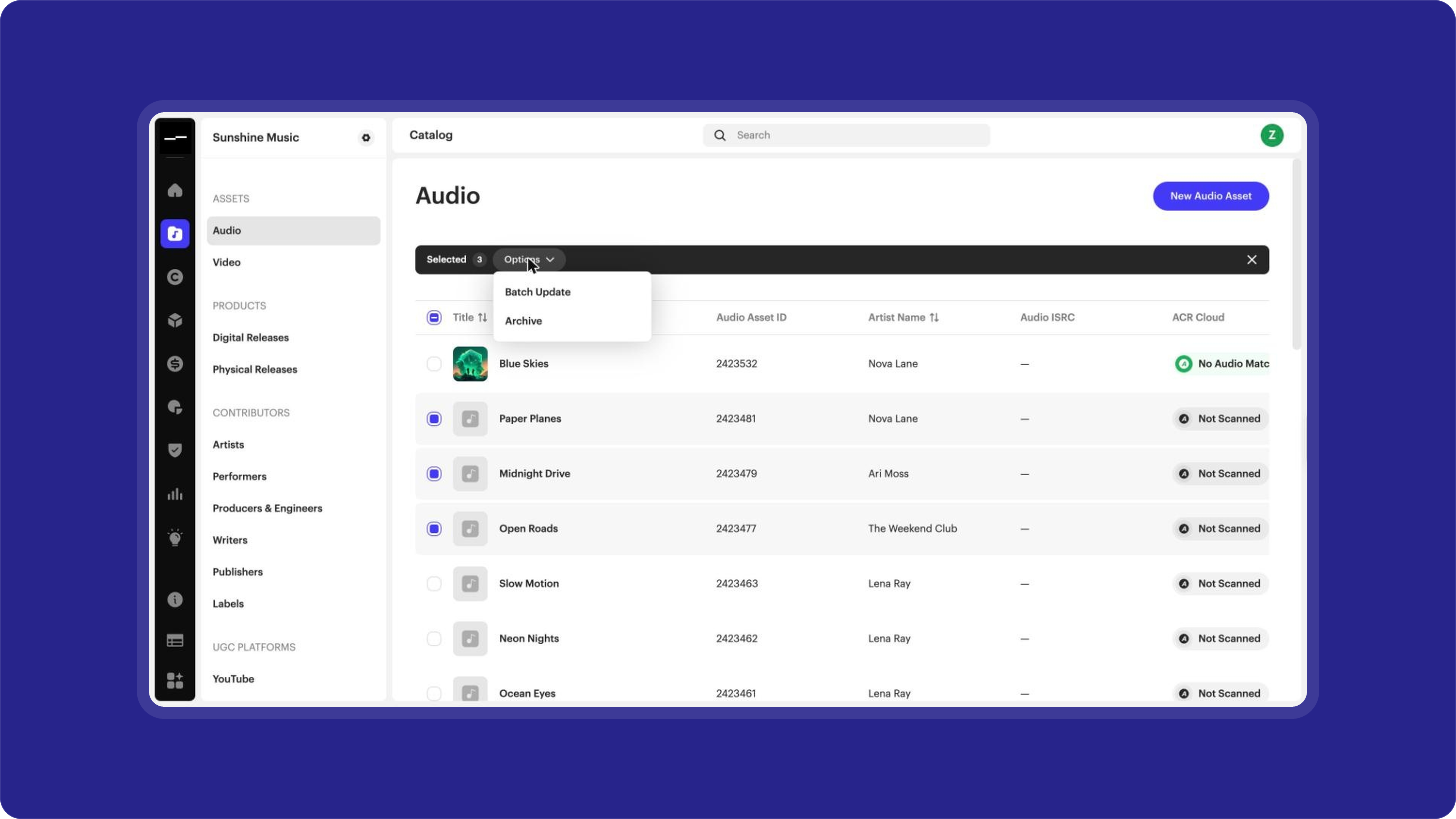
- Use search and filters to find the assets you want (see How to filter your catalog), then tick their checkboxes.
- In the selection bar, click Options → Batch Update.
- Check Applies To, which shows how many assets you selected.
- Under Metadata Field, choose the field you want to change.
- Under Action, choose what to do. The actions available depend on the field:
- Replace: replace the current value.
- Add: add one contributor. You also choose a Role, such as Producer.
- Remove: remove one contributor.
- For Replace, choose how to set the value:
- Same value for all: choose one New Value for every selected asset.
- Different value per asset: set a new value for each asset.
- Click Review, or Cancel to close without changes.
Step 2: Review your changes
Review Changes shows the field and action you chose, for example, Primary Genre • Replace, along with three counts:
- In Scope: every asset in the batch.
- Will update: assets that will change.
- No change: assets that already have the value and will be skipped.
Under Changes to be applied, each asset shows its Before and After value.
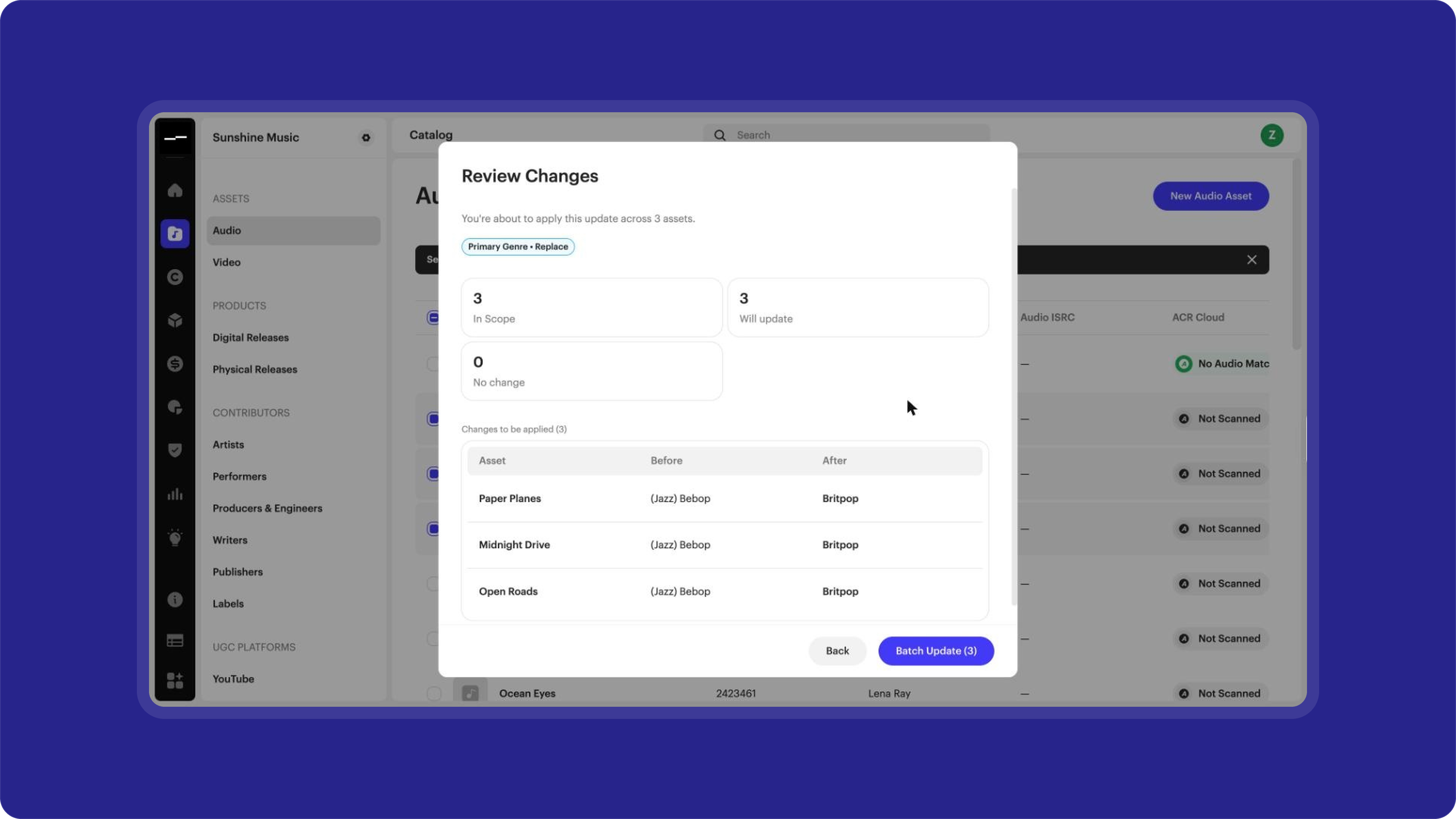
When you're ready, click Batch Update. The button shows how many assets will change, for example Batch Update (3). To make edits first, click Back.
Step 3: Track your update
After you click Batch Update, the Processing Queue opens. It lists each Asset with its ISRC, Before and After value, and a status. A green tick means the asset was updated.
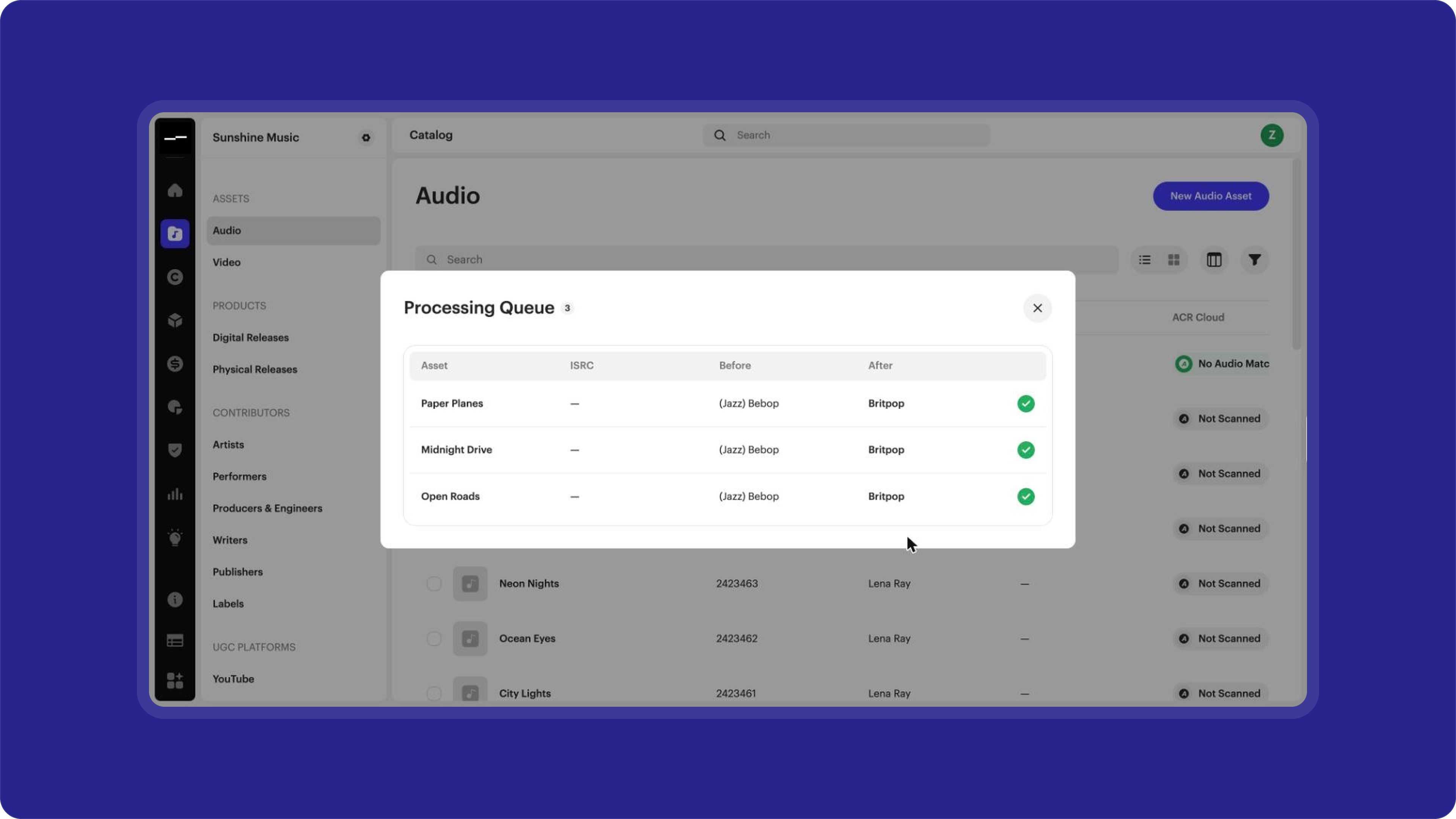
| Important If you close the Processing Queue, the update continues in the background, but you can't reopen the queue. Keep it open if you want to see the result for each asset. |
If an update fails
If any assets can't be updated, the Processing Queue shows how many failed, and each failed asset shows an error message explaining why. Assets that updated successfully keep their changes.
To retry the failed assets:
- Download the IDs of the failed assets from the Processing Queue.
- Fix the issue on each failed asset.
- Run a new Batch Update for just those assets.
FAQ
Can I update more than one field at a time?
No. Each batch updates one field. To change another field, run a new Batch Update on the same selection.
Can I undo a Batch Update?
No. Updates can't be undone once applied. To keep a record of your current values first, export your catalog metadata before you start. See How to export your catalog metadata.
Related articles
Was this article helpful?
That’s Great!
Thank you for your feedback
Sorry! We couldn't be helpful
Thank you for your feedback
Feedback sent
We appreciate your effort and will try to fix the article