When Revelator's Trust & Safety team identifies potentially infringing or violative assets in your distribution report, the associated royalties are withheld from your Revelator Distribution. You can now review exactly which assets were flagged, what type of violation was assigned, and how much revenue was withheld, directly inside your Revelator Distribution reports.
How you'll be notified
When your Revelator Distribution report containing withheld revenue is generated, the account owner receives an automated email titled Revenue Withheld Notice.
| Note The email is sent only after the statement has been approved and successfully generated. You will not receive a notification before the report is available for review. |
Finding reports with withheld revenue
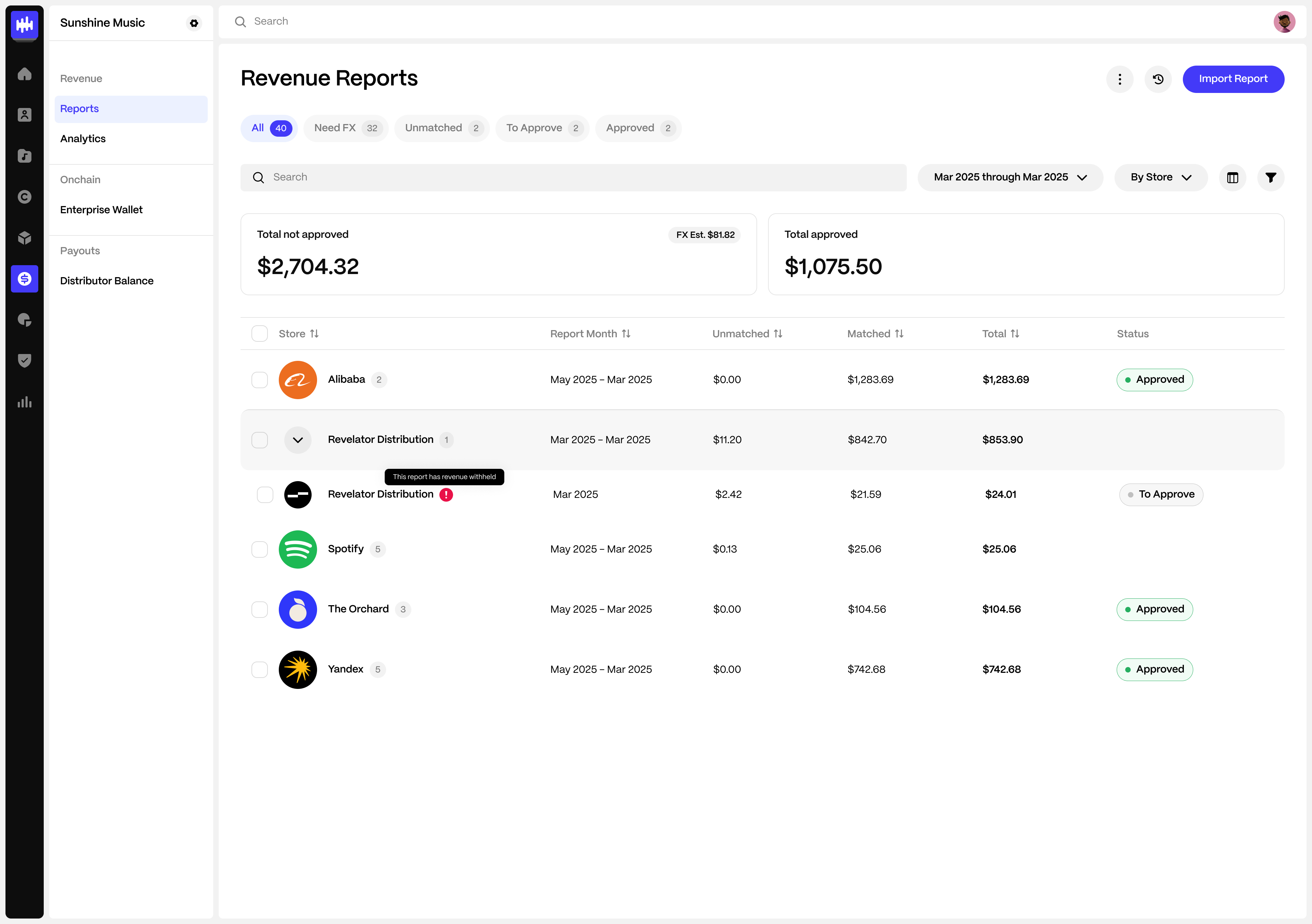
- From the main navigation menu, click Revenue → Reports.
- Look for Revelator Distribution reports that display a Revenue Withheld badge next to them in the reports list.
- Click on the report to open it.
Reports without any violation-coded lines will not display this badge.
Reviewing the revenue withheld total
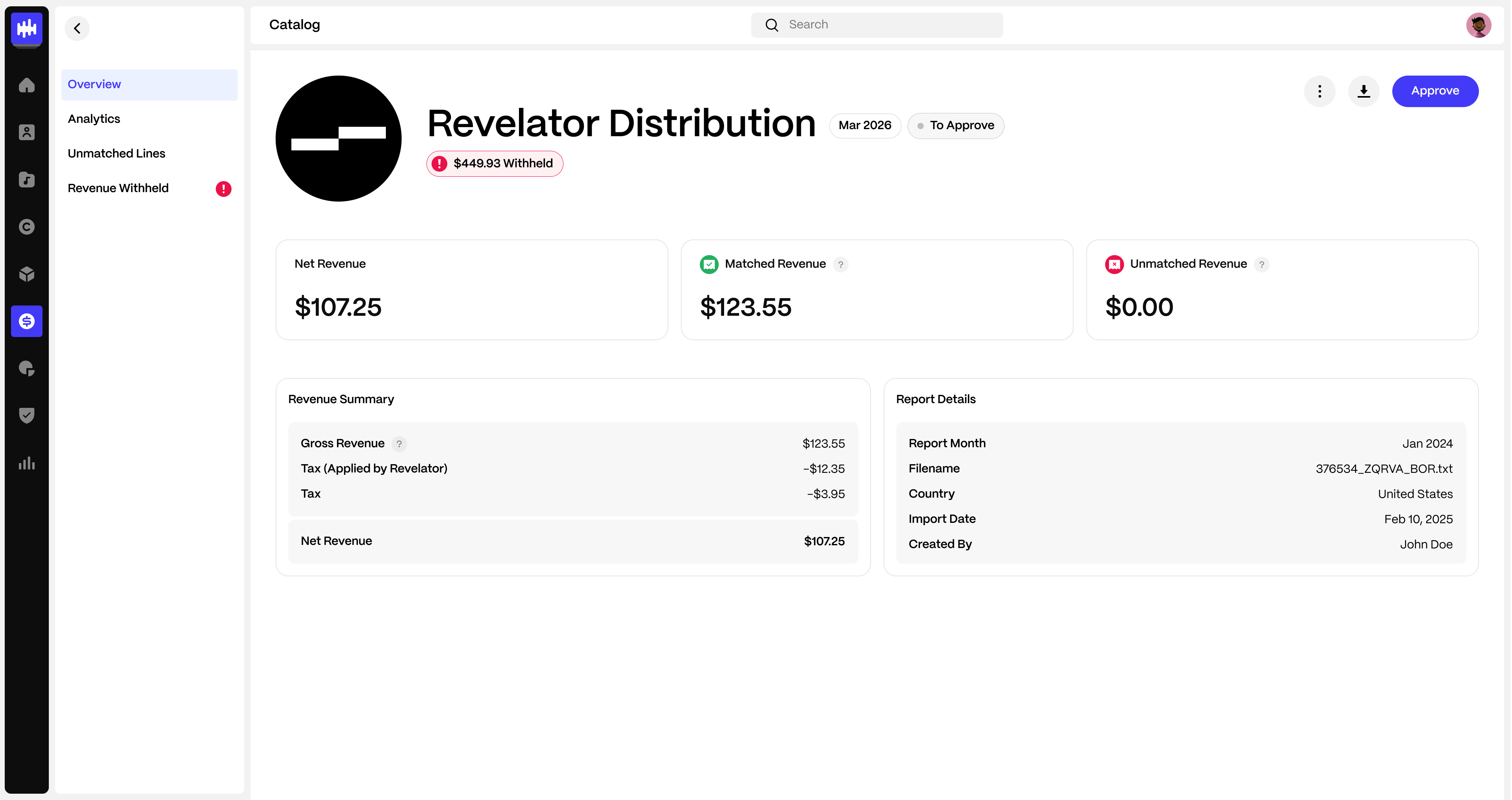
When you open a report that contains withheld revenue, the Report Overview displays a Revenue Withheld total as a separate figure to your reported net revenue.
| Note The Revenue Withheld amount is not included in the net revenue calculation. Your net revenue reflects only the approved, non-flagged lines. If there were no violations, the net revenue would be higher by the withheld amount. |
Reviewing withheld assets
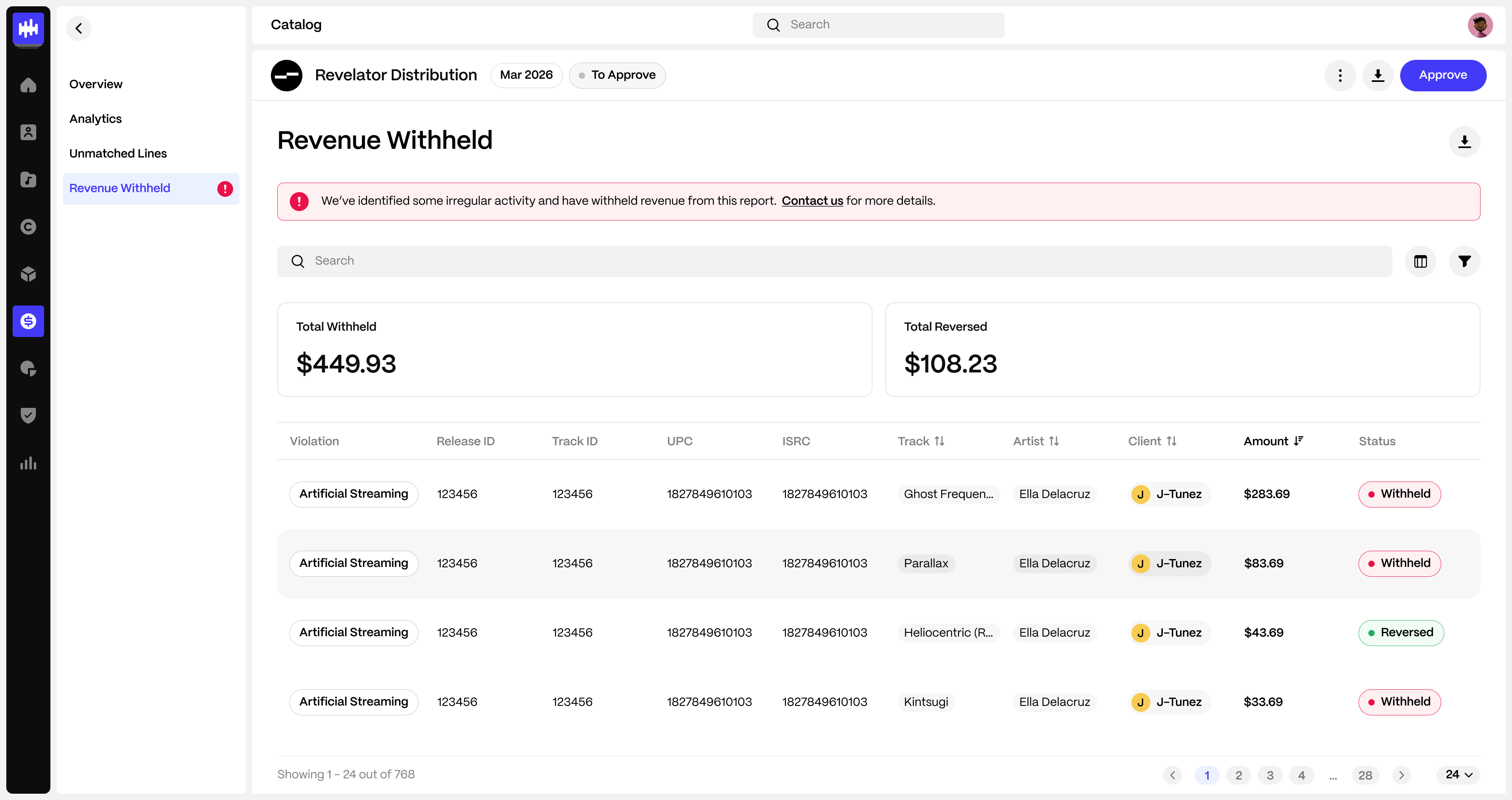
- From within the report, click Revenue Withheld in the report menu.
- Review the table of all flagged assets. The default columns displayed are:
| Column | Description |
|---|---|
| Violation | The type of violation assigned |
| Release ID | The internal release ID in your catalog |
| Track ID | The internal track ID in your catalog |
| ISRC | The International Standard Recording Code for the track |
| UPC | The Universal Product Code for the release |
| Track | The track that was flagged |
| Artist | The artist associated with the flagged track |
| Client | The client associated with the flagged asset |
| Amount | The revenue withheld for that asset |
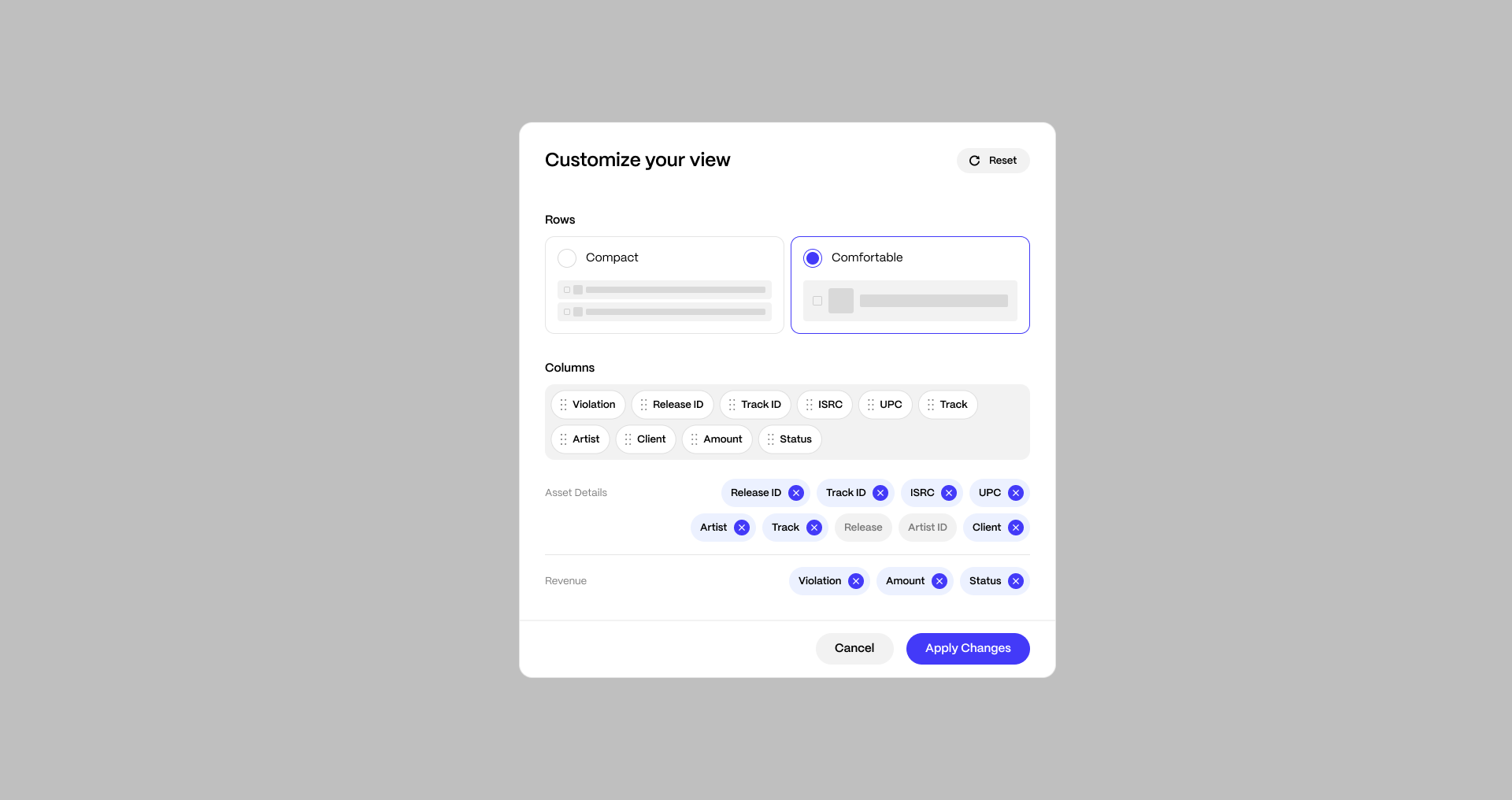
- To customize which columns are visible, click Customize your view and select or deselect columns.
For a full list of violation codes and what they mean, see Understanding Violation Codes in Distribution Reports.
Filtering the withheld lines
You can narrow down the withheld assets to focus on specific issues:
- From the Revenue Withheld page, use the filter options to narrow results by:
- Violation: View only lines flagged with a specific violation type
- Release: View withheld lines for a specific release
- Artist: View withheld lines for a specific artist
- Client: View withheld lines for a specific client
Downloading the withheld lines as CSV
- From the Revenue Withheld page, click the Download button.
- A CSV file is generated containing only the violation-coded lines from the report.
The CSV includes the same columns displayed on the page (violation, track, artist, ISRC, UPC, client, amount, and status).
| Note The main report download (from the Report Overview) includes all lines, including those with violation codes. The download from the Revenue Withheld page includes only the flagged lines. |
Understanding your options
Once you have reviewed the withheld assets, you have two options:
- If you agree with the findings: Review the violation types assigned to each asset and take the appropriate action. For guidance on what each violation type requires, see Royalties Withheld from your Statement.
- If you wish to contest the findings: You can submit an appeal. For details on the appeals process, see Appeals Policy for Assets Flagged as Violative by Revelator.
Related articles
Was this article helpful?
That’s Great!
Thank you for your feedback
Sorry! We couldn't be helpful
Thank you for your feedback
Feedback sent
We appreciate your effort and will try to fix the article