As your catalog grows, inactive content can increase your billing. Archiving helps you lower your catalog costs without losing important historical data.
You can archive inactive releases, tracks, and contributors. They'll be removed from your main catalog view and won't count toward your release thresholds, while their metadata remains available for reporting, rights, and audits.
| Before you begin Active items, such as releases still live on DSPs or artists linked to active releases, can't be archived until their dependencies are resolved. |
Why archive?
- Declutter: Hide inactive releases, tracks, or contributors from your main catalog view.
- Reduce billing: Archived items don't count toward your release thresholds.
- Preserve history: Metadata always remains for reporting, rights, and audits.
- Archive with confidence: Built-in guardrails prevent active items from being archived and show you what needs to be resolved first.
How archiving works
What can be archived
| Item | Can be archived once… |
|---|---|
| Releases | The release has been taken down from DSPs |
| Tracks | The track is no longer linked to active releases |
| Artists | The artist is no longer linked to active releases or active tracks |
| Contributors (e.g., labels, writers) | The contributor is no longer linked to active tracks or releases |
| Important If a contributor is archived, they no longer have access to the portal providing access to [TBC]. |
Key features
- Archive button: Archive items with the Archive button.
- Filters: Use the Archive Status filter to view Active, Archived, or All items.
- History preserved: Metadata always remains, even when audio and artwork are removed after 6 months.
- Email reminder: You'll receive an email notification two weeks before media files are deleted.
Step-by-step guide
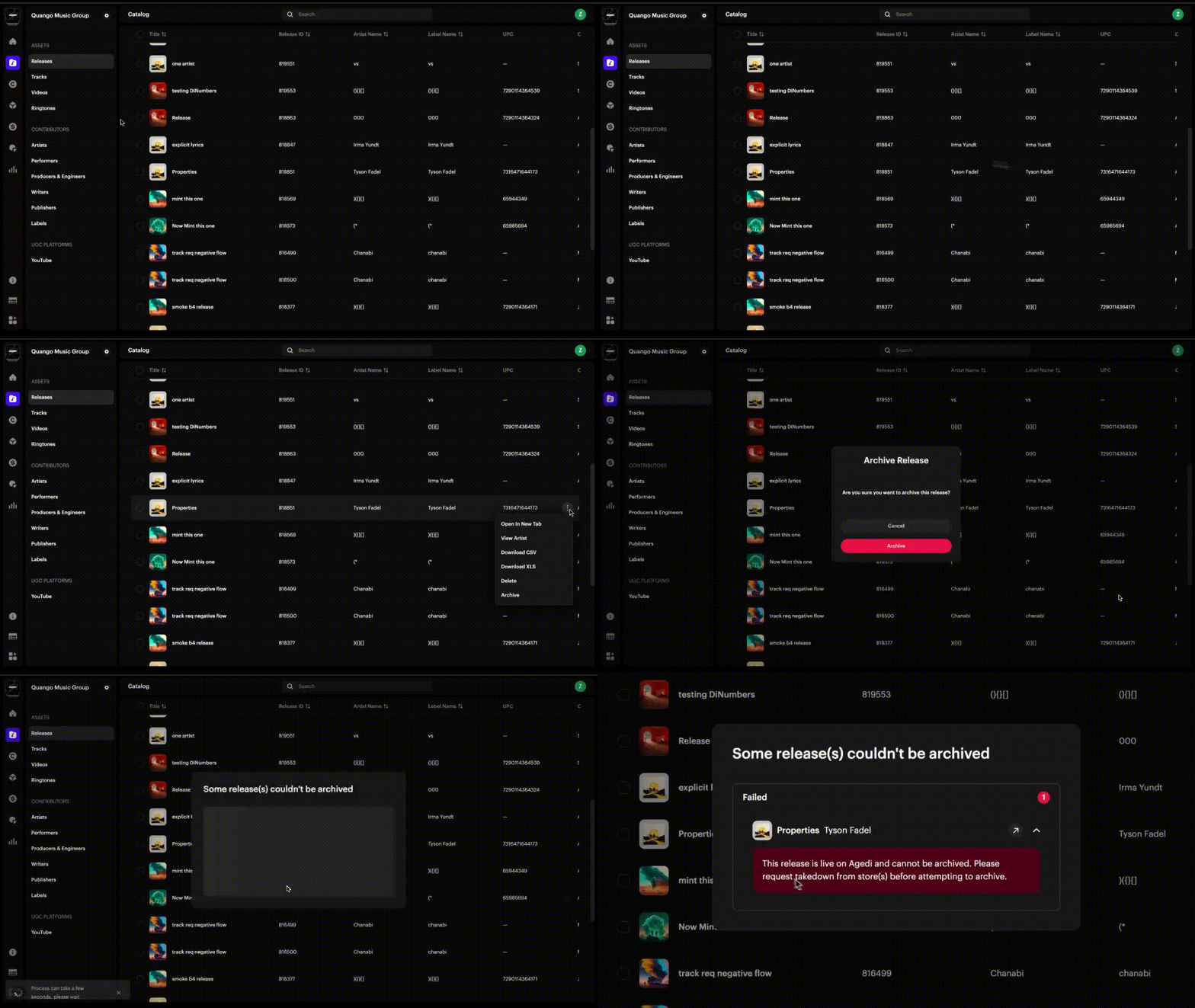
1. Archive a release
- Go to Catalog → Releases.
- Select the release you want to archive.
- Click Archive.

2. Archive an artist
- Go to Contributors → Artists.
- Select the artist you want to archive.
- Click Archive.
- Confirm.
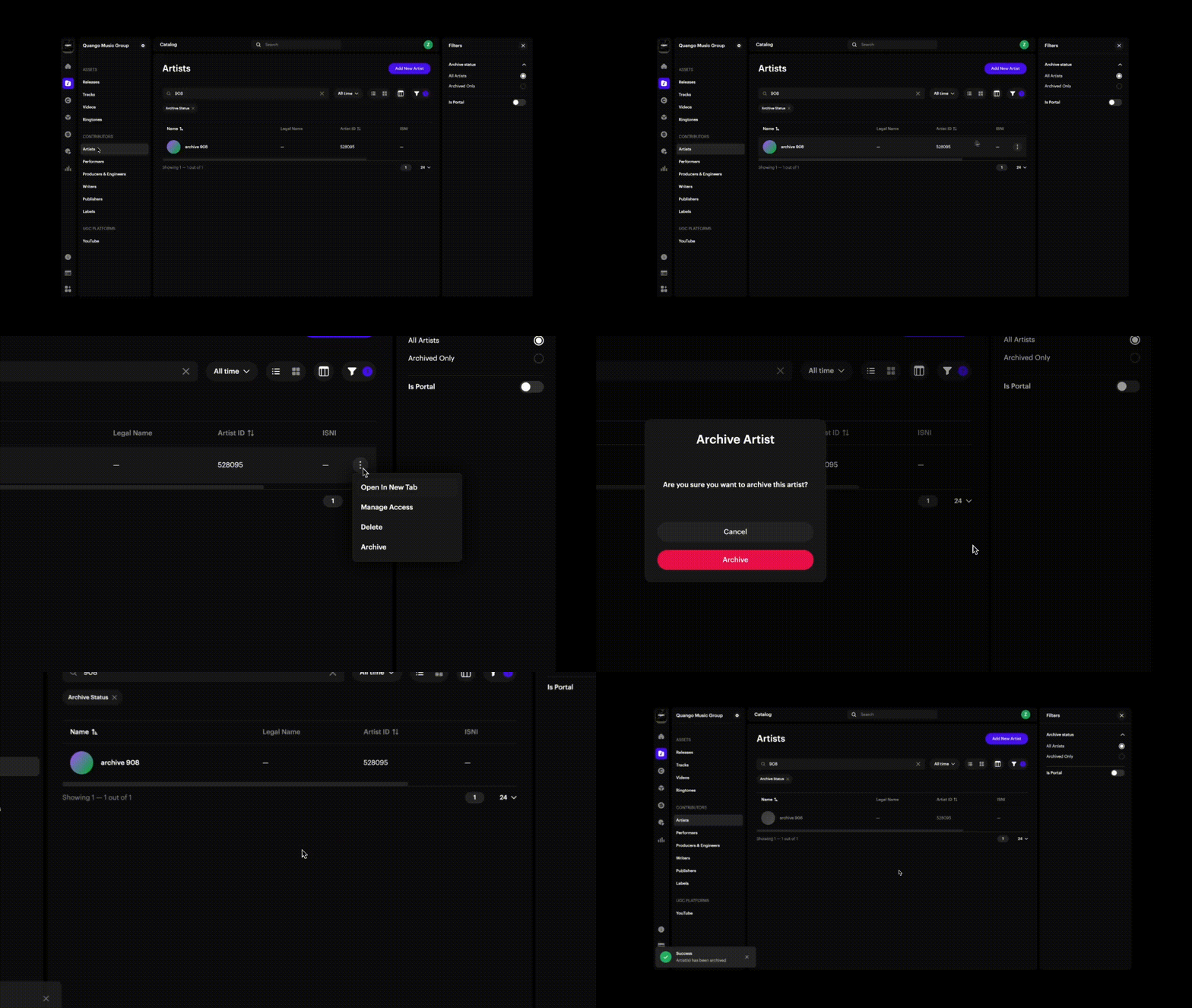
| Note If a contributor is archived, linked portals will lose access to it. |
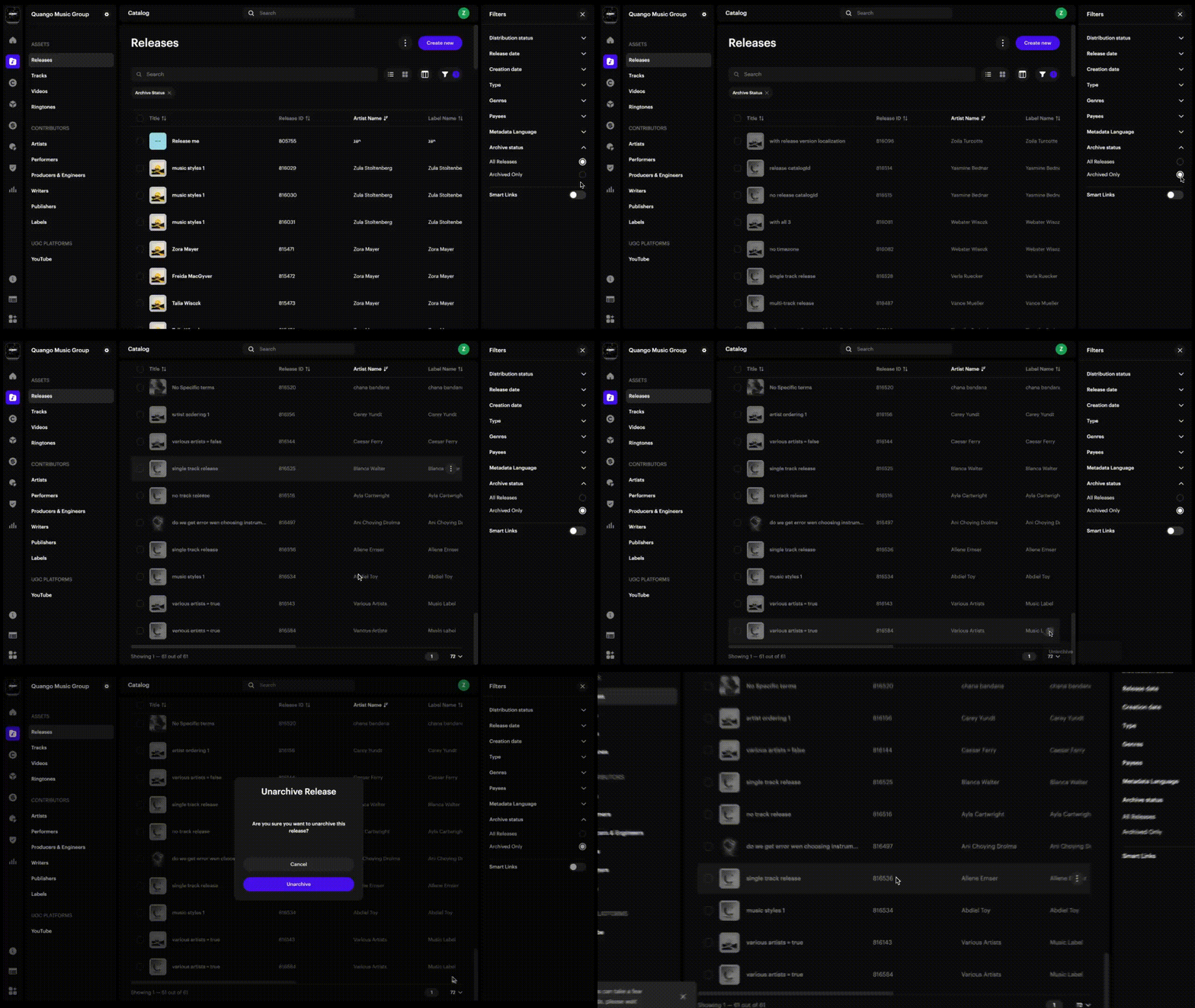
3. Review archived items
- Open the relevant section (Releases, Tracks, Artists, etc.).
- Apply the Archive Status → Archived only filter.
- Review all archived items in one place.
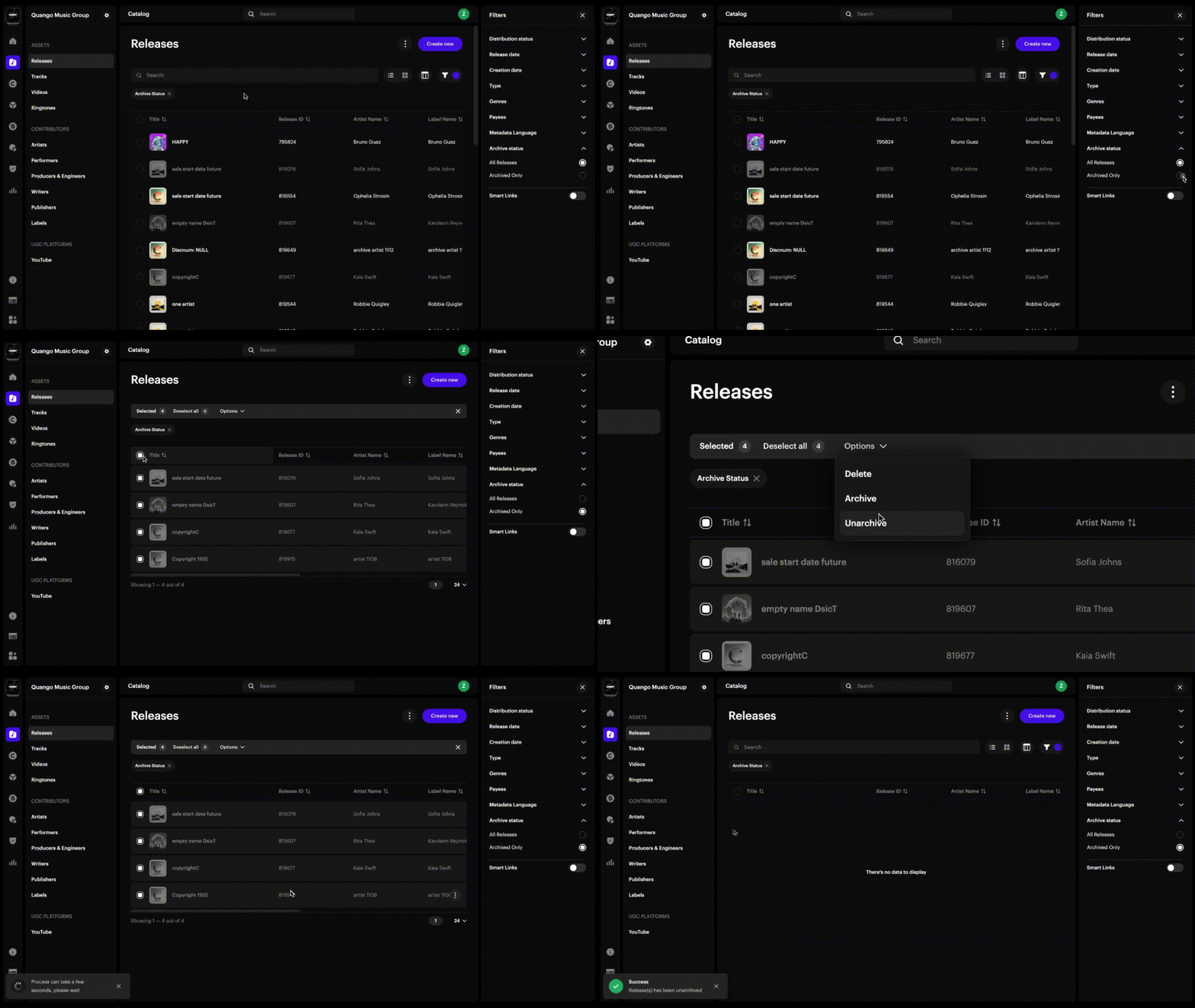
4. Bulk archive items
To clean up multiple catalog items at once, bulk archive them directly from the list view.
- Open the relevant catalog section (Releases, Tracks, Artists, etc.).
- Use the checkboxes to select multiple items.
- Click the Archive button at the top of the list.
- Confirm your action in the pop-up window.
| Important Any active items (e.g., releases live on DSPs) cannot be archived until dependencies are resolved. |
FAQs
Will archived items still appear on DSPs?
Yes. Archiving only removes items from your Revelator workspace, not from DSPs. To archive a release that is live, you must first take it down.
How does billing work for archived items?
Archived items only count toward your billing thresholds for the month in which they were active.
- If you archive an item during a given month, it will still be included in that month's usage.
- From the next billing cycle onward, it will no longer count.
Example: A track archived on September 24 will still appear in September's threshold, but from October it will no longer contribute to billing.
What happens after 6 months?
Audio and artwork files are permanently deleted to save storage. Metadata always remains for reporting, rights, and audits. You'll be notified by email 2 weeks before file deletion.
Can I unarchive an item?
Yes. Use the Archived only filter to find the item, then click Unarchive to restore it to your active catalog.
Can child accounts archive their own items?
Yes. Both parent and child accounts can archive their own catalog items.
Related articles
Was this article helpful?
That’s Great!
Thank you for your feedback
Sorry! We couldn't be helpful
Thank you for your feedback
Feedback sent
We appreciate your effort and will try to fix the article