This article explains the two dates that control when your music is released, and how to change your release start date after your release has already been distributed.
The two dates explained
Every release carries two separate dates, and they answer two different questions. Keeping them apart is the key to getting a back catalog release right.
| Previous release date | Release start date | |
|---|---|---|
| What it answers | When did this music first come out? | When should DSPs make it available this time? |
| Also called | Original release date (on DSPs) | Delivery date, sale start date |
| Back catalog example | June 14, 1968 | Today's delivery |
| Brand new release | Same as the release start date | The date you are releasing |
| Where you set it | Metadata page, under Release History | Distribution step, under Release Start Date |
For brand new music the two dates are effectively the same, so you rarely think about it. The difference only matters for back catalog: a reissue, or any release that came out before it reached Revelator. The music first came out years ago, but you are delivering it to DSPs today.
The previous release date
The previous release date is the date your music was first made available to the public. On the metadata page, under Release History, set Has it been previously released? to Yes. A Previous Release Date field appears: enter the date the music originally came out.
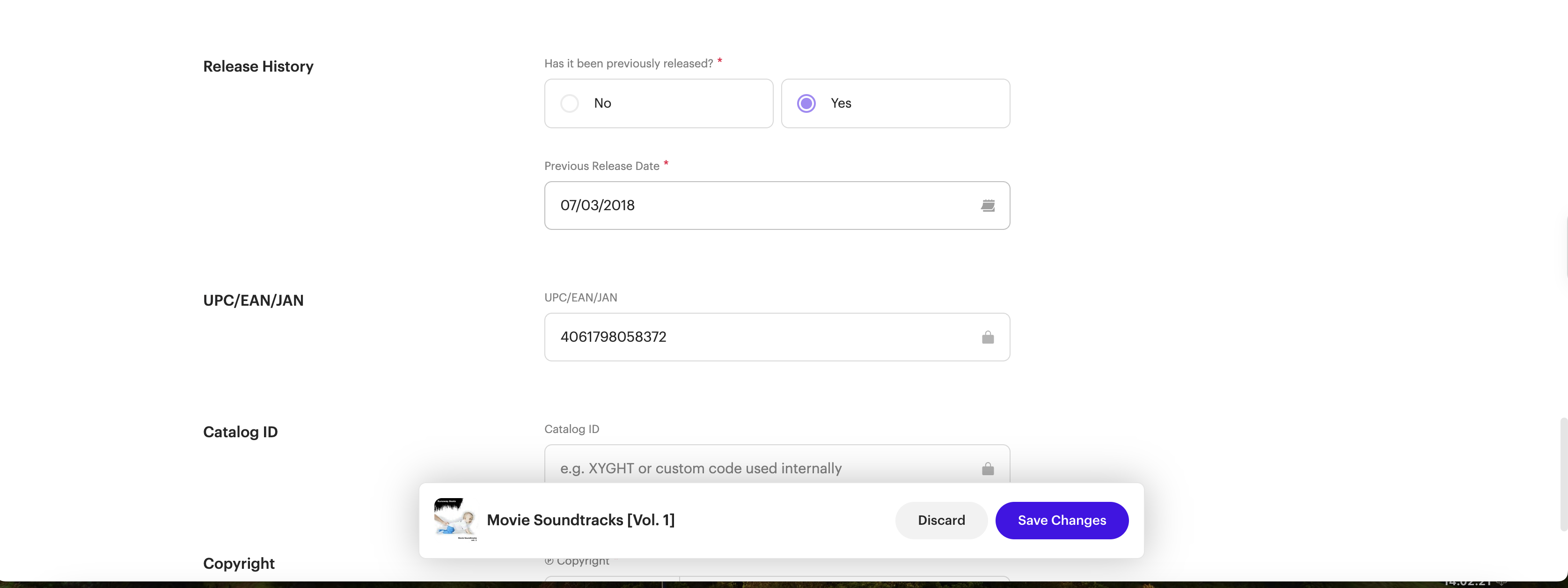
On the metadata page, set Has it been previously released? to Yes and enter the original date under Previous Release Date.
Once saved, this date appears in the release's Release Details as the Release Date.
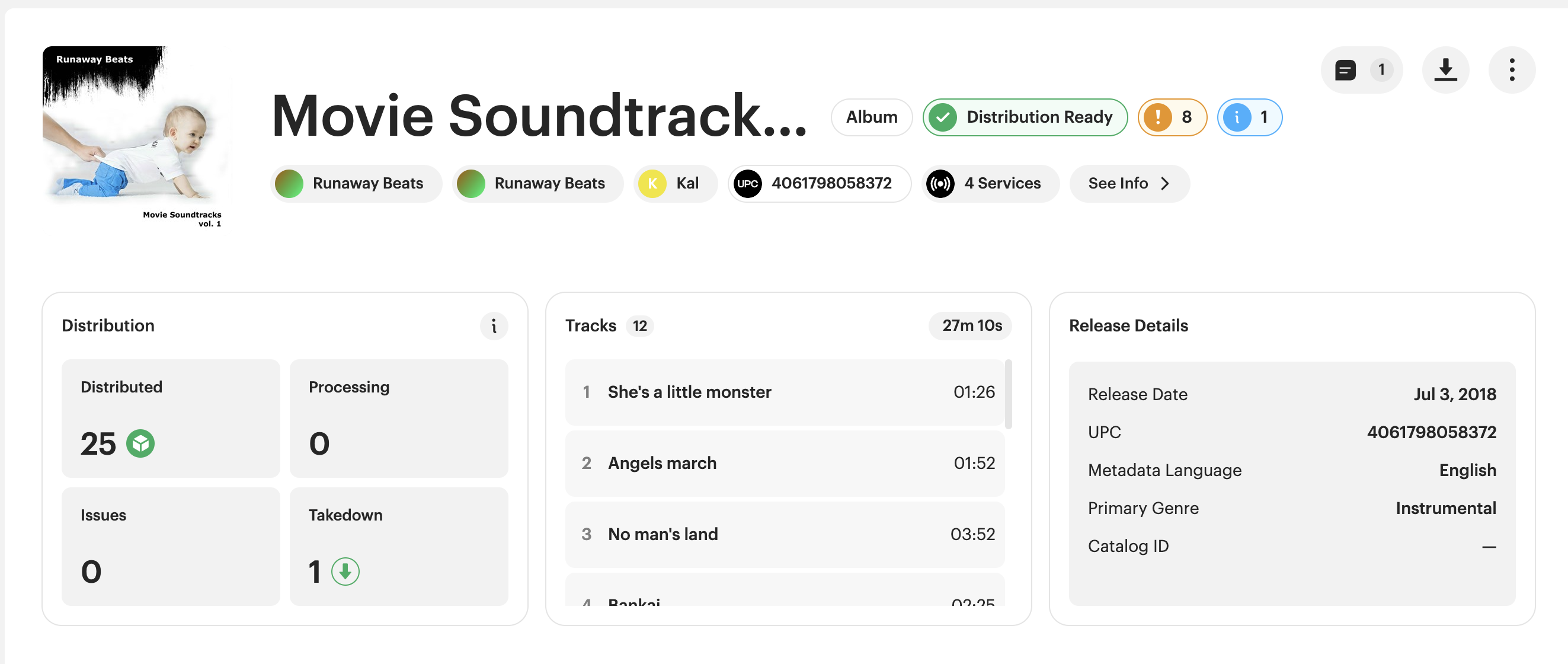
The saved date then appears in the release overview under Release Details as the Release Date.
DSPs call this the "original release date," and they use it to display the correct release year for your music. Setting it correctly keeps the original year visible to listeners, rather than showing the date you redelivered.
For example, an album that first came out on June 14, 1968 and is redelivered today should have its previous release date set to that 1968 date. On the DSP, the album then appears under 1968, not the current year.
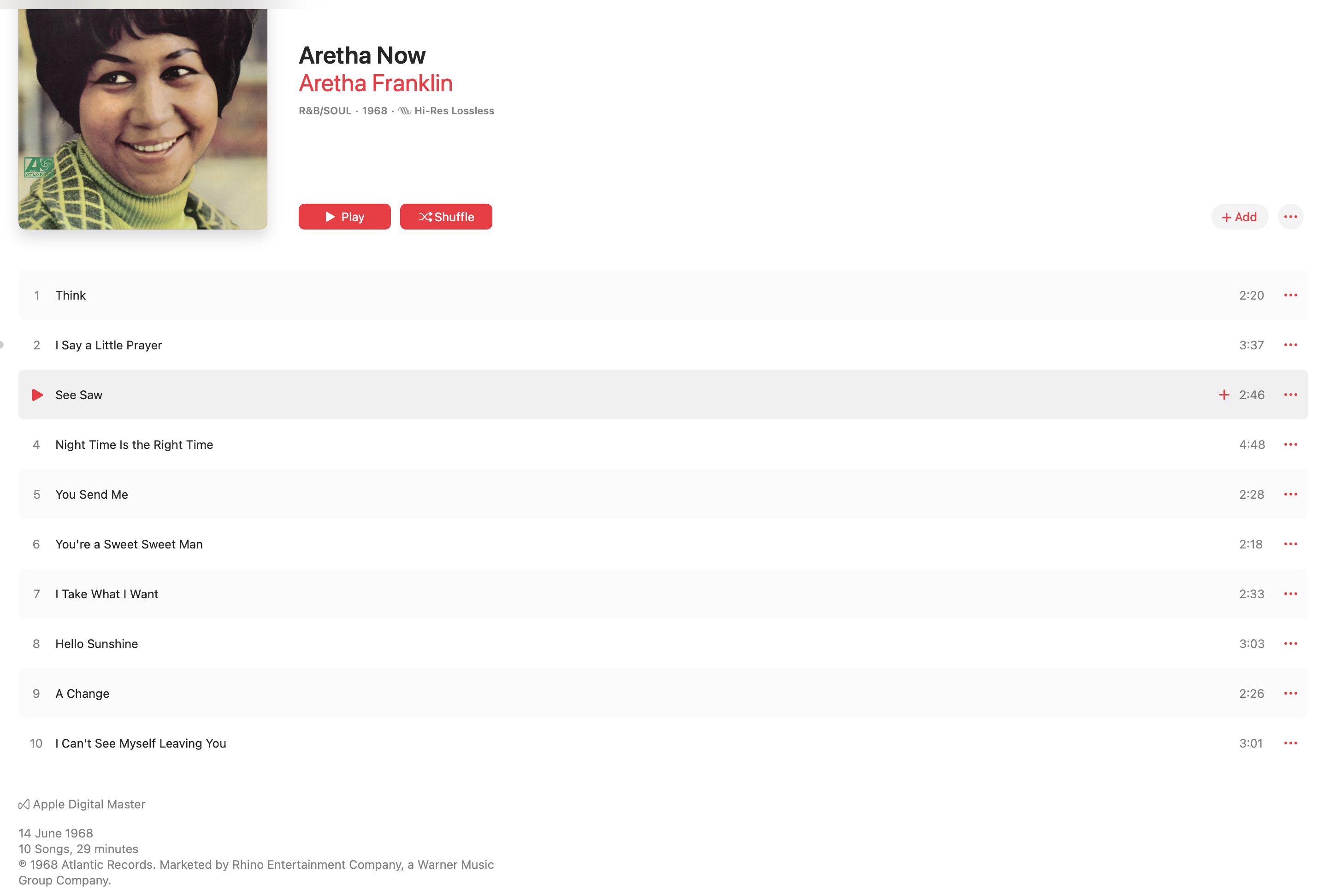
How back catalog appears on a DSP: with the original release date set, the album shows under its original year, not the delivery date.
| NoteIf you are distributing a release for the first time and do not set this date, the system fills it in automatically when you distribute, based on your release start date: a specific date matches that date, and as soon as possible uses today's date. |
| ImportantOnce set, the previous release date cannot be changed directly. You have two options: redistribute with a new future start date, which updates the date only if the previous release date has not yet passed, or contact support if the previous release date has already passed. |
The release start date
The release start date is the date you want DSPs to make your release available to the public this time. You set it on the final Distribution step, under Release Start Date, by choosing As soon as possible or On a specific date.
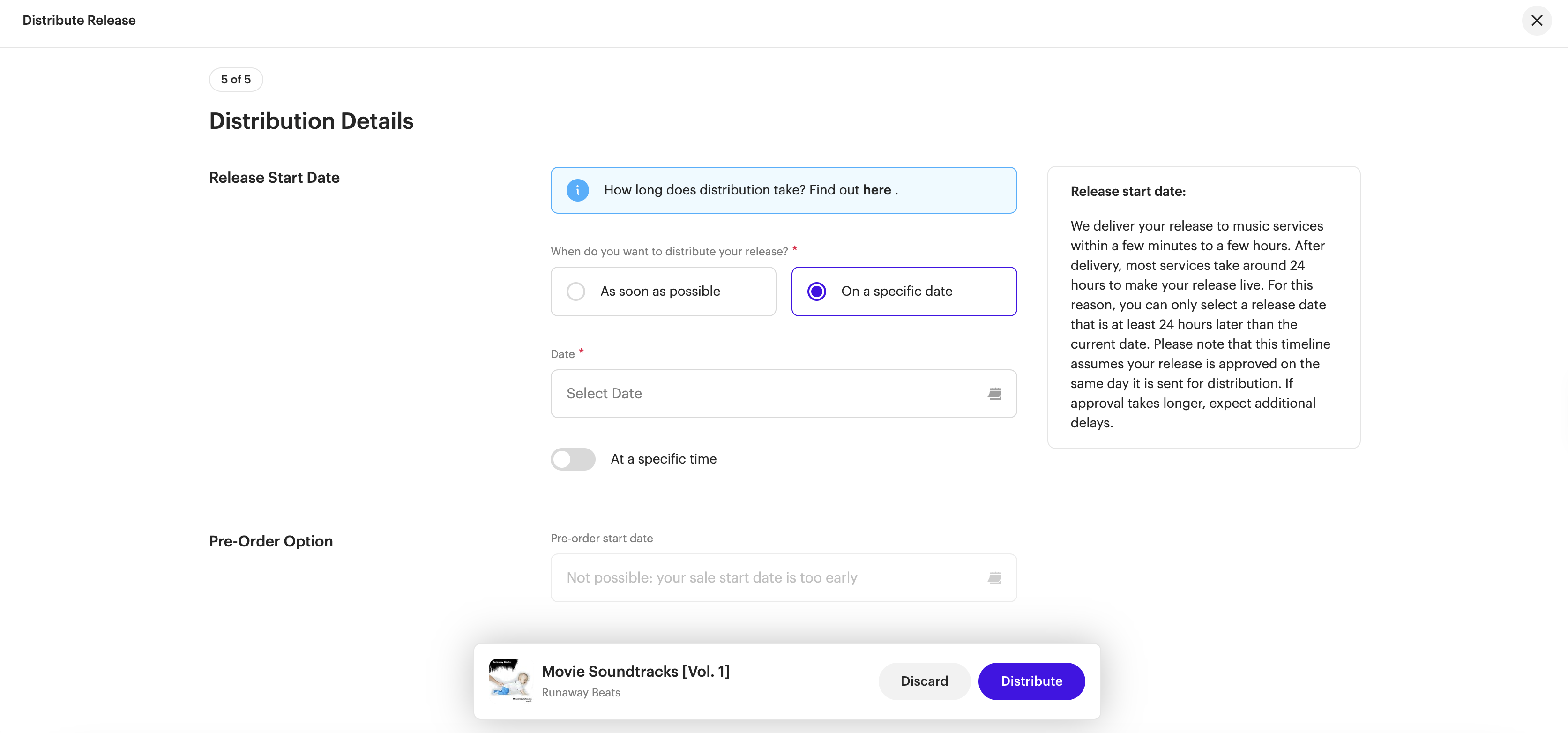
On the Distribution step, choose As soon as possible or On a specific date to set when the release goes live.
| NoteYou can change the release start date each time you redistribute the release. DSPs need time to process the update (Spotify needs around 2 days), so changes made within 2 days of your previously set start date may not take effect in time. |
| WarningIf you need to postpone a release, or stop it from going live, with less than 2 days to go, a takedown is the safer option. A redelivery with a new date may not reach DSPs in time, so the release could still go live on the original date. |
For example, if today is January 6 and your previously set start date is January 10, redeliver with the new date and it will update as normal. If today is January 8, you can still redeliver with a new date, but the change may not reach every DSP before January 10. If you need to make sure the release does not go live on January 10, issue a takedown instead.
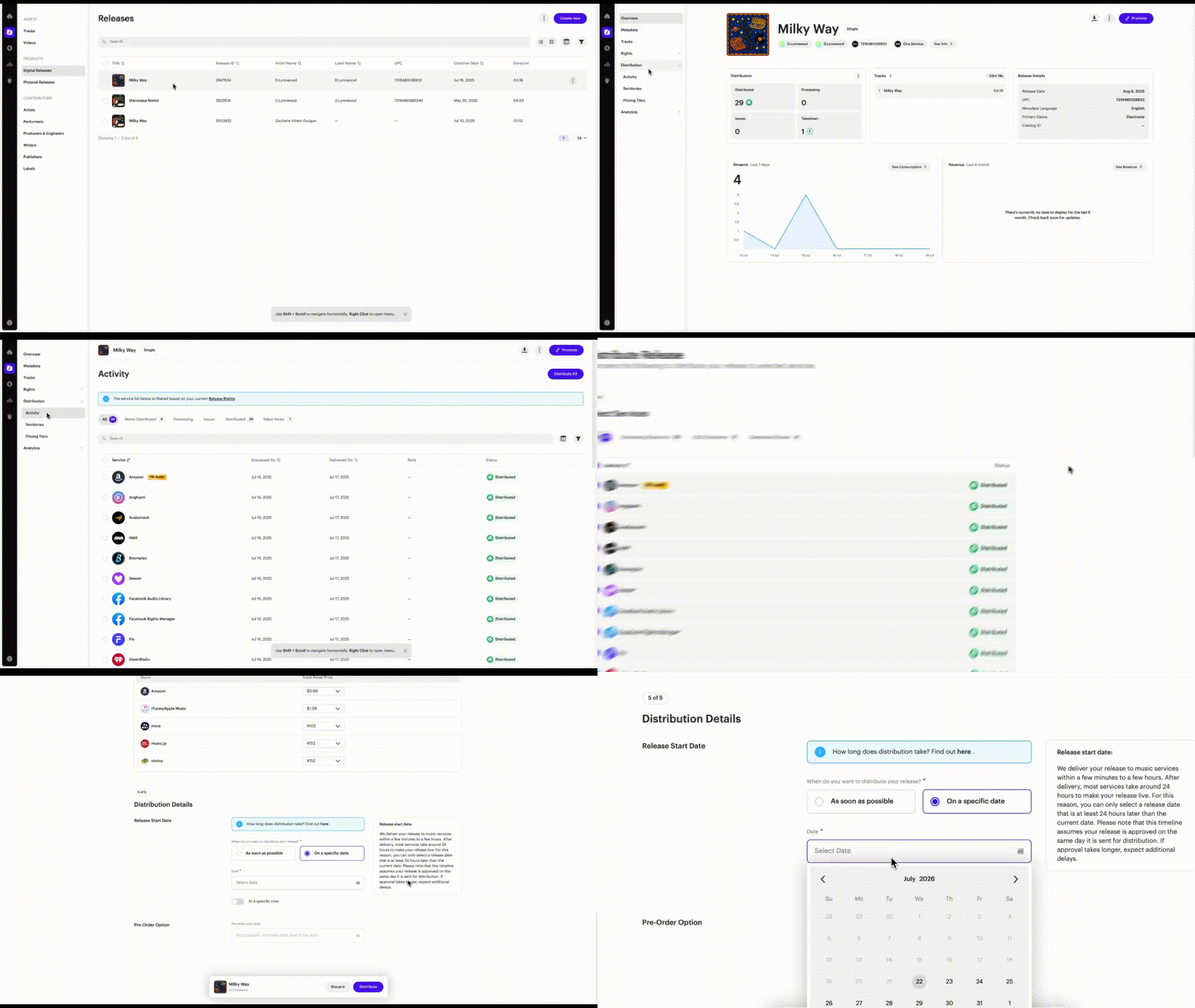
How to change the release start date
- Navigate to Catalog.
- Open the release you want to change.
- Expand Distribution in the sidebar and click Activity.
- Click the purple Distribute All button.
- Proceed to Step 5: Distribution Details.
- Under Release Start Date, select On a specific date.
- Choose your new date.
- Click Distribute to confirm.
Related articles
Was this article helpful?
That’s Great!
Thank you for your feedback
Sorry! We couldn't be helpful
Thank you for your feedback
Feedback sent
We appreciate your effort and will try to fix the article