Data Export delivers your consumption data as daily files that your team can load straight into your own analytics platform, data warehouse, or dashboards. It's built for distributors and labels who already run their own data tools and want Revelator data alongside their other sources.
Before you begin
|
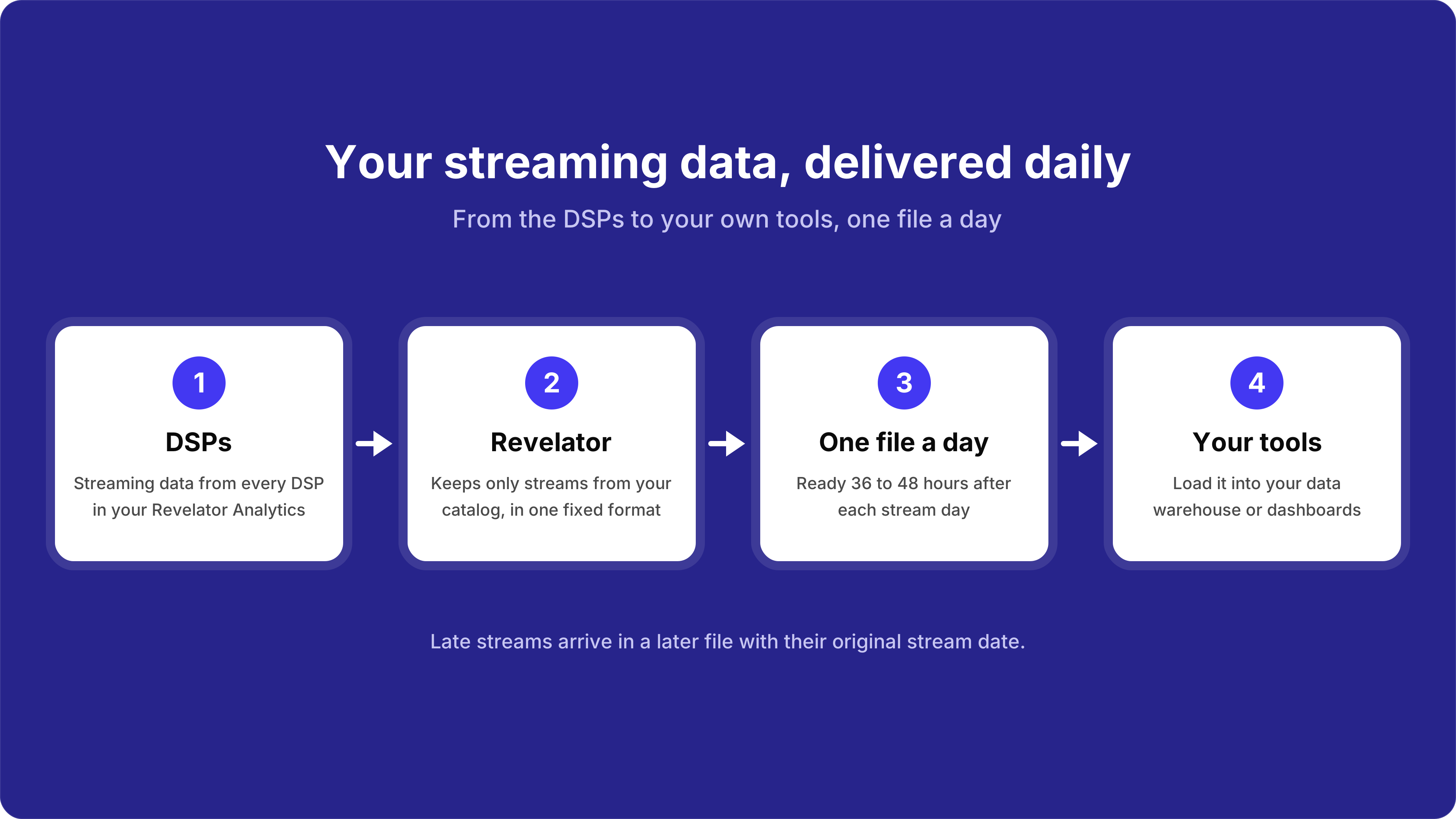
What you get
- One file per reporting day. Each file covers every DSP whose data flows into your Revelator Analytics.
- Only streams from your catalog. Revelator matches each stream to your catalog by ISRC before adding it to the file.
- One fixed format. Every file follows the same documented structure, so you can load it the same way every day.
- Data as each DSP reports it. Rows keep the detail level each DSP sends. Values such as stream source, subscription type, device, and age group use each DSP's own labels, and missing values are left empty.
| Note Streams shorter than 30 seconds are not included for any DSP. |
When files arrive
Files are ready as soon as they're exported, typically 36 to 48 hours after the end of each stream day. You don't need to wait for your Analytics dashboards to refresh.
When a DSP reports streams late, they arrive in a later file. Past files are never changed, and every row includes its original stream date, so you can add the new rows without reloading past days.
Step 1: Request access
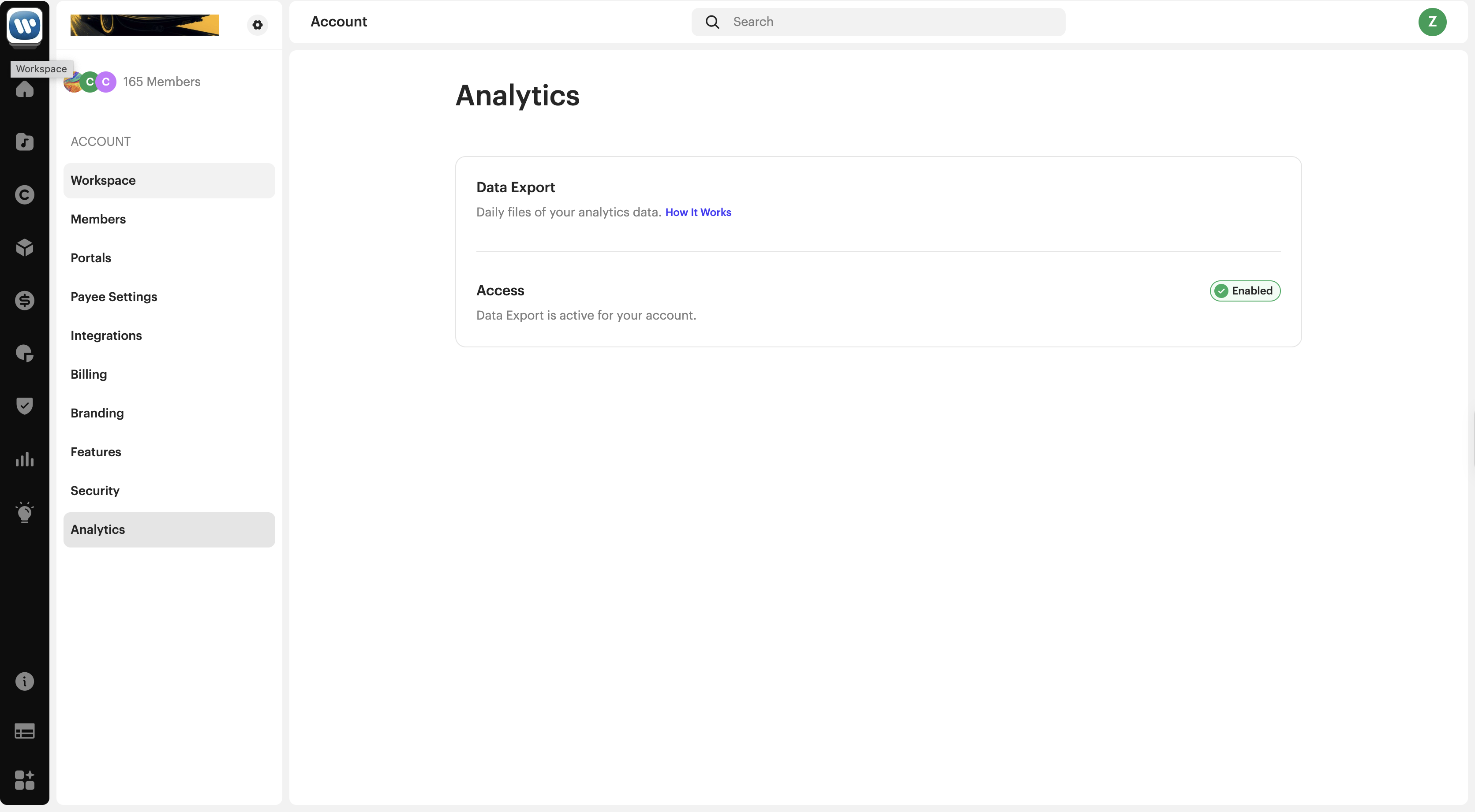
- Go to Workspace Settings → Analytics.
- In the Data Export section, click Request access.
- The status changes to Pending review, and our team reviews your request.
- Once approved, the status changes to Enabled.
Step 2: Check your status
The Access line in the Data Export section shows where your request stands:
| Status | What it means |
|---|---|
| Request access | Data Export isn't on yet for your account. |
| Pending review | Your request was sent to our team for review. |
| Enabled | Data Export is active for your account. |
If a request is declined, or Data Export is turned off, the status goes back to Request access and no new files are created.
Step 3: Collect your files
Once the status reads Enabled, your team can start seeing files, filter them by date, and download each one through the Revelator API.
Select How It Works in the Data Export section to open the technical guide for your developers. You can also share the Data Export API documentation with them directly.
| Tip Ask your developer to keep a record of which files they've already loaded. Each new file contains only new rows, including any late streams. |
FAQ
Does Data Export cost extra?
No. Data Export comes at no additional cost.
Can I get files for past dates?
No. Data Export covers daily files from the moment it's enabled. Past dates are not included.
Does it include revenue data?
No. Data Export covers consumption (streaming) data only. Revenue stays in your Revelator revenue reports.
Can I change the file format or schedule?
No. Every account gets the same daily file in the same fixed format.
Can files be delivered to our own cloud storage?
Not at the moment. Your team collects the files from Revelator through the API.
Who can request Data Export?
Admins of an Organization Workspace (parent account). Client Workspaces (child accounts), portals, and other roles do not see the Data Export section.
Related articles
Was this article helpful?
That’s Great!
Thank you for your feedback
Sorry! We couldn't be helpful
Thank you for your feedback
Feedback sent
We appreciate your effort and will try to fix the article