Masterchannel is an AI mastering integration that lets your clients master their tracks inside Revelator. This article explains who can turn it on, how to enable and disable it for your clients, where your clients find it, and what to do if something doesn't work.
Before you begin
|
What Masterchannel does
Masterchannel gives your clients professional-grade AI mastering at the point they add or edit audio. Once it's enabled, your clients can:
- Apply AI mastering to a track
- Download the mastered track
- Upload the mastered track back to the audio asset
Who can turn it on
Masterchannel is controlled at organization level. An Admin in your organization (tenant) enables or disables it, and the setting applies to your clients' workspaces.
| Note Masterchannel is a feature for your clients. You switch it on in your Organization Workspace, but the mastering tool itself only appears in your clients' workspaces. |
Step 1: Open the Mastering integrations
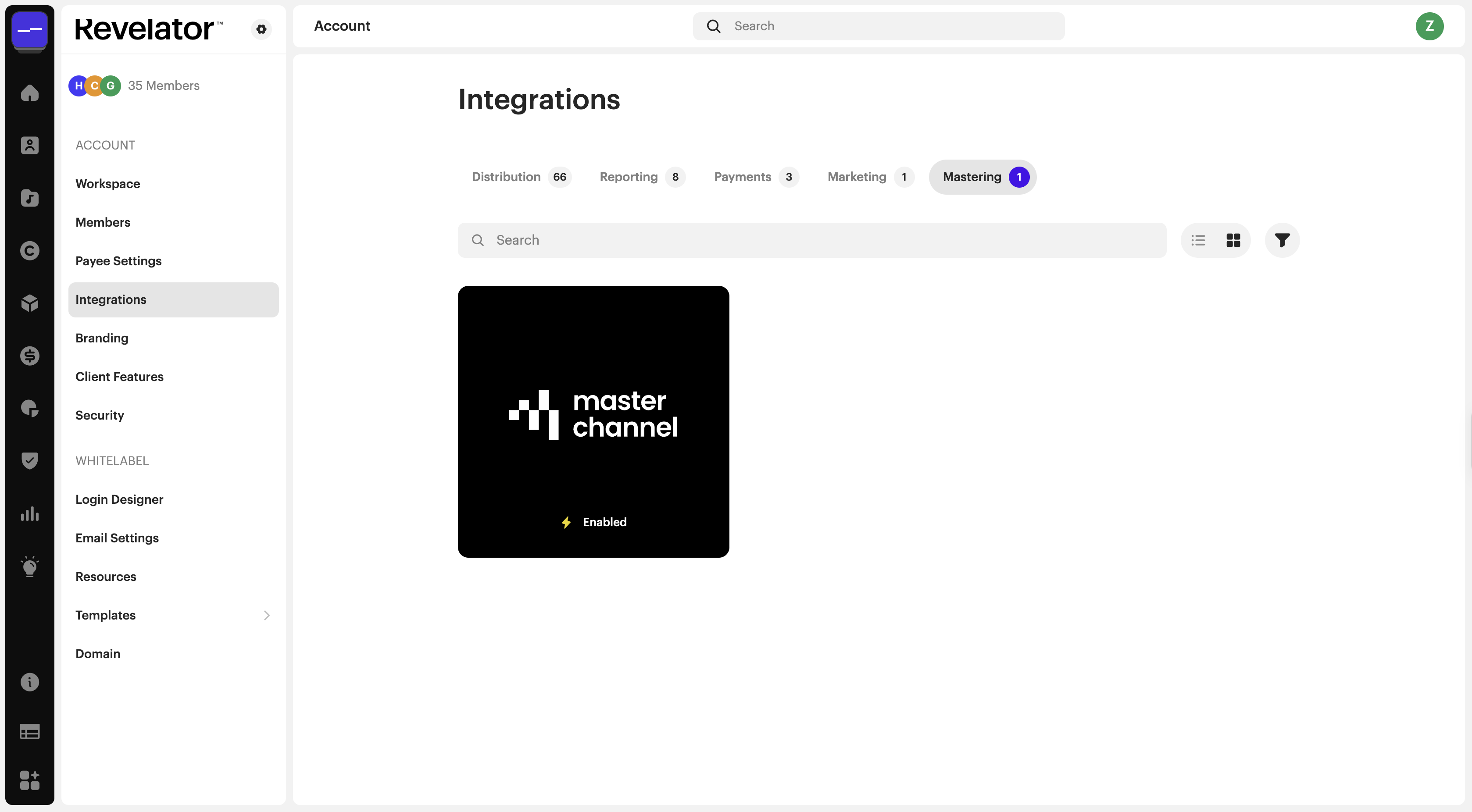
- In your Organization Workspace, click the settings icon next to the Revelator logo to open Account.
- Under ACCOUNT, select Integrations.
- Select the Mastering tab.
Step 2: Enable or disable Masterchannel
- Click the Masterchannel card. A window opens explaining the integration.
- Click Enable to turn it on, or Disable to turn it off. Click Cancel to close without changes.
- Check the card. Enabled means Masterchannel is available to your clients.
Where your clients find Masterchannel
In a client workspace, Masterchannel appears when the client adds or edits a track's audio:
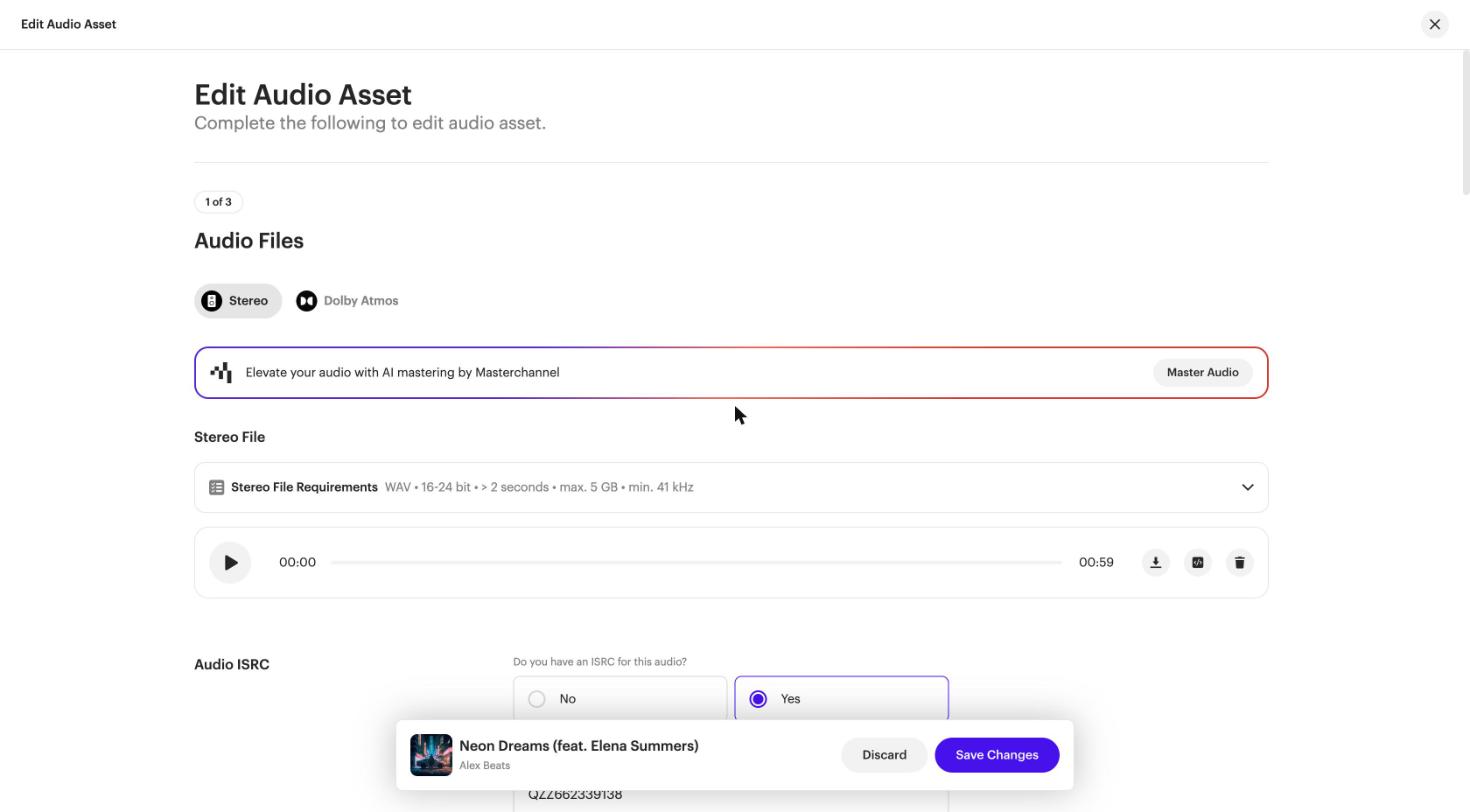
- Open the track, go to Audio Files, and click the edit (pencil) icon. The Edit Audio Asset page opens.
- On the banner Elevate your audio with AI mastering by Masterchannel, click Master Audio.
- In Master Your Track with AI, choose Apply AI Mastering, Download Mastered Track, or Upload Mastered Track.
- Click Save Changes to keep the new audio.
Troubleshooting
Enabling or disabling fails
Refresh the page and try again. Check that you're in your Organization Workspace and signed in with an Admin account.
My client can't see Masterchannel
Check that the Masterchannel card shows Enabled on your organization's Integrations page. Your client will find it on the Edit Audio Asset page, not on the track overview.
A file upload fails
Check the file against the Stereo File Requirements: WAV, 16–24 bit, more than 2 seconds, max. 5 GB, min. 41 kHz.
Related articles
Was this article helpful?
That’s Great!
Thank you for your feedback
Sorry! We couldn't be helpful
Thank you for your feedback
Feedback sent
We appreciate your effort and will try to fix the article