A contract defines how the revenue your catalog earns is split between your company and your payees. Create one to set payout terms and assign payees to specific artists, labels, releases, tracks, or videos.
Before you begin
|
Create a new contract
- From the main navigation menu, click Rights → Contracts.
- Click Create New.
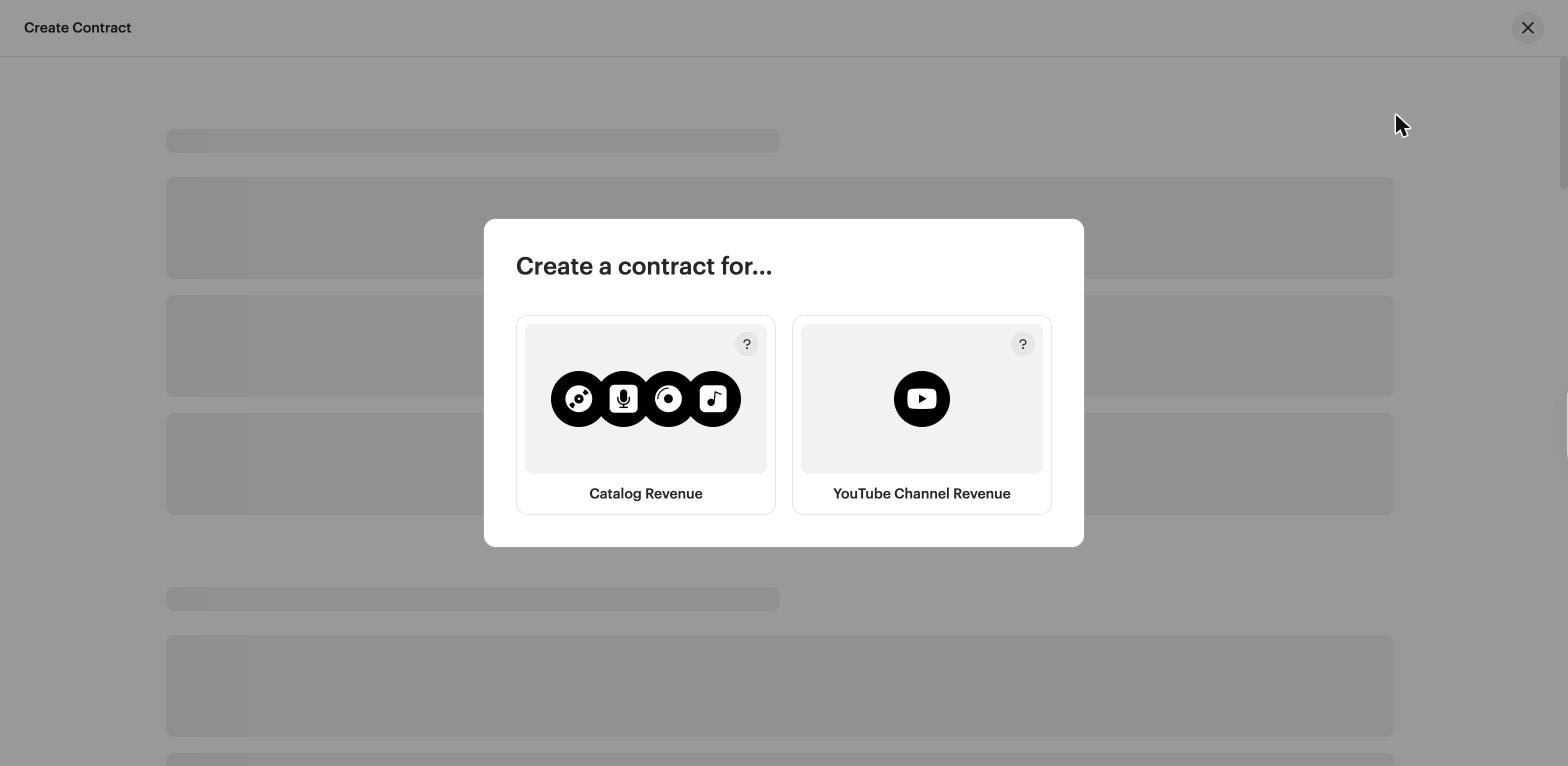
- Under Create a contract for..., choose Catalog Revenue. (Choose YouTube Channel Revenue only for a YouTube channel contract.)
The contract builder opens with four steps: Details, Catalog Scope, Terms, and Payees.
Step 1: Details
The Party Acquiring Rights (Payor) is set to your company automatically.
- Enter a Contract Name.
- Set the Contract Status to Active or Inactive.
- Set the Start Date and End Date, or leave No End Date selected for a perpetual contract.
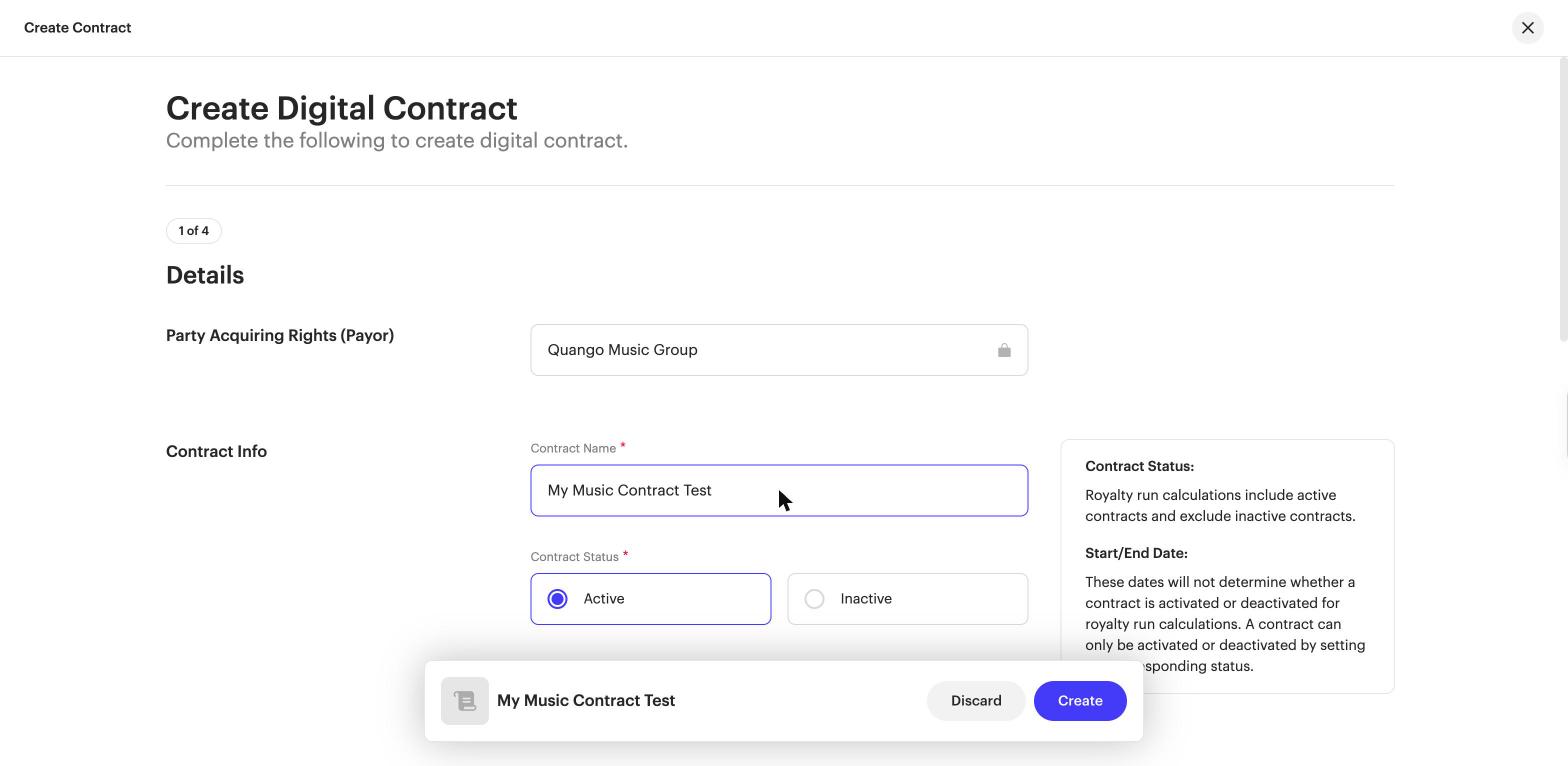
| Important Start and end dates do not activate or deactivate a contract for royalty runs. Only the Contract Status does that. |
Step 2: Catalog Scope
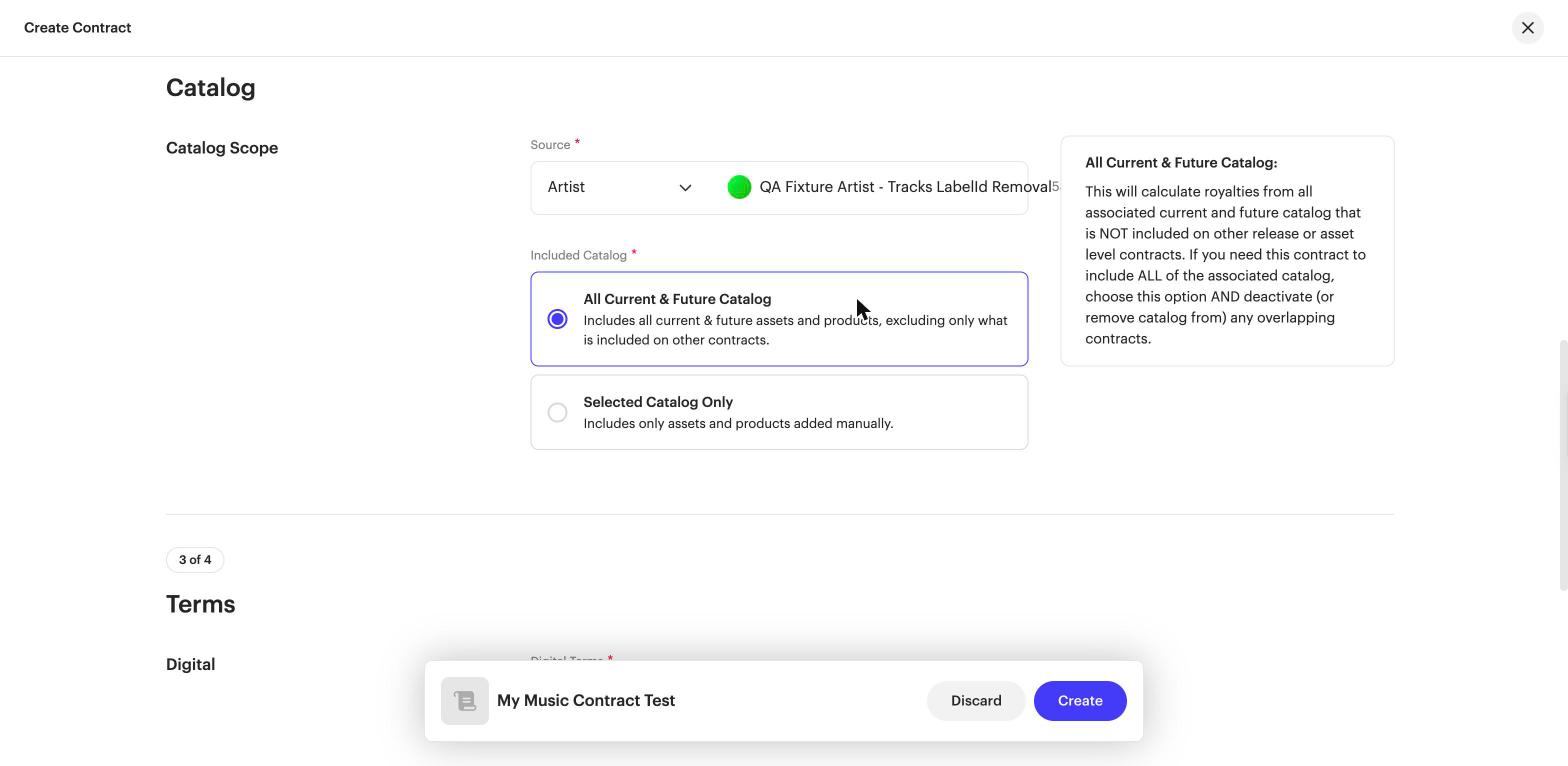
- Set the Source to Artist or Label, then search for and select the artist or label.
- Under Included Catalog, choose one:
- All Current & Future Catalog: includes all current and future assets and products, excluding only what is already on other contracts.
- Selected Catalog Only: includes only the assets and products you add manually.
- If you chose Selected Catalog Only, use the Select Catalog dropdown to search by Audio Assets, Video Assets, or Digital Releases, then add the items you want.
| Note Video assets can be added to contracts. A video is matched by its ISRC and release UPC and paid through the same terms as audio. Catalog that already appears on another contract cannot be added again. |
Step 3: Terms
Terms set the payout rate and the services it applies to. You can add more than one.
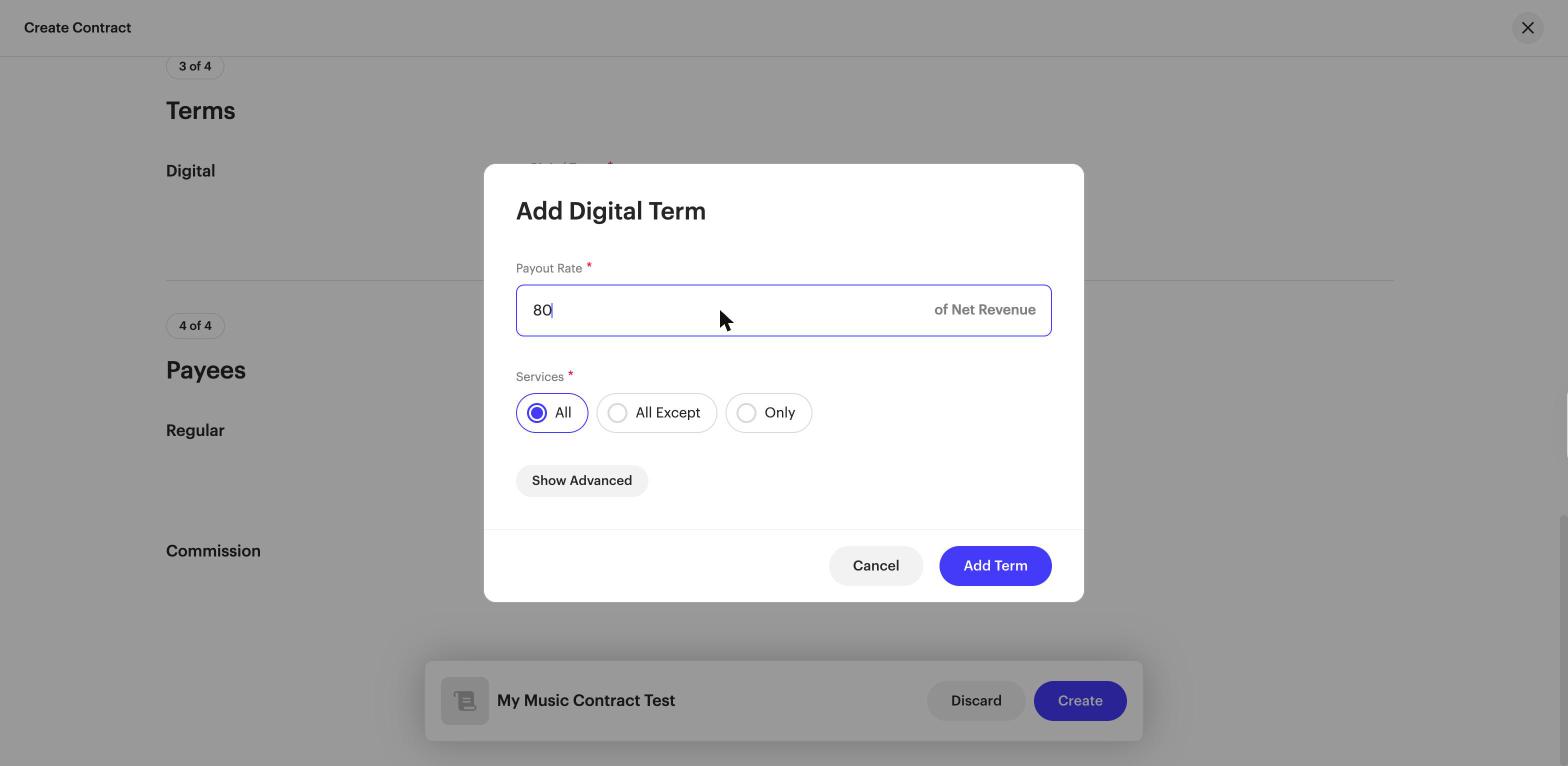
- Under Digital Terms, click + Add Digital Term.
- Enter the Payout Rate (a percentage of net revenue).
- Choose the Services the term applies to: All, All Except, or Only.
- To scope the term further, click Show Advanced and set Delivery Types and Territories.
- Click Add Term. To add another term, click + Add Digital Term again.
Step 4: Payees
Payees receive a share of the payout after your terms are applied.
- Under Regular Payees, click + Add Regular Payee.
- Select the payee under Payee Name, or click Create & Add New Payee to add a new one.
- Enter the payee's Split (%). The regular payee splits must total 100%.
| Tip To add a payee whose share comes from your distribution fee rather than the royalties, click + Add Commission Payee in the Commission section. |
Create the contract
- Click Create.
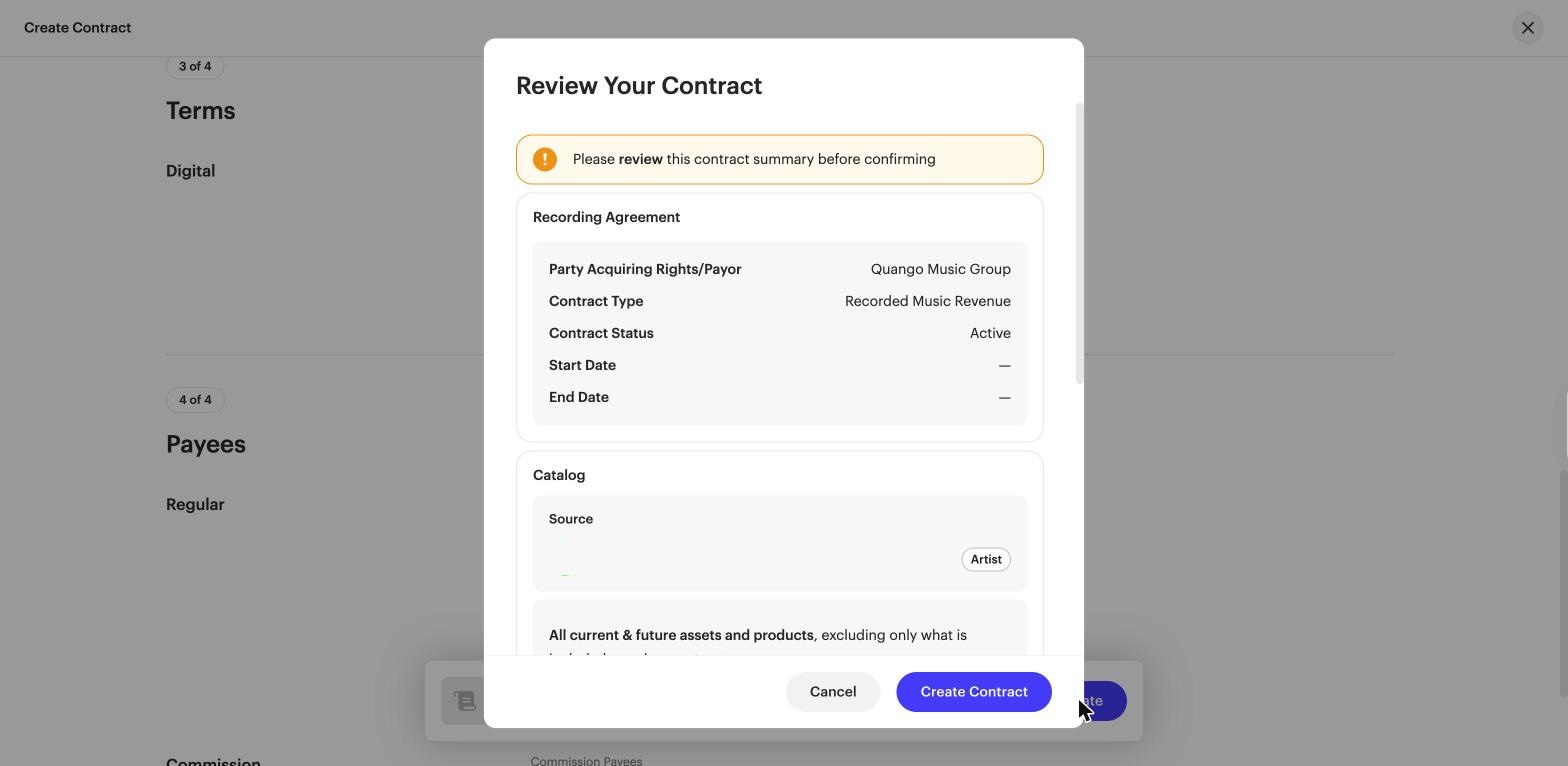
- Review the summary on Review Your Contract, then click Create Contract.
The contract appears in your Contracts list with its status, level, payees, and Contract ID.
Expected outcomes
- The contract appears in the Contracts list with the correct status and level.
- The intended catalog is covered.
- Terms and payout rates are applied as configured.
- Payees appear with the correct split.
Frequently asked questions
Can I include both audio and video in one contract?
Yes. You can add audio assets, video assets, and releases to the same contract. Most of the time you'll use one or the other, but both are supported.
How is revenue matched to a contract?
Revenue is matched by ISRC and UPC, and applied to the most specific contract available: track level first, then release, artist, label, and finally account level.
Can two contracts cover the same asset?
Avoid this unless you need to distribute revenue from the same catalog to different payees based on different terms.
| Warning If the same catalog is active on two or more contracts and the terms overlap in a conflict, the royalty run will be unable to allocate the revenue. You'll need to update the contracts or make one inactive before attempting to reprocess unallocated revenue. |
| Need help? Contact support if you need assistance. |
Related articles
Was this article helpful?
That’s Great!
Thank you for your feedback
Sorry! We couldn't be helpful
Thank you for your feedback
Feedback sent
We appreciate your effort and will try to fix the article