Multi-Factor Authentication (MFA) adds an extra verification step when a user performs a sensitive action on the platform. This ensures that even if a user is already logged in, critical changes can only be completed by verifying their account with a one-time passcode.
When MFA is enabled (and required) from Account Settings → Security, it will apply to the following actions:
- Log In
- Change Password
Additional actions will be added in future updates.
Before you start
For MFA to be available to your workspace users and your clients user accounts:
- Your workspace MFA policy must be set to Enabled or Required.
- When set to Enabled, MFA is opt-in for users to enable if they would like an extra level of security on their account. It is not mandatory.
- When set to Required, MFA is mandatory and all users will be required to enable at least one MFA method on their user account.
- When enabled or required, you must configure at least one verification methodfor your users to enable for MFA. Current methods include:
- Authenticator App: users can connect and use any 3rd-party authenticator application to receive verification codes.
- Email: users receive their verification codes via email.
If the MFA policy is Disabled, MFA will not be made available to your users or clients.
| Tip Popular authenticator apps include Google Authenticator and Apple Passwords. |
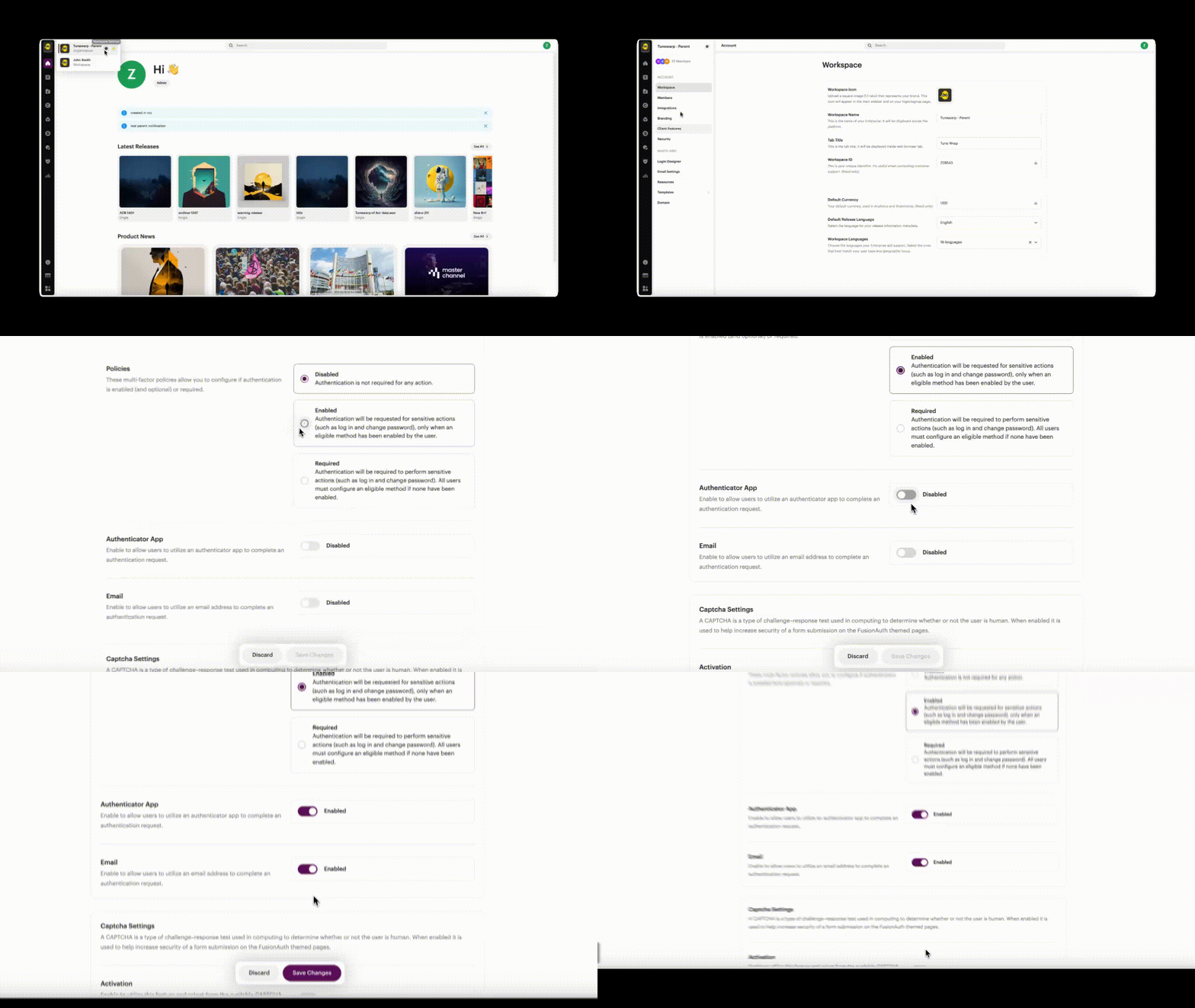
Admin setup: configure MFA policies
- Go to Account Settings → Security
- Under Multi-Factor, choose one of the following policies:
- Disabled: MFA is not available to any user in your workspace or your clients users.
- Enabled: MFA is requested for sensitive actions (such as changing a password) only if the user has opted-in to set up a verification method.
- Required: MFA is mandatory for all sensitive actions. Users will be required to enable a verification method if they haven’t already.
Admin setup: enable verification methods
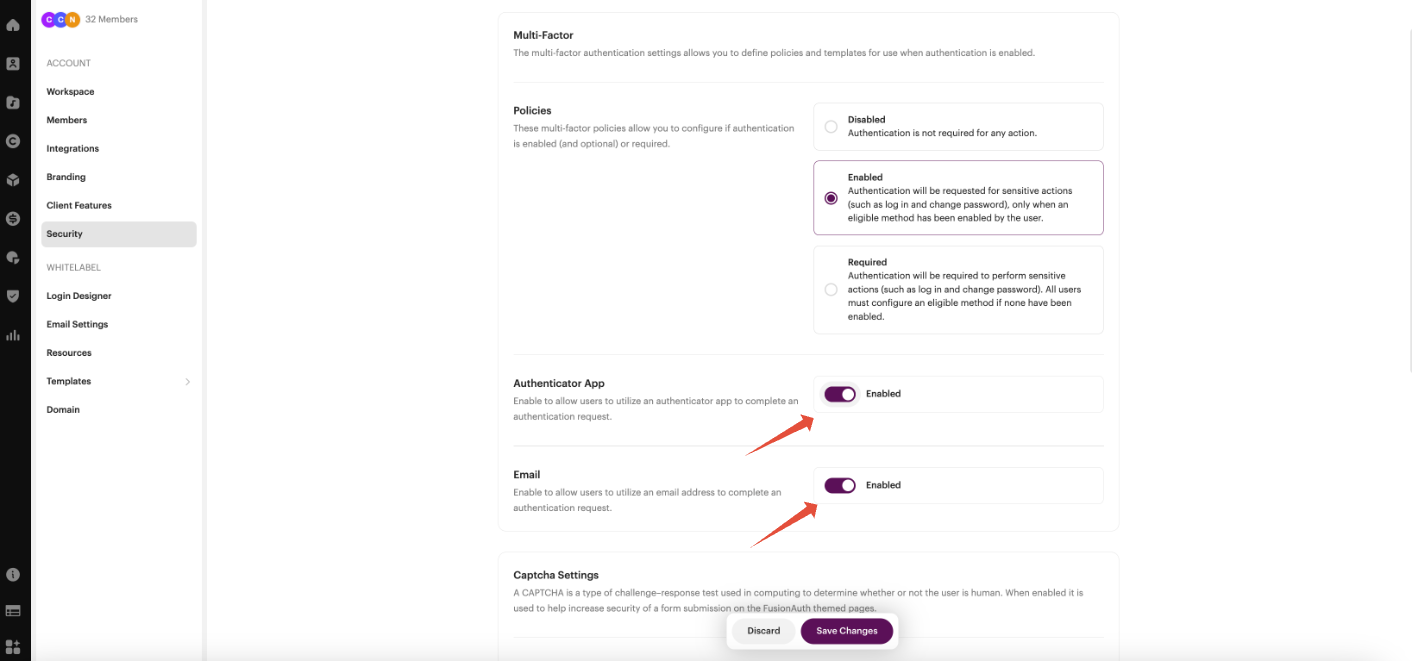
Also in Account Settings → Security, switch ON the verification methods you want to allow your workspace users and your clients users to be able to enable verification with.
Available methods include:
- Authenticator App: users can connect and use any 3rd-party authenticator application to receive verification codes.
- Email: users receive their verification codes via email.
User account: enable MFA method
- Go to your User Settings → Security
- Under Your Verification Methods, click to enable either Authenticator App or Email (or both)
- When choosing Authenticator App, you’ll be shown a QR code you can scan from the authenticator app you use on your phone. (e.g. Google Authenticator, Apple Passwords, etc). After scanning the QR code, input the one-time verification code from your authenticator app to confirm.
- When choosing Email, your user account email will receive a one-time verification code. Enter the code to confirm.
- Once set up of a verification method is complete, you’ll be shown a list of 10 recovery codes. Please copy and store these codes somewhere secure like a password manager app. These codes can be used to disable a verification method if you ever lose access to it.
- If you ever need to disable a verification method, click the 3-dot menu icon and click Disable. You’ll be asked to input a verification code from either method currently enabled to confirm.
| Important Recovery codes are single-use. If you use up all of your recovery codes, you will no longer be able to verify your account. Each time you disable and re-enable a verification method, you will receive a new set of 10 recovery codes. |
User account: how MFA works when changing a password
- Go to your User Settings → Change Password
- Enter your, current password, and confirm a new password to change it to.
- Click Save Changes
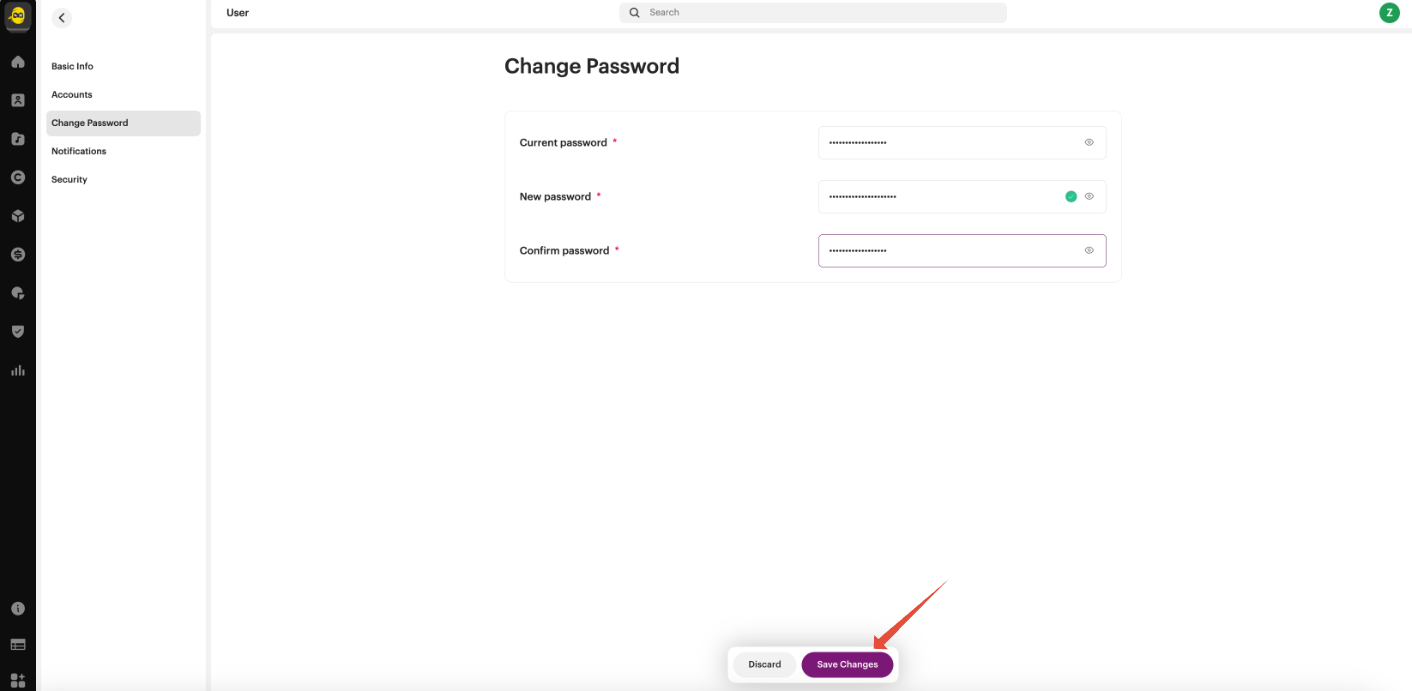
When a verification method as been enabled on your account, a Verification Required modal will appear.
- If you have 1 method enabled on your user account you will be requested to enter the one-time code sent to your email or available in your authenticator app.
- If you have 2 methods enabled on your user account, you may choose which verification method you would like to use.
- Complete verification to finish changing your password
If verification is successful, the password update will be applied.
Troubleshooting
I don’t see any verification options
This usually means:
- No verification methods are enabled at the account level, or
- The user hasn’t set up a verification method yet
I only see “Recovery Code”
Recovery codes appear if a user has already completed MFA setup and has backup codes available. Only available methods will be shown.
Why am I being asked to verify if I’m already logged in?
MFA is designed to protect sensitive actions, even during an active session.
Was this article helpful?
That’s Great!
Thank you for your feedback
Sorry! We couldn't be helpful
Thank you for your feedback
Feedback sent
We appreciate your effort and will try to fix the article