The Request Payment feature allows your payees (artists, producers, labels, and other royalty recipients) to request a payout directly from you once all payout criteria are met.
This reduces delays, improves transparency, and saves you time managing manual “When will I get paid?” follow-ups.
| Important Request Payment is off by default. It’s switched on separately for each account, and your payees won’t see the Request Payment button until you turn it on for your account. |
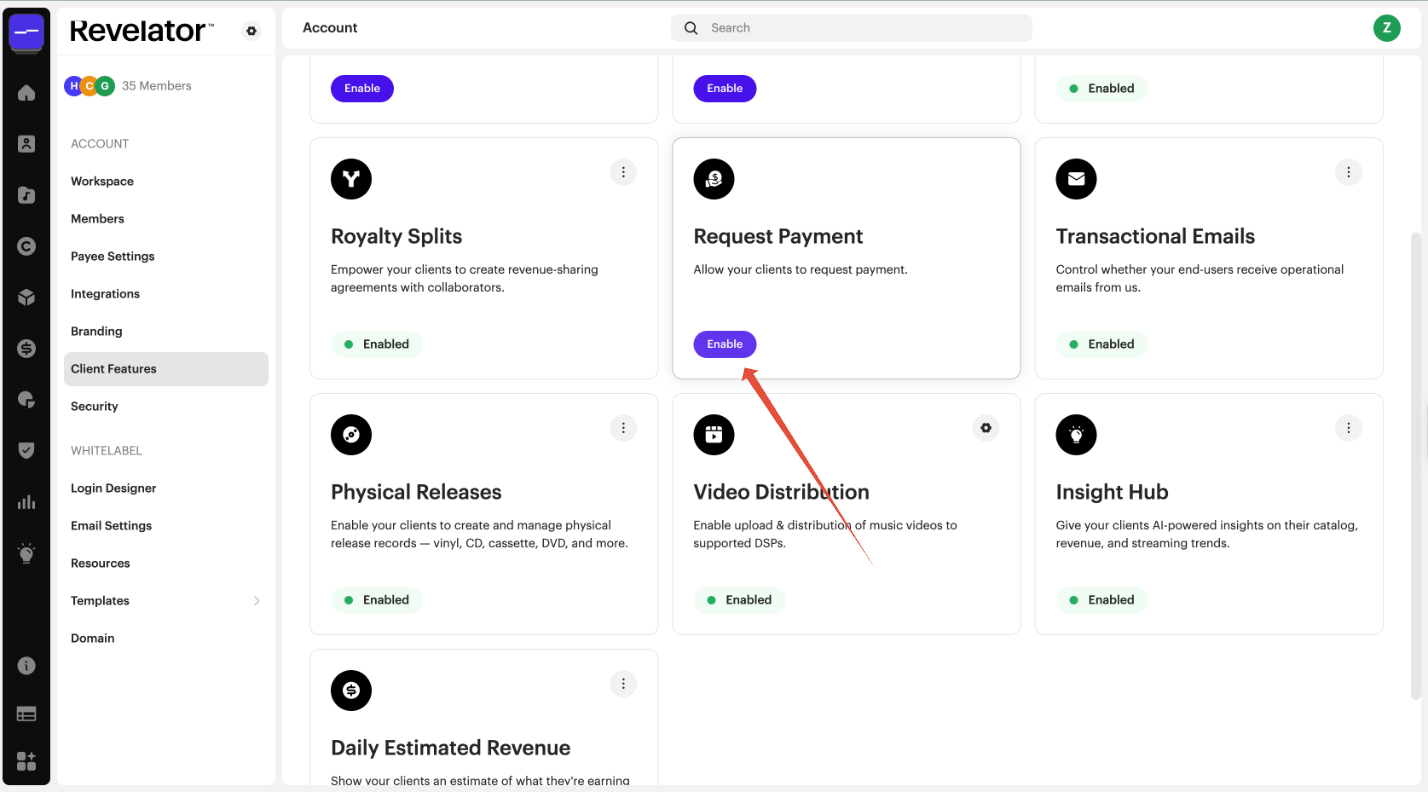
Step 1: Turn on Request Payment
- Click the gear icon next to the Revelator logo to open your Account settings.
- In the left menu, under Account, select Client Features.
- Find the Request Payment card and click Enable.
Who can use this feature?
Payees connected to your enterprise (via Child Accounts or direct Payee accounts) who have access to their balances in Revelator.

When does the blue Request Payment button appear?
The blue button only appears when:
- At least one royalty statement has been approved by your enterprise.
- The payee’s balance is above the minimum payout threshold set in their contract (e.g. $50).
- The payout has not been sent within the defined timeframe (e.g. 7 days after statement approval).
| Note If the payee’s balance is negative (for example, an advance that hasn’t been recouped yet), the Request Payment button doesn’t appear until the balance is positive again. |
What happens when a payee clicks it?
- An email notification is automatically sent to all enterprise users with Finance/Payments permissions.
- The email includes the payee’s balance and statement details.
- The button then becomes disabled(grayed out) until:
- The next royalty statement is approved, or
- The 7-day cooldown period has passed.
What should I do when I receive a Request Payment notification?
- Review the payee’s balance and unpaid statements in your Finance tab.
- Initiate the payout through your normal payment process.
| Note Payments are made against the payee’s total balance, not individual statements. |
Frequently asked questions
Can payees click the button multiple times?
No. The button is disabled after it’s used, either until the next approved statement or until the cooldown period has passed.
Will the system send the payment automatically?
No. The feature only sends you a notification. Payouts are still managed through your normal process.
Who receives the notification?
All enterprise users with Finance/Payments permissions.
What if a payee meets the threshold but doesn’t see the button?
Check that their statement has been approved and that the payment window has elapsed. If both are true and the button still doesn’t appear, contact our support team.
Do payees get notified when their request is processed?
No. Payees only see that their request has been sent. Once you complete the payment, it’s reflected in their balance.
Related articles
Was this article helpful?
That’s Great!
Thank you for your feedback
Sorry! We couldn't be helpful
Thank you for your feedback
Feedback sent
We appreciate your effort and will try to fix the article