Video Analytics lets you see how your distributed music videos perform on Spotify, Apple Music, and iTunes, right alongside your audio. Video streams and video revenue appear across both the Consumption and Revenue dashboards, so you can track video as part of your full catalog without leaving Revelator.
Before you begin
|
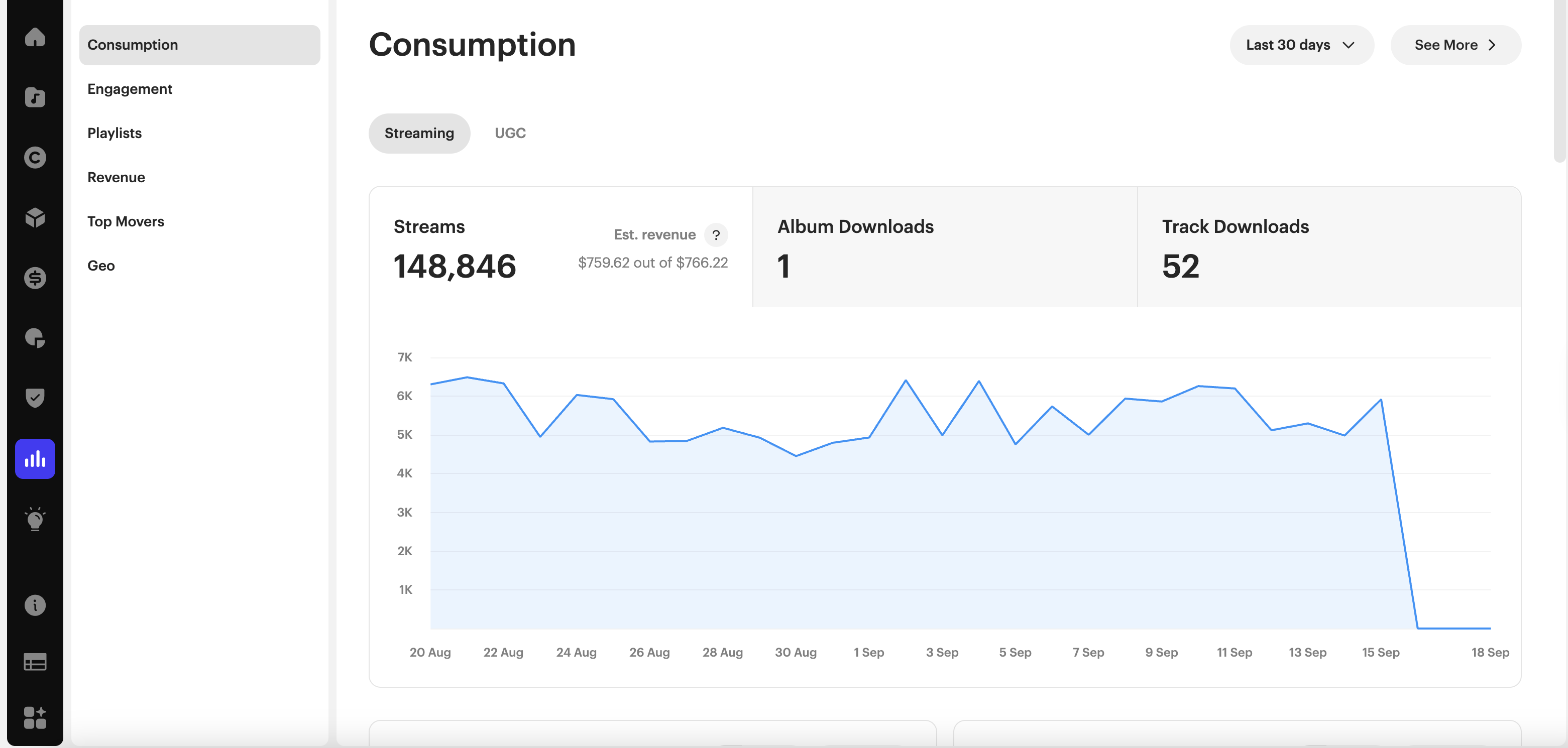
Where video data appears
Once your videos are distributed, their data appears automatically in several places:
- Top Tracks and Top Releases now include your videos alongside audio, with no change to how you read them.
- A new Top Asset Types card shows how your streams and revenue split between audio and video.
- A new Asset Type dimension, column, and filter in the advanced view let you break down and isolate video data
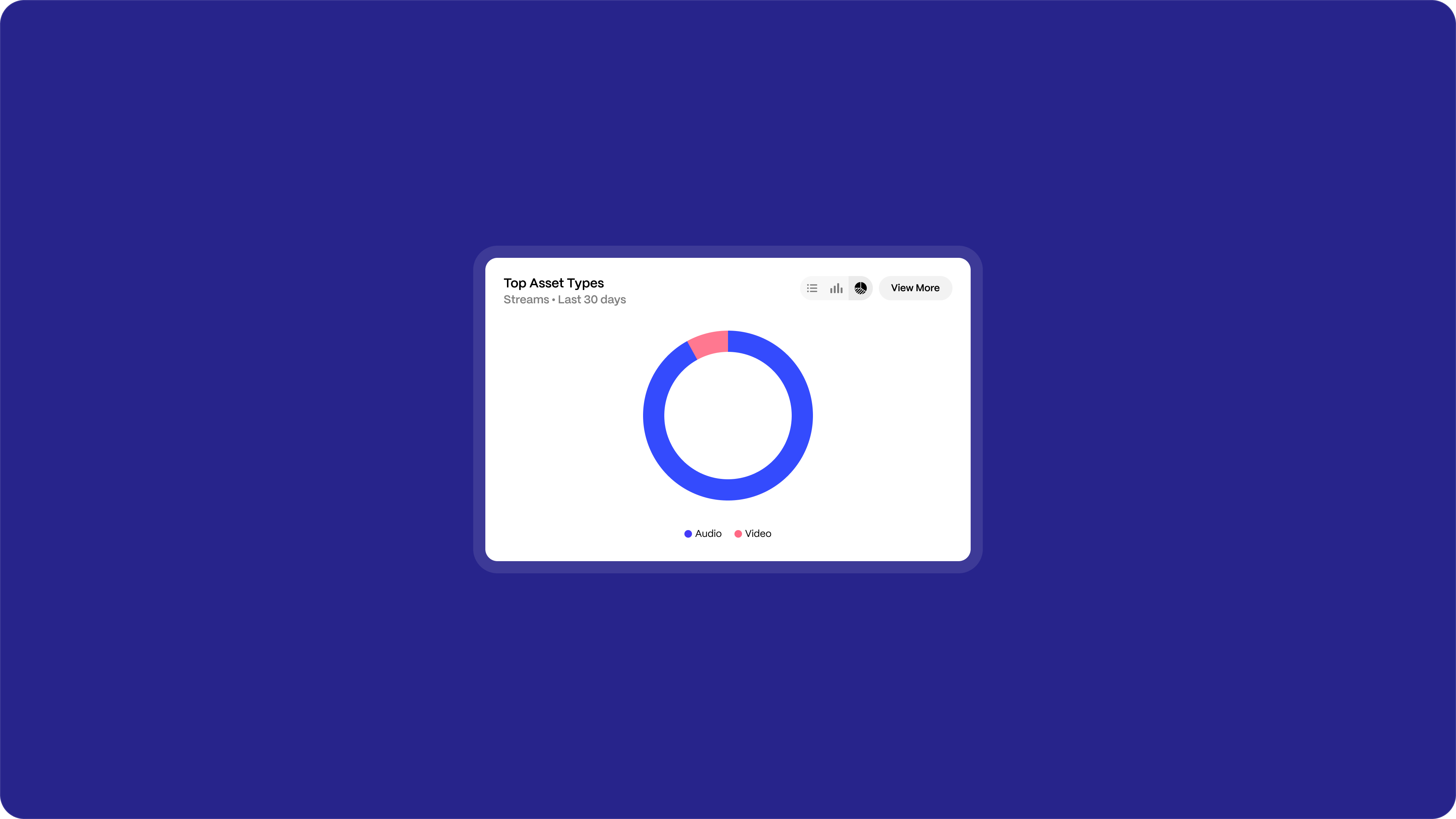
Viewing the audio and video split
- From the main navigation, click Analytics → Consumption (or Revenue).
- Scroll to the Top Asset Types card.
- View the split between Audio and Video for the selected period, with the stream count or revenue amount and percentage share for each.
- Click View More to open the advanced view with the Asset Type dimension already selected and the same date range applied.
| Note At launch, video makes up a small share of most catalogs, so the video bar may appear close to zero next to audio. Switch the card to the bar chart view for the clearest read. |
Breaking down video in the advanced view
The advanced view gives you more ways to isolate and compare video performance.
- From Consumption or Revenue, open the advanced view (use View More on any card).
- Click the Asset Type dimension pill to see your full audio vs. video breakdown.
- Click the Track dimension to see a new Asset Type column that labels each track as Audio or Video.
Filtering by asset type
- In the advanced view, open the Filters panel.
- Under Asset Type, select Video (or Audio). You can select more than one.
- The view updates across dimensions such as DSP, Market, Artist, and Label, so you can see, for example, which platforms and markets are driving your video plays.
| Note The Asset Type filter does not apply to the Recording Version dimension in Consumption, or the YouTube Video and YouTube Channel dimensions in Revenue. When you filter to video, download metrics are hidden, since downloads do not apply to video. |
Asset types reference
In Consumption, the asset type split has two values:
| Asset type | What it includes |
|---|---|
| Audio | Streams from your audio recordings |
| Video | Streams from your distributed music videos |
In Revenue, the Asset Type filter includes additional values that reflect how revenue is reported:
- Audio
- Video
- YouTube Channels
- YouTube Videos
- Digital Releases
| Note Video data currently reflects performance on Spotify and Apple Music, the platforms where music videos are distributed. |
Related articles
Was this article helpful?
That’s Great!
Thank you for your feedback
Sorry! We couldn't be helpful
Thank you for your feedback
Feedback sent
We appreciate your effort and will try to fix the article