Linking your artist's existing profiles tells each store and streaming service exactly who you are, so your releases land on the right artist page. This guide covers where to link profiles, what each platform needs, and how to handle duplicate or unclaimed profiles.
| ImportantAlways link your existing Spotify, Apple Music, SoundCloud, and Meta profiles when creating or selecting an artist. Skipping this step risks the DSP creating a second, duplicate artist page for you, which then requires a manual remapping request to fix. Getting it right the first time avoids this entirely. |
Where this happens
Artist profile linking is done from the artist create/select screen, accessed from inside the track or release editor.
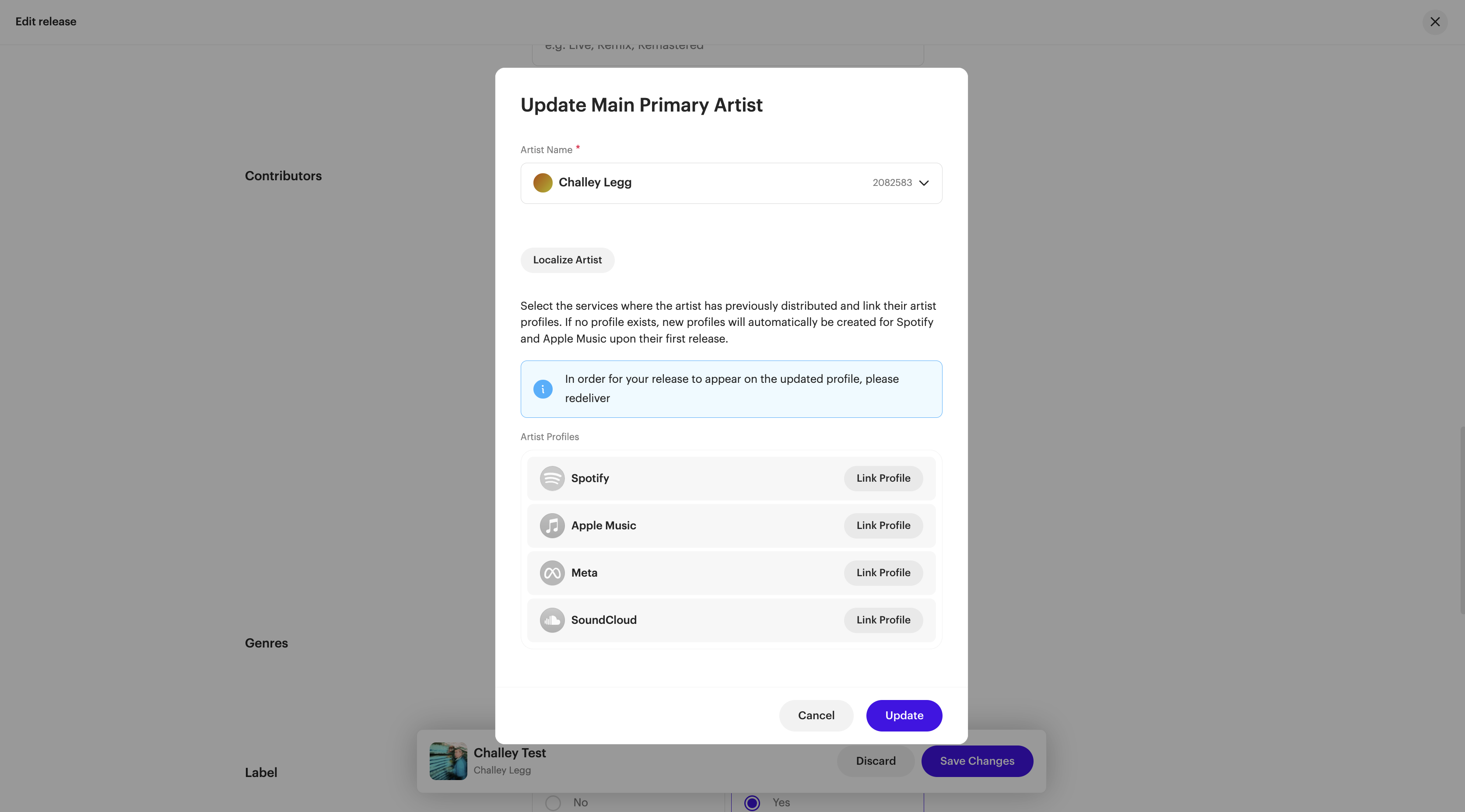
How to link an artist's profiles
- In the Main Primary Artist section, click Add Main Primary Artist (or Add Artist) to create a new artist, or select an existing one.
- Under Artist Profiles, add each platform's profile using the requirements in the section below.
- Add name localizations if the artist releases under different name variants per language or region.
- Click Update.
Platform requirements
Each platform needs a slightly different value. Here's exactly what to enter and where to find it.
Spotify
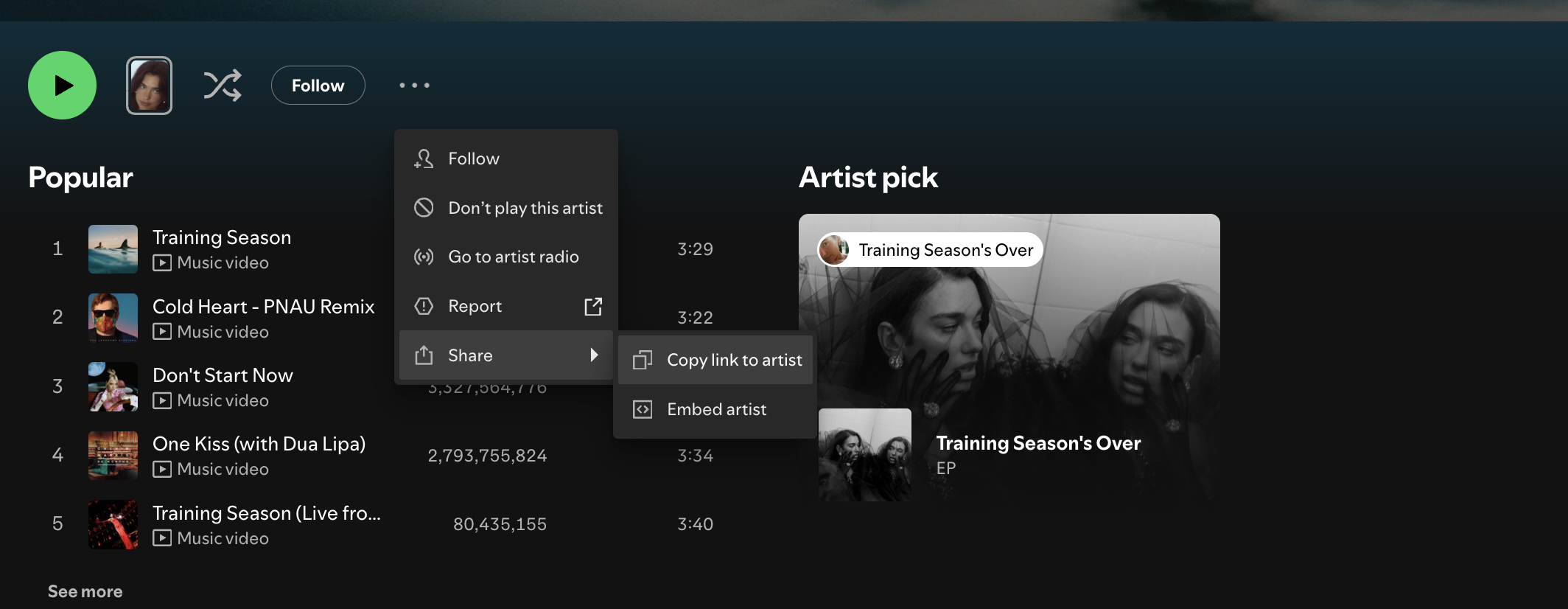
What to enter: your Spotify for Artists profile URI.
How to find it: in the Spotify desktop app, hold the Alt key (Windows) / Option key (Mac), then select Copy Spotify URI.
Apple Music
What to enter: the numeric ID from your Apple Music artist page URL, for example 1249595.
How to find it:
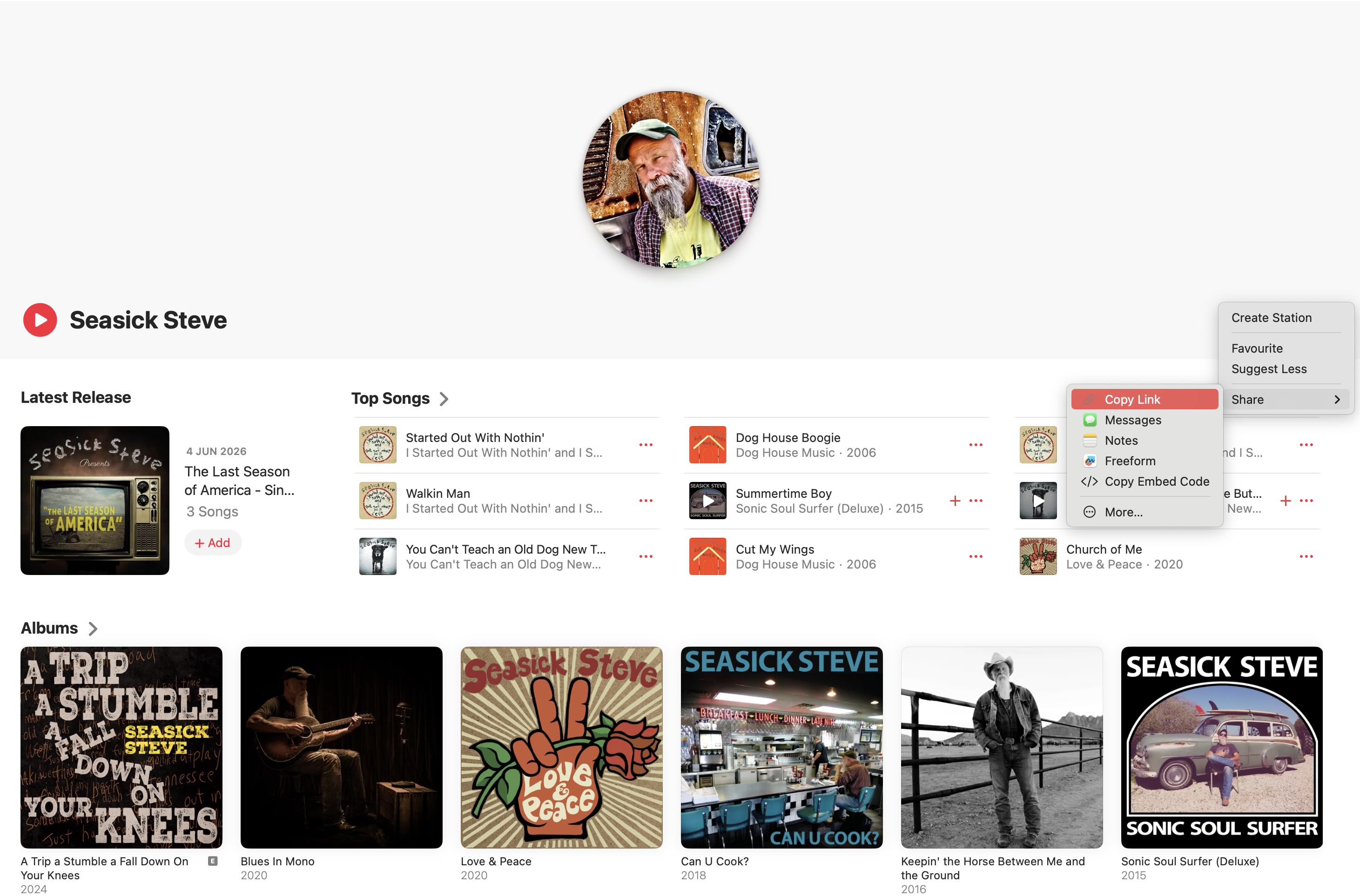
- Open the Apple Music/iTunes app.
- Search for your artist name using the search bar.
- Click the ... to the right of the artist name.
- Click Share, then Copy Link.
- Paste only the numeric part of that URL (e.g.,
1249595).
SoundCloud
What to enter: your SoundCloud username only, which is the part after soundcloud.com/ in your profile URL. For example, if your profile URL is https://soundcloud.com/artistname123, enter artistname123. Do not include the full URL.
| ImportantSoundCloud maps each ISRC to one profile only. Only the profile URL of the Main Primary Artist will be sent to SoundCloud. |
Meta
Instagram linking is coming soon. We’ll announce when it’s live.
You can save your artist’s Instagram URL now, ready for launch.
Once live, Meta will use the URL to associate delivered music with the correct artist profile. You won’t need to obtain a numeric Meta Artist ID.
Add your artist’s Instagram URL
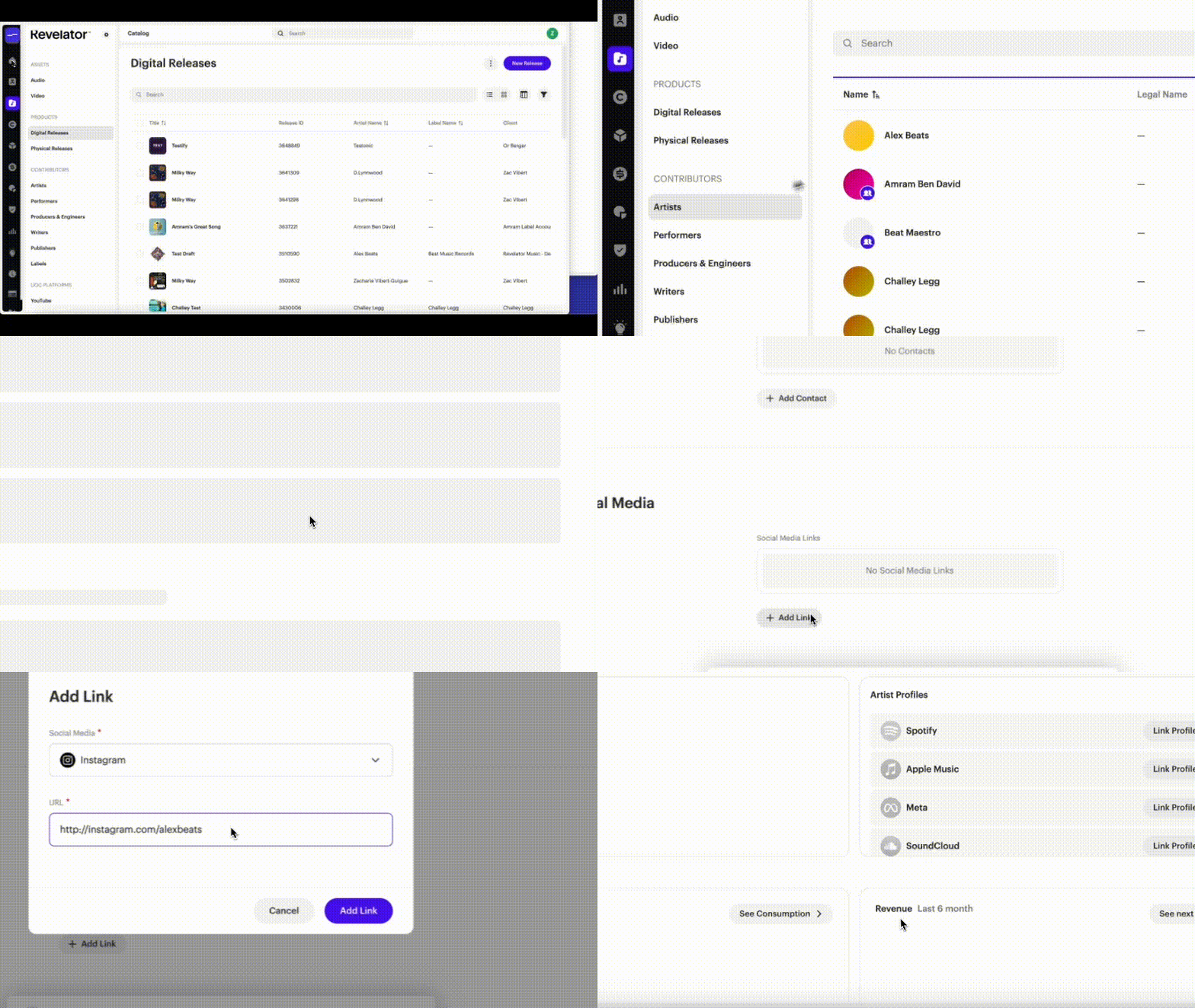
- Go to Catalog > Contributors > Artists.
- Select the artist and click Edit Profile.
- Scroll down to Add Social Media, the final section.
- Click Add Link and choose Instagram.
- Paste the artist’s full official Instagram profile URL, for example: https://www.instagram.com/artistname. A handle alone is not sufficient.
- Click Add Link, then Save Changes.
Saving the URL does not enable Instagram linking yet. It will start being sent with deliveries once the feature is live.
Already have a Meta Artist ID?
You can continue using your existing numeric Meta Artist ID:
- Open the artist’s profile and click Edit Profile.
- Under Add Artist Profiles, click Link Profile next to Meta.
- Enter the numeric Meta Artist ID and confirm the link.
- Click Save Changes.
Do not enter an Instagram URL in this field. Instagram URLs belong under Add Social Media.
Frequently asked questions
What if the artist doesn't have a profile yet?
Spotify and Apple Music: if the artist doesn't yet have an artist profile, contact support for help obtaining a pre-release profile ID.
Meta: use the artist's official public Instagram profile URL. The artist does not need to have released music before, and no pre-release profile ID is required.
What if a duplicate page already exists?
If you've already run into a duplicate artist page on a DSP, contact support with both profile links (the correct one and the duplicate) to request a remapping.
Which Instagram URL should I use?
Use the artist's official public Instagram profile URL, for example https://www.instagram.com/artistname.
Why is only my Main Primary Artist's SoundCloud profile used?
SoundCloud maps each ISRC to one profile only, so only the Main Primary Artist's profile URL is sent to SoundCloud.
What happens if I don't link my existing profiles?
The DSP may create a second, duplicate artist page for you, which then requires a manual remapping request to fix.
Are my artists shared with other Revelator accounts?
No. Artists are specific to your account and are not shared across the wider platform.
Related articles
Was this article helpful?
That’s Great!
Thank you for your feedback
Sorry! We couldn't be helpful
Thank you for your feedback
Feedback sent
We appreciate your effort and will try to fix the article