Before a release goes out, Revelator checks it against distribution requirements and store rules and shows you exactly what needs attention. This article explains how validation works, what the different issue types mean, and how to get a release to Distribution Ready.
How validation works
Validation runs as one connected system across your whole workflow. The same checks apply whether you are building a release, working on an individual audio or video asset, entering the distribution flow, or reviewing a release in inspection. Instead of discovering problems late, you see them as you go and clear them before they hold up delivery.
The three issue types
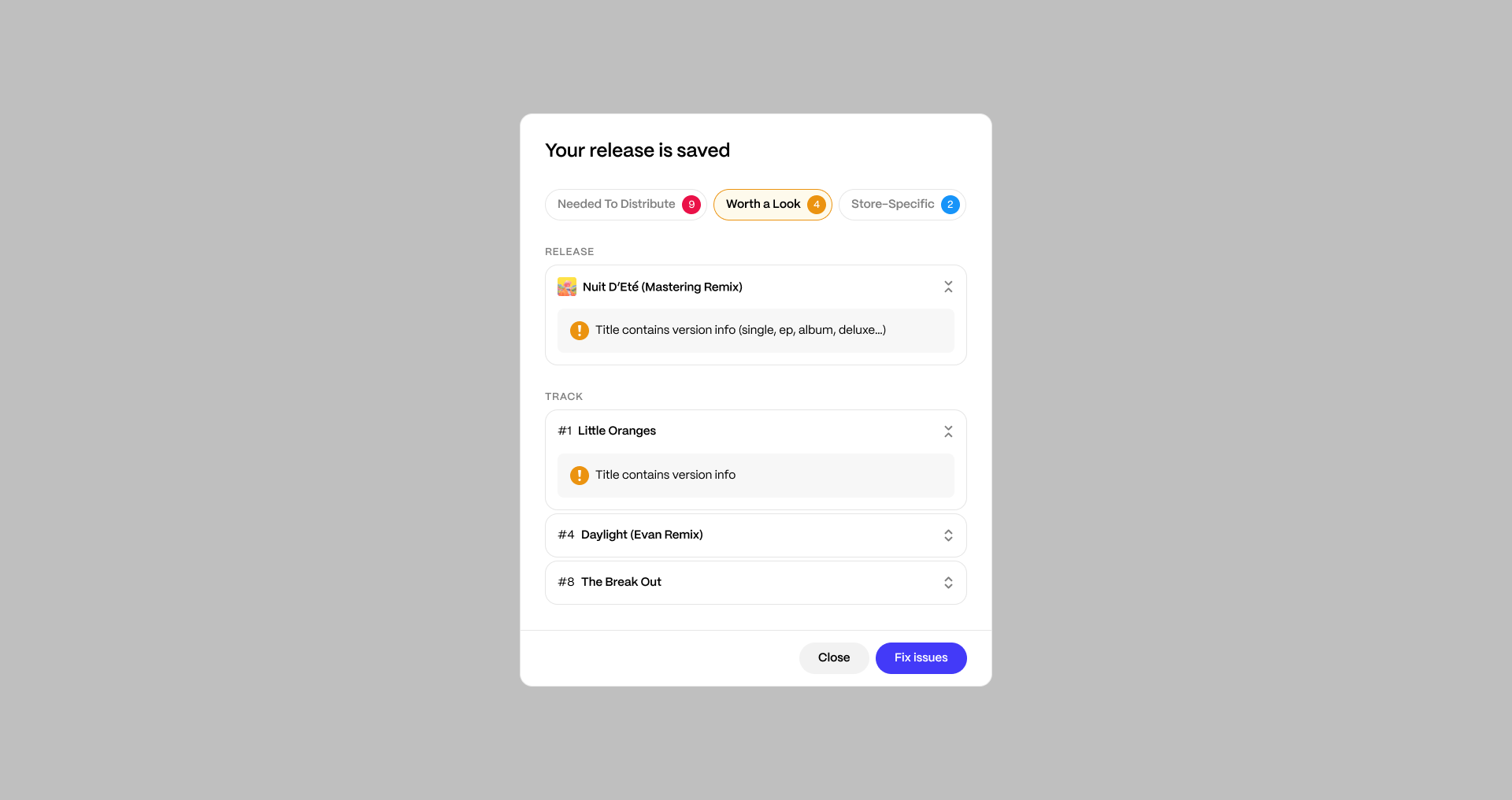
Every issue Revelator finds falls into one of three types. The type tells you whether it blocks distribution and where it applies. In the product, the Warnings type is shown as Worth a look.
| Type | What it means |
|---|---|
| Needed To Distribute | Blocking issues you must fix before the release can be distributed, such as a missing audio file or a required field left empty. |
| Warnings | Non-blocking items worth a look. They never stop distribution, but it is worth confirming they are intended before you deliver. |
| Store-Specific | Requirements that apply only to certain stores. They block delivery to the affected stores only, not to everywhere else. |
Open a release to see its Overview page. The status shows one of two things:
- A green Distribution Ready status means there are no blocking issues, and the Distribute button is available.
- A set of counters means issues remain. Each counter shows a count for one issue type: Needed To Distribute, Warnings, and Store-Specific. When there are blocking issues, the distribution panel reads "Resolve issues to distribute this release" with a Fix issues button.
Fixing issues
Select a counter, or click Fix issues, to open a breakdown of what needs attention.
- In the Needed To Distribute and Warnings views, issues are grouped under Release and Track, so you can see whether a problem is on the release itself or on a specific track.
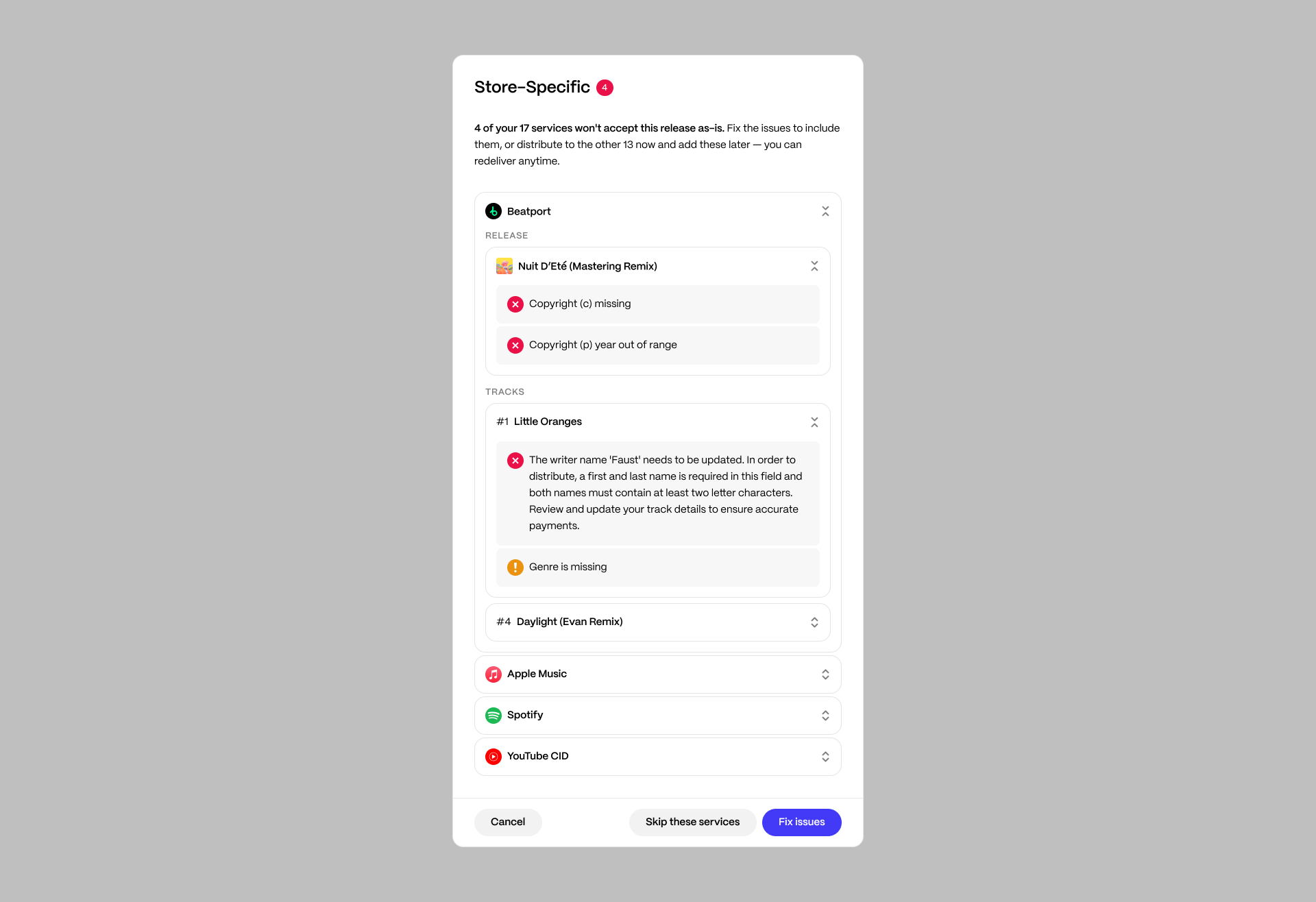
- In the Store-Specific view, issues are grouped by store first, then by release and track, so you can see which stores each requirement affects.
- Expand any release or track to see its individual issues. Select Fix issues to jump straight to the fields you need to update.
| Note Once every blocking issue is cleared, the release shows Distribution Ready and the Distribute button becomes available. Any remaining warnings do not block you. |
Saving incomplete work
You can save a release or asset before it is complete. Enter the minimum required information, save your progress, and return later to add whatever is missing. This is useful when you are waiting on files, artwork, or details from an artist. The release stays in your catalog with its outstanding issues listed, so you always know what is left to do.
Store-specific requirements
Some stores have rules that others do not. When an issue applies only to certain stores, it appears as Store-Specific and blocks delivery to those stores only. You have two choices:
- Fix the issue to include the affected stores in your delivery.
- Skip the affected stores and deliver everywhere else.
Validation in inspection
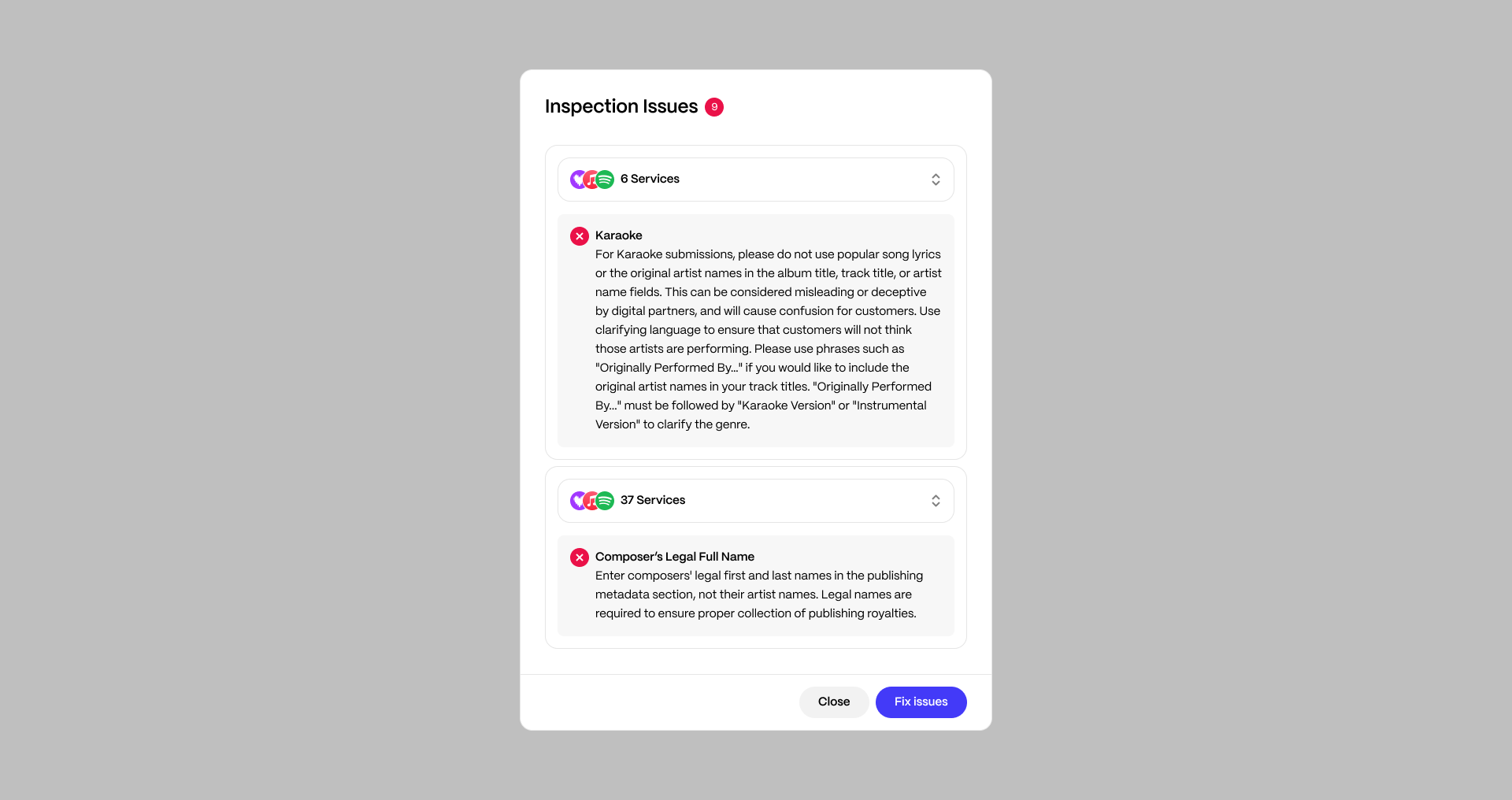
Validation continues through inspection. If a value changes during review and no longer meets a requirement, it is flagged before the release can be approved. In the inspection view, issues open in the Inspection Issues breakdown, grouped by how many services each issue affects.
| Note Some checks happen only at the inspection stage, including the Spotify Watchlist check. If a release is rejected in inspection, it is no longer Distribution Ready and the flagged issues must be fixed before it can be distributed again. |
A final check before delivery
When you enter the distribution flow, Revelator verifies the release one more time. This final check helps make sure nothing has changed or been missed since you last saw a Distribution Ready status.
Some requirements are checked only at the distribution step. When you open the distribution settings, Revelator checks details that depend on where and how you deliver, such as pricing, delivery policies, territory availability, and the release date. If something is missing or not allowed for a store you have chosen, you will be asked to fix it before distribution completes, even if the release already showed as Distribution Ready. That is expected: Distribution Ready confirms your core release and track details are complete, while these final checks apply to your specific delivery choices.
Related articles
Was this article helpful?
That’s Great!
Thank you for your feedback
Sorry! We couldn't be helpful
Thank you for your feedback
Feedback sent
We appreciate your effort and will try to fix the article