Apple Music Motion Artwork lets artists, labels, and rights holders add animated visuals to their releases and artist page on Apple Music. Instead of a static image, you can use motion to capture fans' attention and make a memorable first impression. This guide explains the two types of Motion Artwork, Apple's requirements, and how to submit your files through Revelator.
| Note Apple Music currently supports Motion Artwork for EPs, albums, and artist profiles — not singles. |
What is Apple Music Motion Artwork?
Motion Artwork appears in two distinct ways on Apple Music:
- Artist Page Motion: A short, filmed video (no animation/graphics) on your Apple Music artist profile. Great for behind-the-scenes clips, scenic b-roll footage, or any non-performance video that showcases your brand.
- Album Motion: An animated or motion-graphic version of your album cover. The animation loops seamlessly to bring your artwork to life.
Why it matters
- Enhanced fan engagement: Visually striking content sets the tone for your release and deepens listener connection.
- Consistent branding: Align motion visuals with your existing aesthetic across platforms.
- Discovery: Distinctive animations help you stand out among millions of other releases on Apple Music.
Examples
- Artist Page Motion: Check out Bad Bunny's Apple Music artist page to see how short video clips can bring an artist's brand to life.
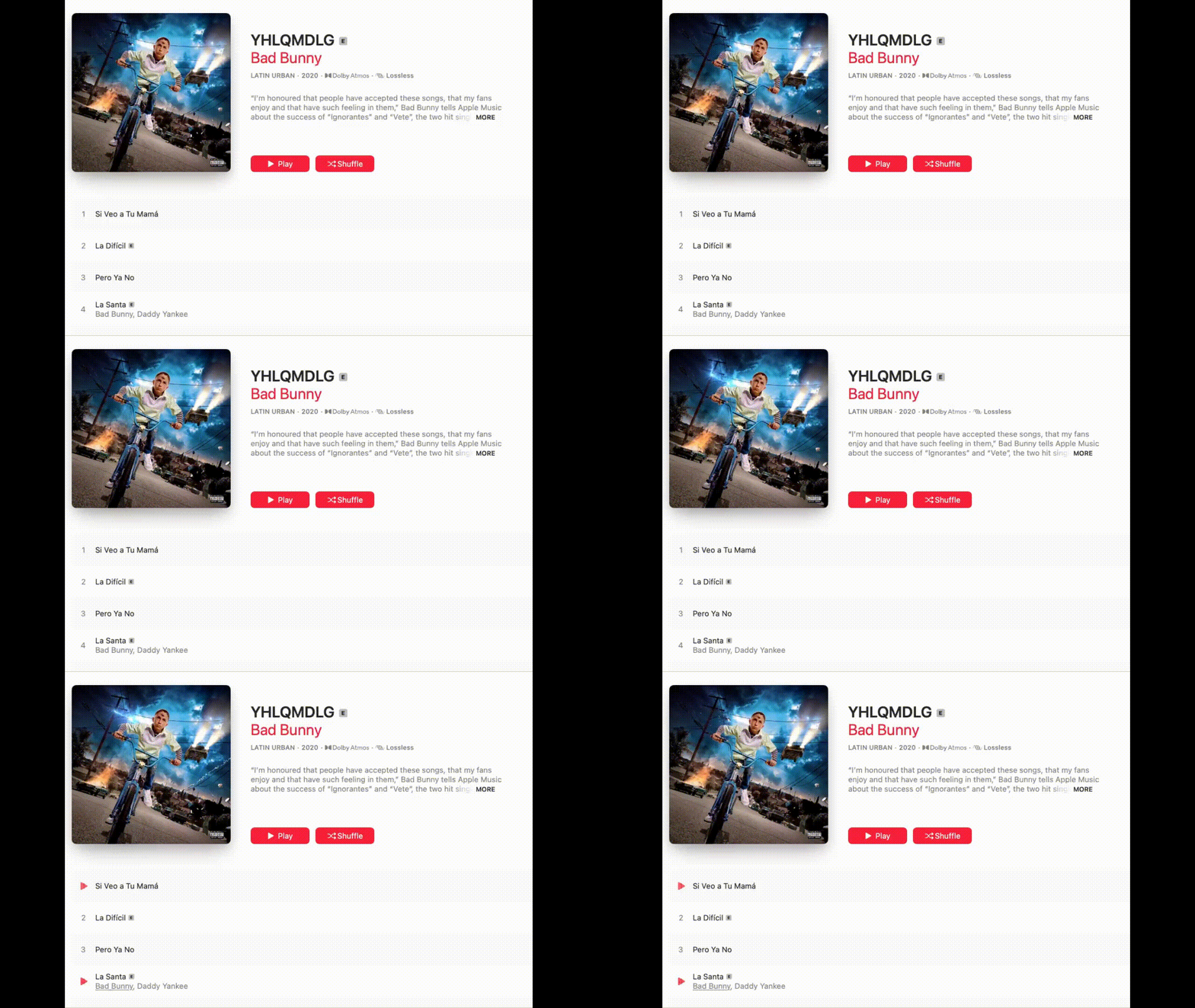
- Album Motion: See the album "YHLQMDLG" for an example of subtle animations that enhance cover art.
Artist Page Motion
Artist Page Motion is a filmed (live-action) piece of content — no animation or motion graphics allowed. It appears on your Apple Music artist profile as a looped or short-form video.

Key requirements
- No singing or lip-syncing: Apple Music does not allow performance footage with visible mouth movements.
- Aspect ratios: Provide 1:1 (3840×3840) and 3:4 (2048×2732) files.
- Best practices: Keep it visually interesting but not distracting. Think behind-the-scenes, atmospheric b-roll, location shots, or brand storytelling clips.
| Note For more details, see Apple Music Artist Page Motion guidelines. |
Album Motion
Album Motion is an animated or motion-graphic representation of your album cover. It must loop seamlessly, with the first frame identical to your static cover art.
Key requirements
- Animation only: No live-action video.
- Duration: 15–35 seconds.
- Aspect ratios: Provide 1:1 (3840×3840) and 3:4 (2048×2732).
- Seamless loop: Avoid fades to white/black or other transitions that break the loop.
- Typography and frame edges: Album artwork must follow Apple's typography, looping, and frame edge rules.
| Note For in-depth specs and templates, see Apple Music Album Motion guidelines. |
Technical specs
| Specification | Requirement |
|---|---|
| Format | .mov |
| Codec | Apple ProRes 4444, 422, 422 (HQ), or 422 (LT) |
| Resolution | 1:1 (3840×3840) and 3:4 (2048×2732) |
| Frame rates | 23.976, 24, 25, 29.97, or 30 fps |
| Color profile | Rec. 709 or sRGB |
| Length | 15–35 seconds |
| Audio | None (confirm "Export Audio" is disabled) |
Important tips
- Start frame = static cover: Your first frame should match your album's static cover (for Album Motion) or be a clear, representative still (for Artist Page Motion).
- Avoid flashing edits: Excessive strobe or flashing effects are discouraged for both aesthetic and accessibility reasons.
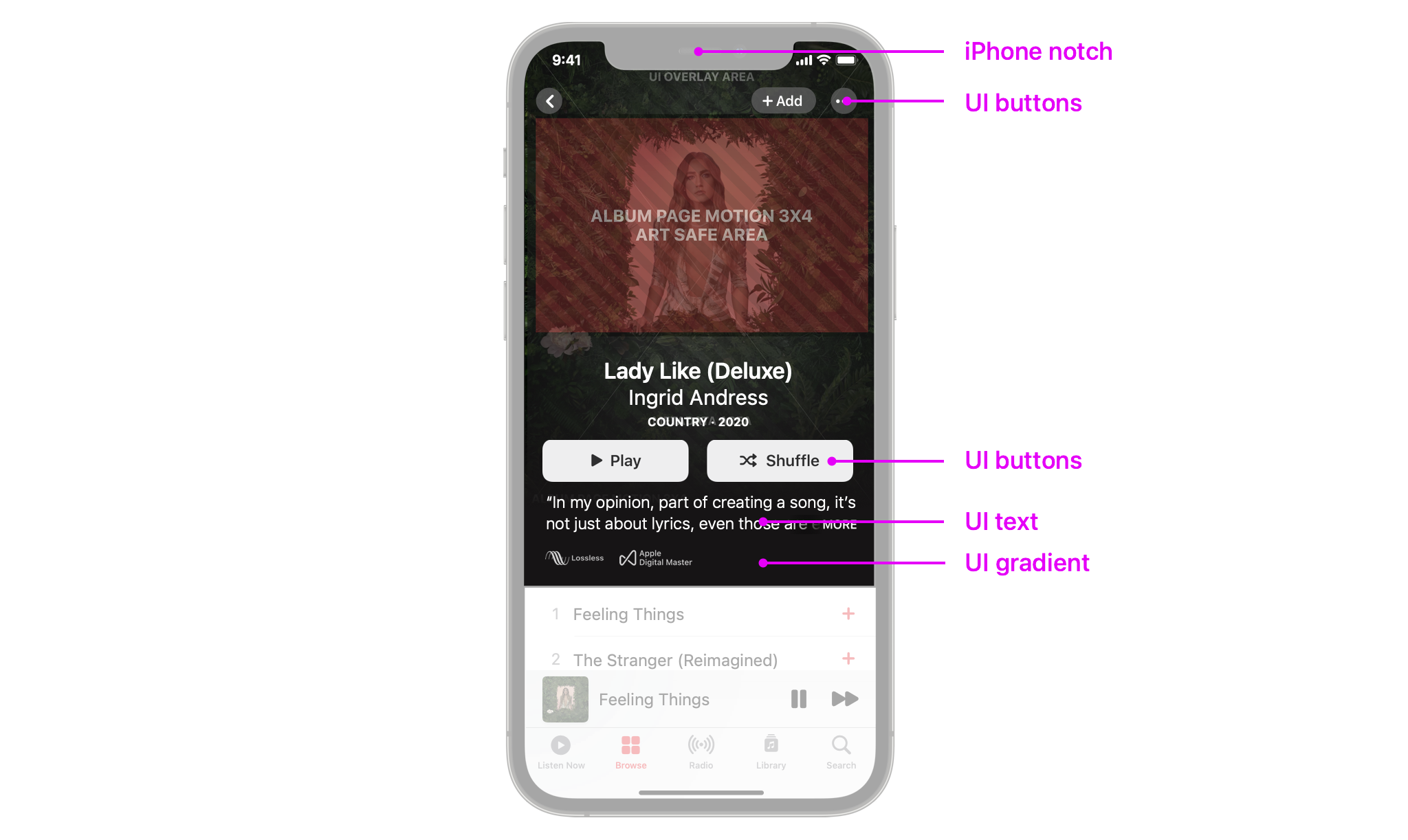
- Safe areas: 1:1 (square) is typically displayed on iPad, Mac, and Apple TV. 3:4 (vertical) displays on iPhone — be mindful of the notch and UI overlay.
- No Parental Advisory logos: Apple Music handles explicit content via metadata, so logos on the artwork are unnecessary.
- High quality: Don't upscale from low-resolution sources; the files need to look crisp on Retina screens.
| Note For Apple's full delivery requirements, see Creating and delivering Motion Artwork. |
How to submit Motion Artwork through Revelator
Motion Artwork isn't uploaded in the Revelator dashboard. Instead, you submit it through our Apple Music Motion Artwork submission form, and we deliver it to Apple Music for you.
Before you begin
|
- Prepare both files: Export the 1:1 and 3:4 versions as .mov files that meet the specs above.
- Remove audio: Make sure your editing software doesn't export an audio track.
- Check settings: Apple ProRes is typically preferred for highest quality. If using H.264, aim for a bitrate of at least 100 Mbps.
- Test looping: Double-check that the file loops seamlessly and meets Apple's specs.
- Share your files: Upload the files to a file-sharing service (Google Drive, Dropbox, etc.) and set the link so anyone can access it without logging in.
- Complete the form: Fill out the Apple Music Motion Artwork submission form and include your file-sharing link.
| Important Submissions that don't meet Apple Music's technical requirements will be rejected, which means resubmitting and potential delays. Check your files against the specs above before submitting. |
What happens after you submit
- Processing: Requests are typically processed within 24 to 48 business hours.
- No news is good news: You'll only be contacted if there's an issue with your request or if more information is needed. If you don't hear from us, your submission has been received and is being processed.
- Apple review: Apple Music reviews submissions in approximately 5–7 business days after your files are delivered.
Timelines and approval
- Review time: Approximately 5–7 business days after your files are delivered to Apple Music.
- On release: Artist Page Motion typically appears on or after your official release (or pre-order) date. Album Motion goes live on the album page around the same timeframe.
- Plan ahead: Submit at least 2–3 weeks before your release to allow for any feedback or resubmissions.
Common pitfalls and how to avoid them
- Missing aspect ratios: Apple won't accept submissions missing either 1:1 or 3:4 — provide both.
- Metadata mismatch: Confirm your Apple Music artist page URL/ID or album URL is correct before submitting.
- Inaccessible file links: Make sure your file-sharing link has the correct permissions and is openly accessible (no login required).
| Warning Once delivered, Motion Artwork can only be removed by pulling the entire release off Apple Music and re-delivering it with a new barcode. |
FAQs
Can I upload Motion Artwork in the Revelator dashboard?
No. Submit your files through the Apple Music Motion Artwork submission form using a file-sharing link.
Can I submit Motion Artwork for a single?
No. Apple currently supports Motion Artwork for EPs, albums, and artist pages only.
Can I replace Motion Artwork after submission?
Yes, but only before Apple processes it. After delivery, you'd need to take down and re-deliver the release under a new barcode.
How long does it take for my Motion Artwork to appear?
Typically 5–7 business days for Apple's review. Once approved, it will surface on or around your release/pre-order date.
I submitted the form but haven't heard back. Is that normal?
Yes. We only contact you if there's an issue or we need more information. If you don't hear from us, your submission has been received and is being processed.
Related articles
Was this article helpful?
That’s Great!
Thank you for your feedback
Sorry! We couldn't be helpful
Thank you for your feedback
Feedback sent
We appreciate your effort and will try to fix the article